Component Call
After a component is created or authorized, it can be called in any Agent application — including My Assistant, Conversational Workflow, and Workflow.
Call in My Assistant
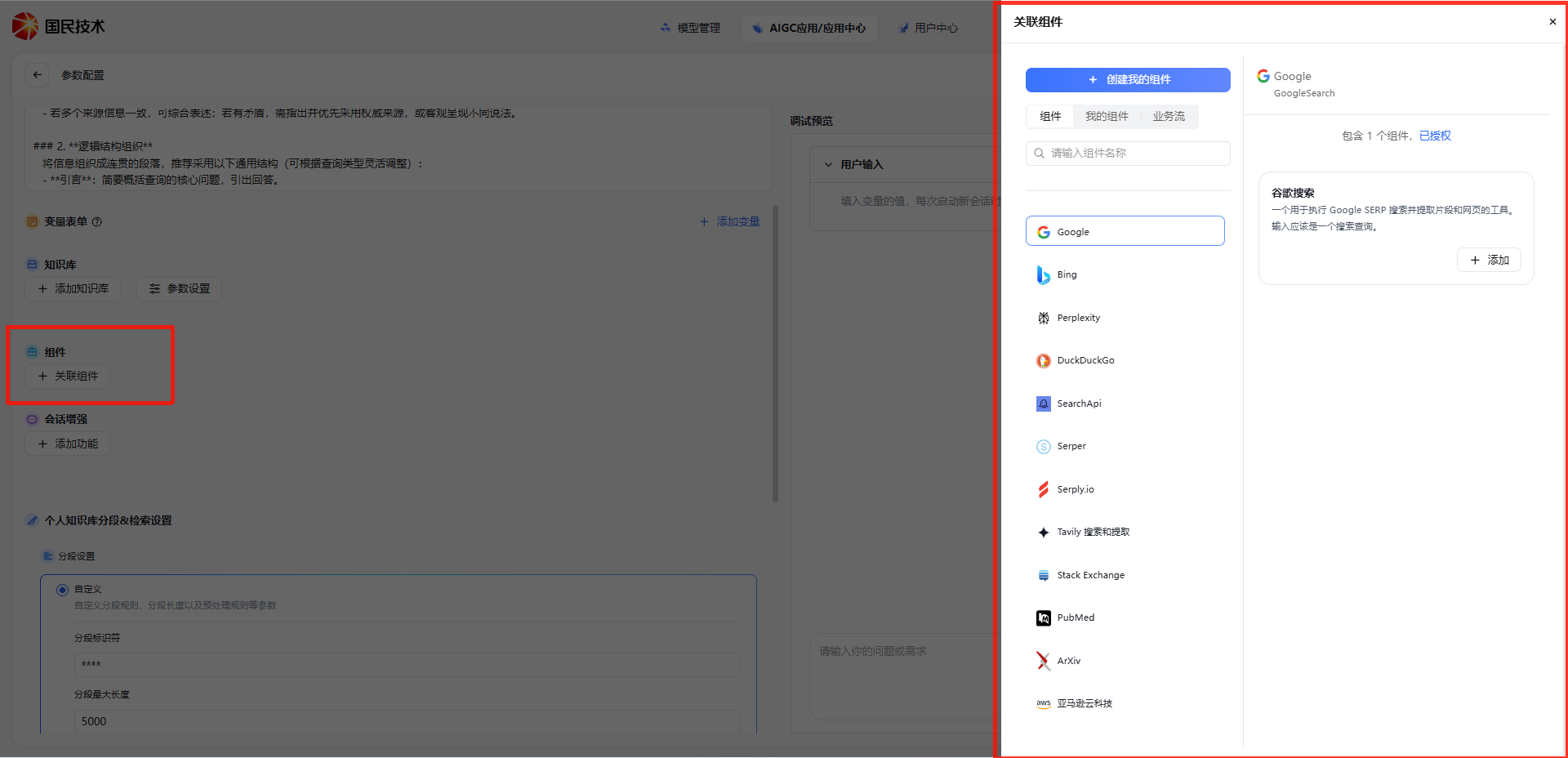
Go to the My Assistant edit page. In the left parameter configuration area, find the Components module and click Associate Component. A component selection panel will appear on the right.
The panel has three tabs:
- Components — Platform built-in public components (e.g., Google, Bing, Perplexity search components)
- My Components — Custom components created in the Component Center
- Workflows — Published workflows that can be called as components
Select the component you need, then click the Add button on the right to complete the association. Authorized components display an Authorized badge; unauthorized components require authorization in the Component Center first.
Call in Workflow / Conversational Workflow
Go to the workflow or conversational workflow edit page. Switch to the Components tab at the top of the left node panel to see all available components, grouped as:
- My Components — Custom-created components
- Workflows — Published workflows
- Components — Platform built-in public components (Google, Bing, Perplexity, etc.)
Drag a component from the left list onto the canvas to add it as a node in the workflow. The call method is identical for both Workflow and Conversational Workflow.
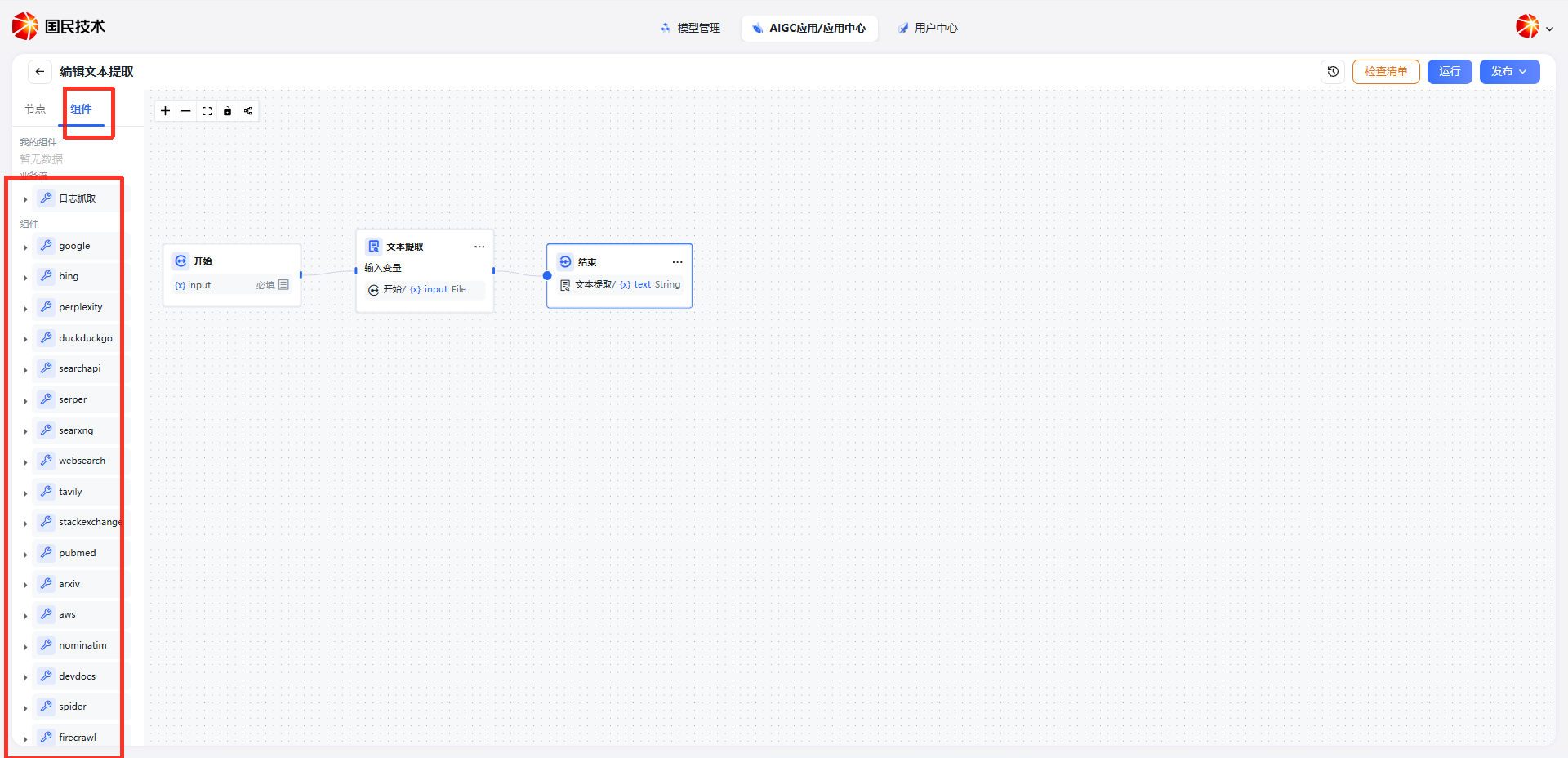
Tip: If the component list shows "No data", go to the Component Center to authorize the corresponding component, or add a custom component in Create Component.