User Management
User Management is used to maintain member account information in the system. Administrators can navigate to User Center → Users via the top navigation bar to view, add, edit, and delete users.
User List
The user list displays all member accounts currently in the system. Each record includes:
| Field | Description |
|---|---|
| Name | User's display name |
| Phone | Login account and contact number |
| Department | The organizational department the user belongs to |
| Role | System roles assigned to the user |
| Status | Account status (Enabled / Disabled) |
| Created At | Account creation date |
| Actions | Edit or delete the user |
Add Member
Click the Add Member button in the top right corner. Fill in the following information and click Confirm:
| Field | Required | Description |
|---|---|---|
| Name | Yes | User's display name |
| Phone | Yes | Used as the login account; must be unique |
| No | User's email address | |
| Department | No | Select the user's department |
| Role | No | Assign one or more system roles |
| Password | Yes | Set the user's initial login password |
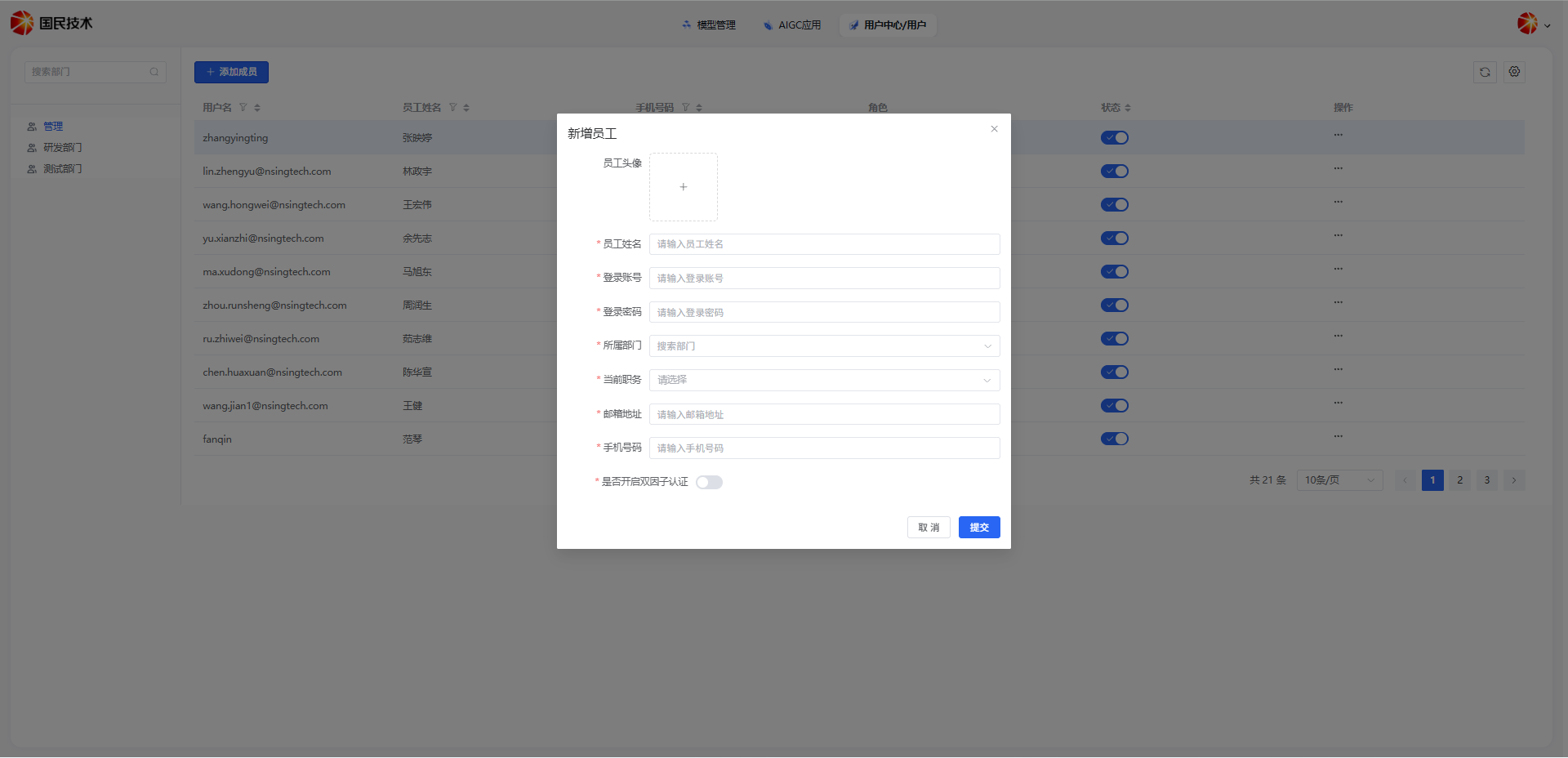
Tip: After creation, you can modify the user's role and department at any time on the edit page.
Search Users
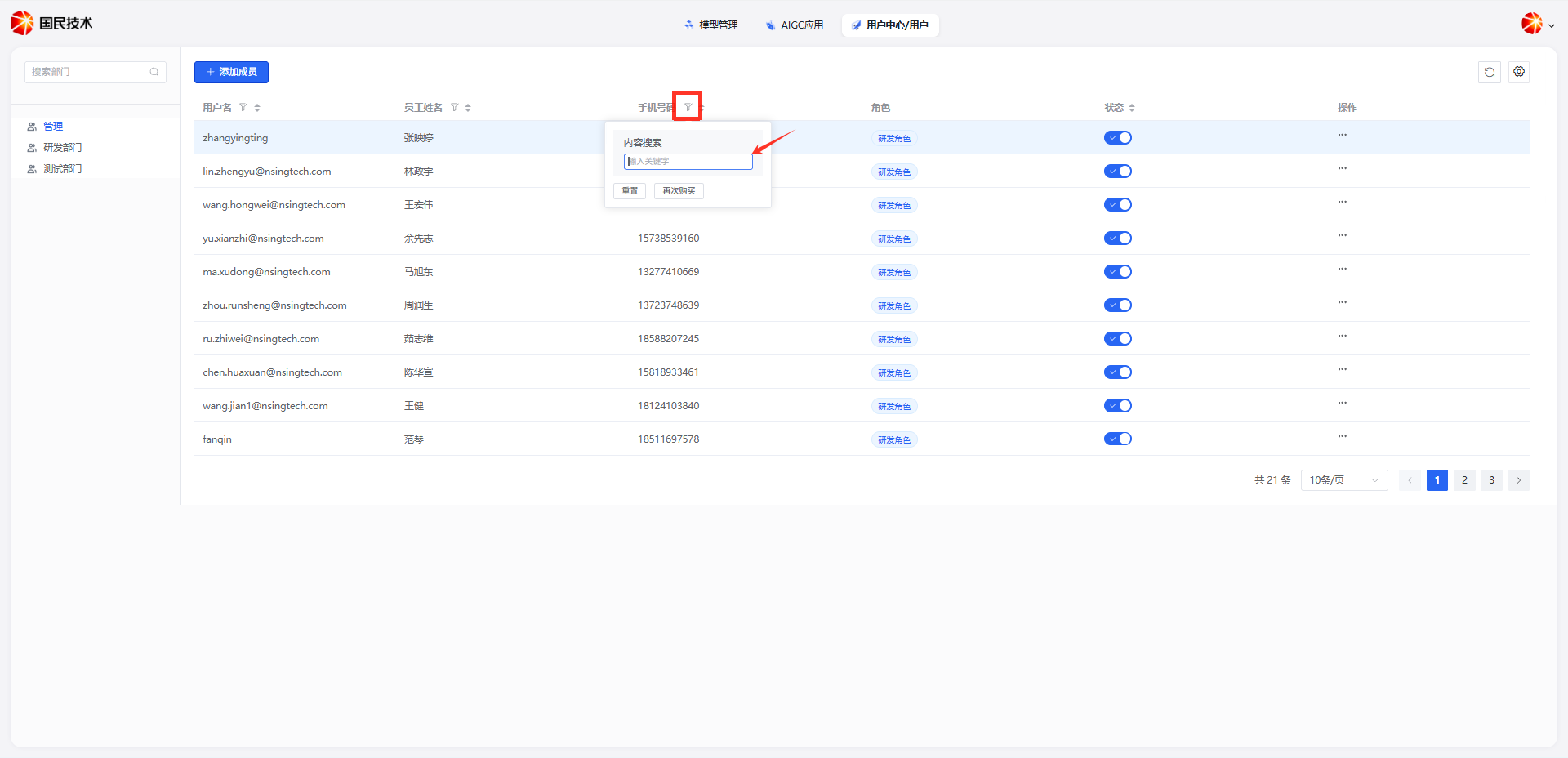
Click the search box above the list to quickly find users by name or phone number.
Edit User
Click the Edit button to the right of a user record. The following information can be modified:
| Field | Description |
|---|---|
| Name | Change the user's display name |
| Change the user's email address | |
| Department | Adjust the user's department |
| Role | Reassign the user's roles |
| Status | Enable or disable the account |
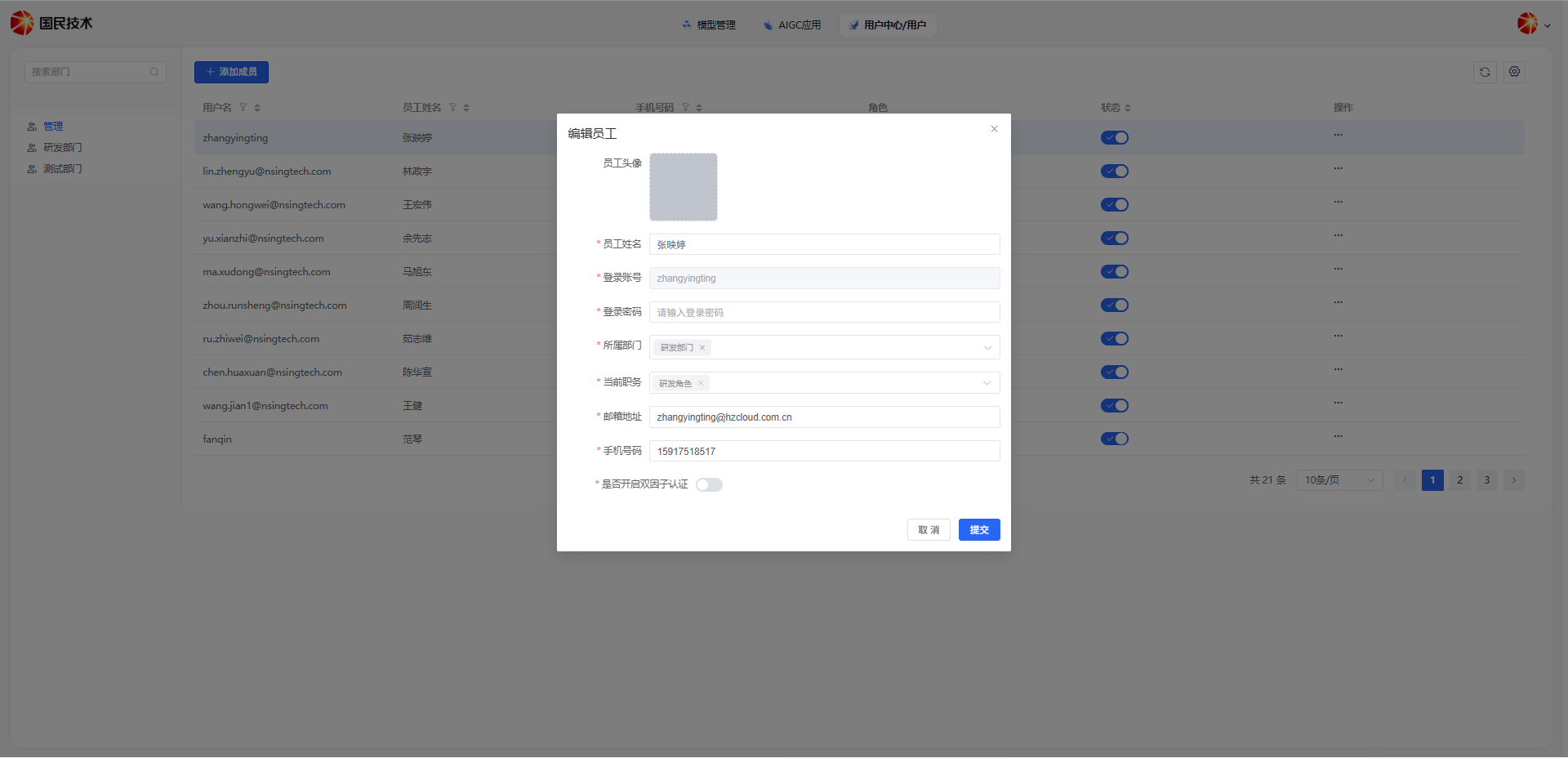
Click Confirm to save changes.
Delete User
Click the Delete button to the right of a user record. A confirmation prompt will appear.
Note: Deletion is irreversible. Confirm the account is no longer needed before deleting. To temporarily suspend an account, use the Disable function instead.