Role & Permission Management
Role & Permission Management is used to define the functional access permissions for different roles in the system. Administrators can navigate to User Center → Roles via the top navigation bar to view, add, edit, and configure permissions for roles.
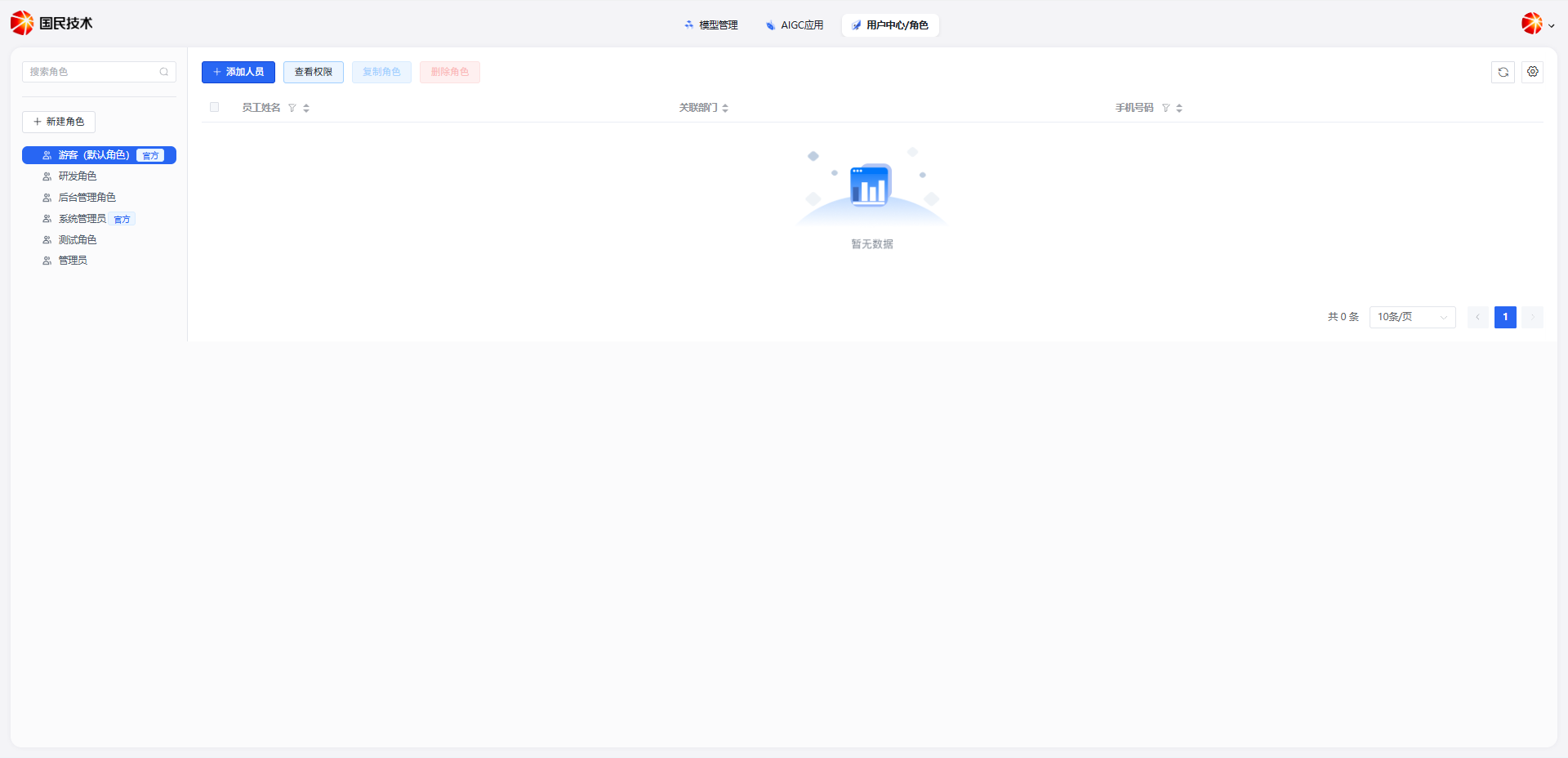
Role List
The role list displays all roles currently in the system. Each record includes:
| Field | Description |
|---|---|
| Role Name | Display name of the role |
| Description | Brief description of the role's responsibilities or purpose |
| Member Count | Number of users currently assigned this role |
| Created At | Role creation date |
| Actions | Edit or delete the role |
Add Role
Click the Add Role button on the left side of the page. Fill in the following information and click Confirm:
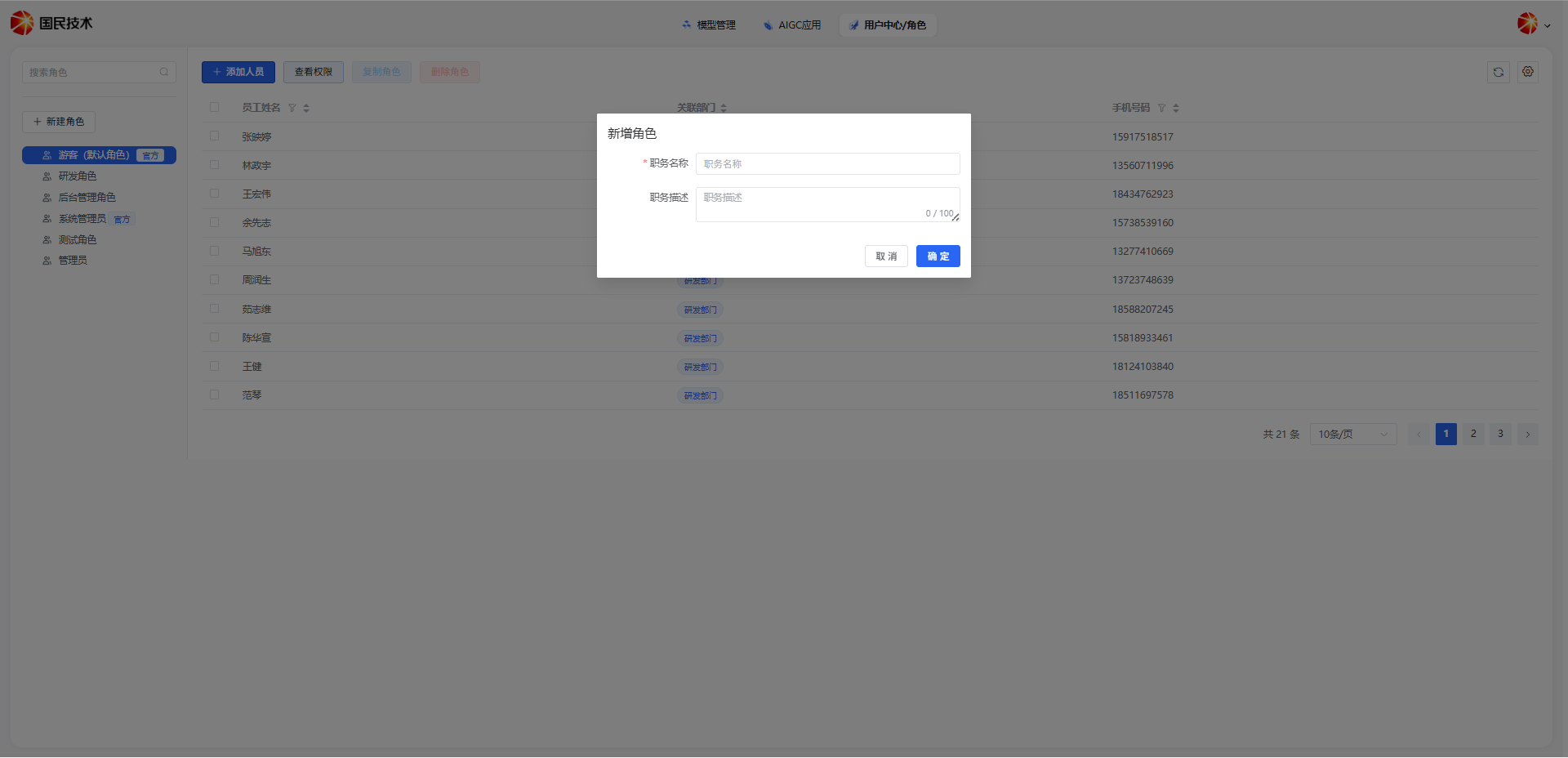
| Field | Description |
|---|---|
| Role Name | Name of the role; must be unique |
| Description | Optional; describe the role's responsibilities |
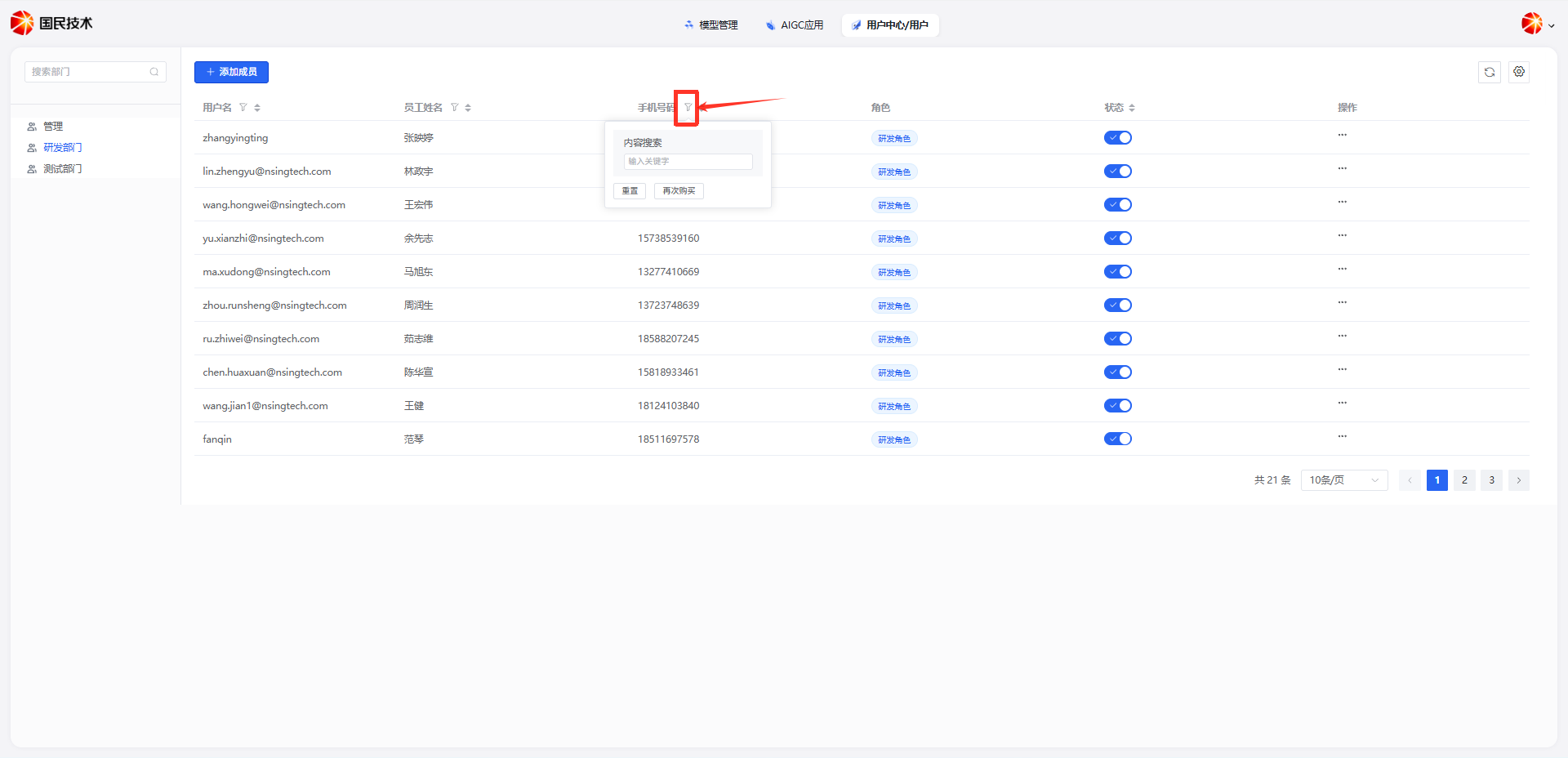
Search Roles
Click the filter button to search for role users by phone number.
Permission Configuration
Check the checkbox to the left of a role in the list, then click the Set Permissions button. A permission configuration panel will appear on the right.
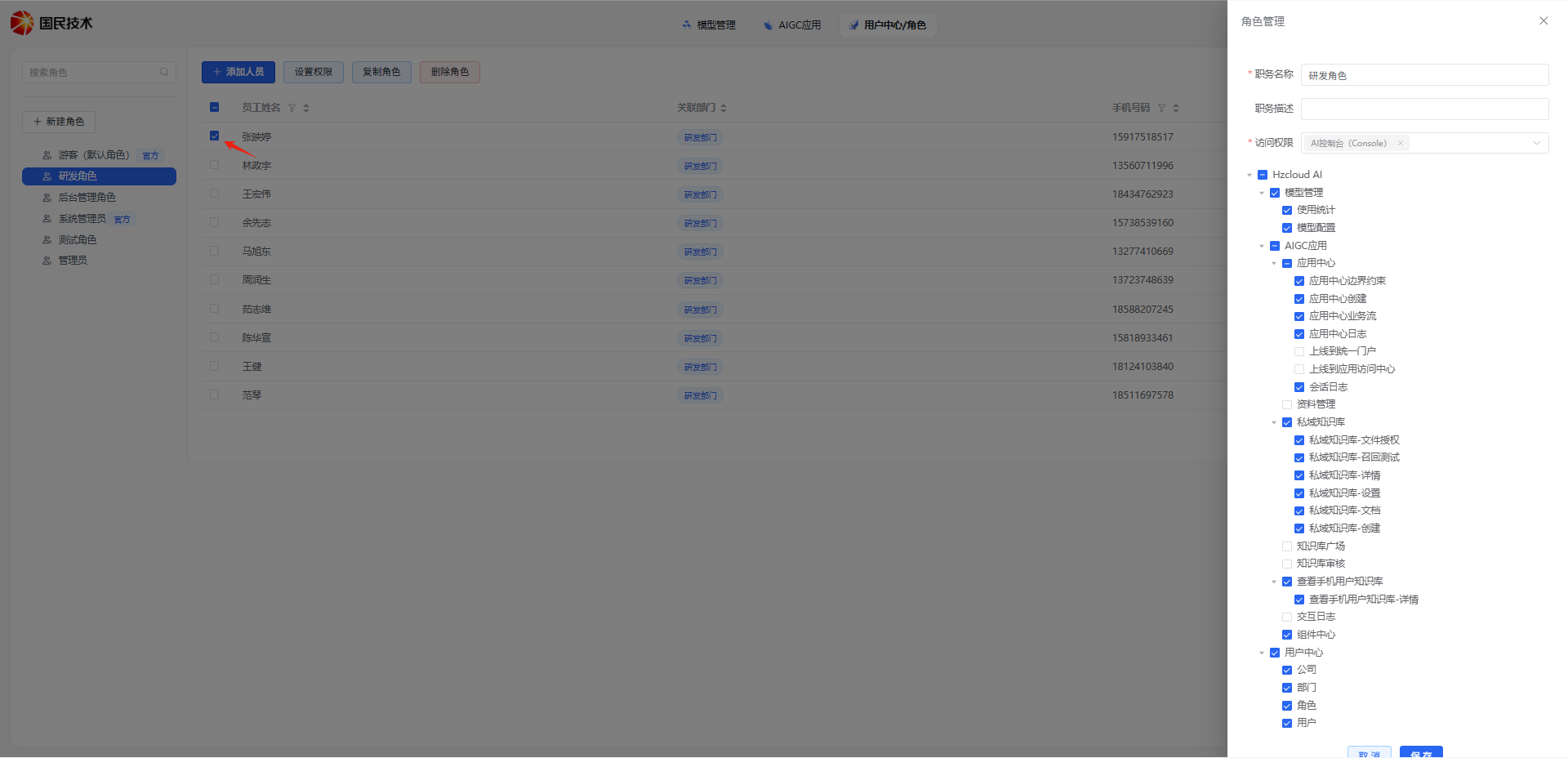
Permissions are displayed in a tree structure by functional module. Checking an item grants the role access to that function. Click Save after configuration.
Access Permissions
The Access Permissions field at the top of the configuration panel restricts which system entry points this role can log in to:
| Access Permission | Description |
|---|---|
| AI Console | Can log in and use the admin management console |
| Smart Application Access | Can only access published smart applications; cannot enter the console |
Permission Modules
Permissions are grouped by the following modules:
Model Management
| Permission | Description |
|---|---|
| Usage Statistics | View call volume, Token consumption, and other usage stats for each model |
| Model Configuration | Add, edit, enable/disable AI models and their parameter configurations |
AIGC Applications
Application Center
| Permission | Description |
|---|---|
| Application Center | Access the Application Center page (parent permission) |
| App Center - Boundary Constraints | Configure content boundaries and safety constraint rules for applications |
| App Center - Create | Create new AI applications |
| App Center - Workflow | View and edit application workflow orchestration |
| App Center - Logs | View application run logs and call records |
| Publish to Unified Portal | Publish applications to the unified portal for user access |
| Publish to App Access Center | Publish applications to the App Access Center |
| Conversation Logs | View conversation history between users and applications |
Data Management
| Permission | Description |
|---|---|
| Data Management | Manage documents and other data files uploaded to the AI-FAE Knowledge Square |
Private Knowledge Base
| Permission | Description |
|---|---|
| Private Knowledge Base | Access the Private Knowledge Base module (parent permission) |
| Private KB - File Authorization | Manage file access authorization within the knowledge base |
| Private KB - Recall Testing | Test knowledge base retrieval effectiveness |
| Private KB - Details | View knowledgdetails |
| Private KB - Settings | Modify knowledge base basic configuration (name, description, chunking strategy, etc.) |
| Private KB - Documents | Manage documents in the knowledge base (upload, delete, update) |
| Private KB - Create | Create a new private knowledge base |
Knowledge Square & Review
| Permission | Description |
|---|---|
| Knowledge Square | Browse and use the knowledge recycling knowledge base |
| Knowledge Review | Review knowledge recycling library publish requests submitted by users |
View Mobile User Knowledge Base
| Permission | Description |
|---|---|
| View Mobile User KB | View the knowledge base list created by mobile users |
| View Mobile User KB - Details | View the detailed content of mobile user knowledge bases |
| Interaction Logs | View user interaction operation logs with the knowledge base |
Component Center
| Permission | Description |
|---|---|
| Component Center | Access AI components (e.g., tool functions) |
User Center
| Permission | Description |
|---|---|
| Company | View and edit company basic information and login page configuration |
| Departments | Manage departments in the organizational structure (add, edit, delete) |
| Roles | Manage roles and their permission configurations |
| Users | Manage system users (add, edit, disable, assign roles) |
After configuration, click Save to apply the permissions.
Delete Role
Click the Delete button to the right of a role record. A confirmation prompt will appear.
Note: Ensure no members are assigned to the role before deleting — otherwise it will affect those users' system access permissions.
Assign Roles to Users
After creating a role, go to the User Management page to assign the role to specific users. Users will automatically receive the pernfigured for that role upon login.