Create Knowledge Base
Navigate to AIGC Applications → Private Knowledge Base via the top navigation bar to enter the knowledge base interface.
The system provides two parsing modes:
- Standard Mode — Does not call a text parsing service; suitable for plain text files
- Advanced Parsing Mode — Suitable for PDF documents, files with images, and other complex formats
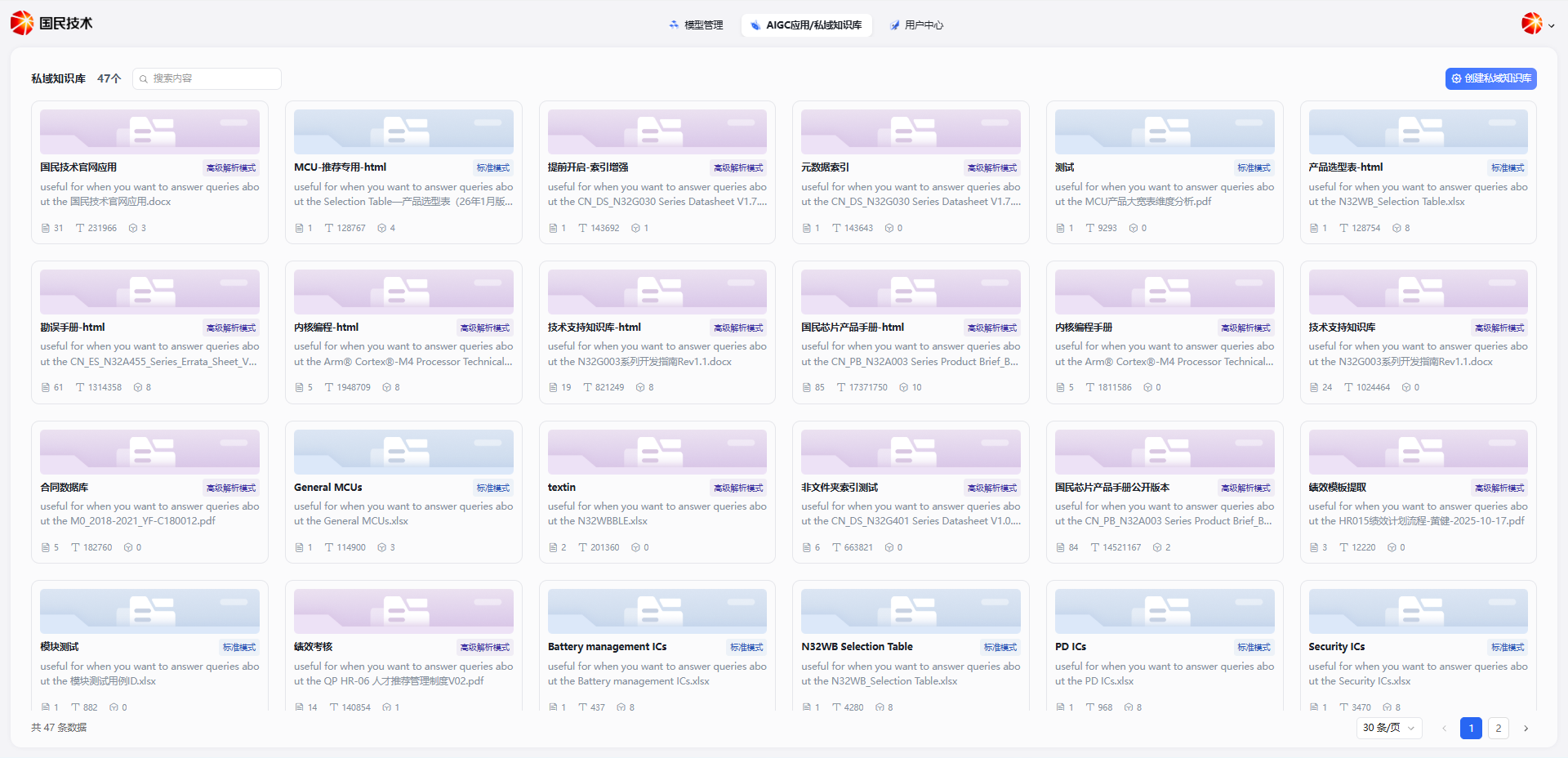
Standard Parsing Mode
Create a Knowledge Base
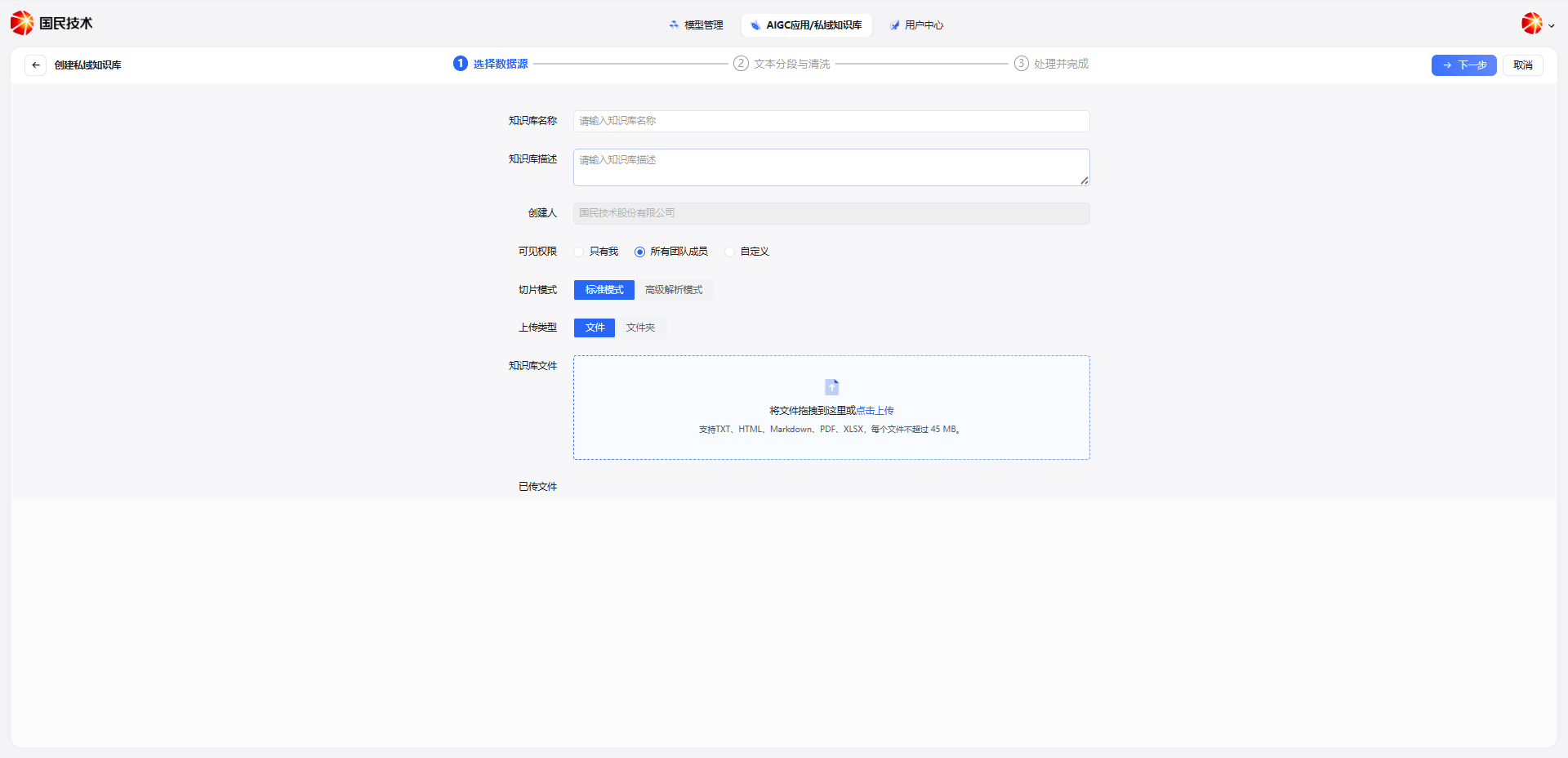
Click the New Knowledge Base button in the top right corner. In the dialog, select Standard Mode, fill in the following information, and click Confirm:
| Field | Required | Description |
|---|---|---|
| Knowledge Base Name | Yes | Display name for the knowledge base |
| Parsing Mode | Yes | Select Standard Mode |
| Description | No | Brief description of the knowledge base's purpose |
Segmentation & Cleaning
After creation, click Next. The system will perform segmentation and data cleaning on the uploaded document content.
Configurable segmentation parameters:
| Parameter | Description |
|---|---|
| Segment Delimiter | Delimiter used to split text, e.g., newline or paragraph break |
| Max Segment Length | Maximum character count per segment |
| Segment Overlap Length | Number of overlapping characters between adjacent segments, preserving context continuity |
| Text Preprocessing Rules | Cleaning rules, e.g., remove extra spaces, filter special characters |
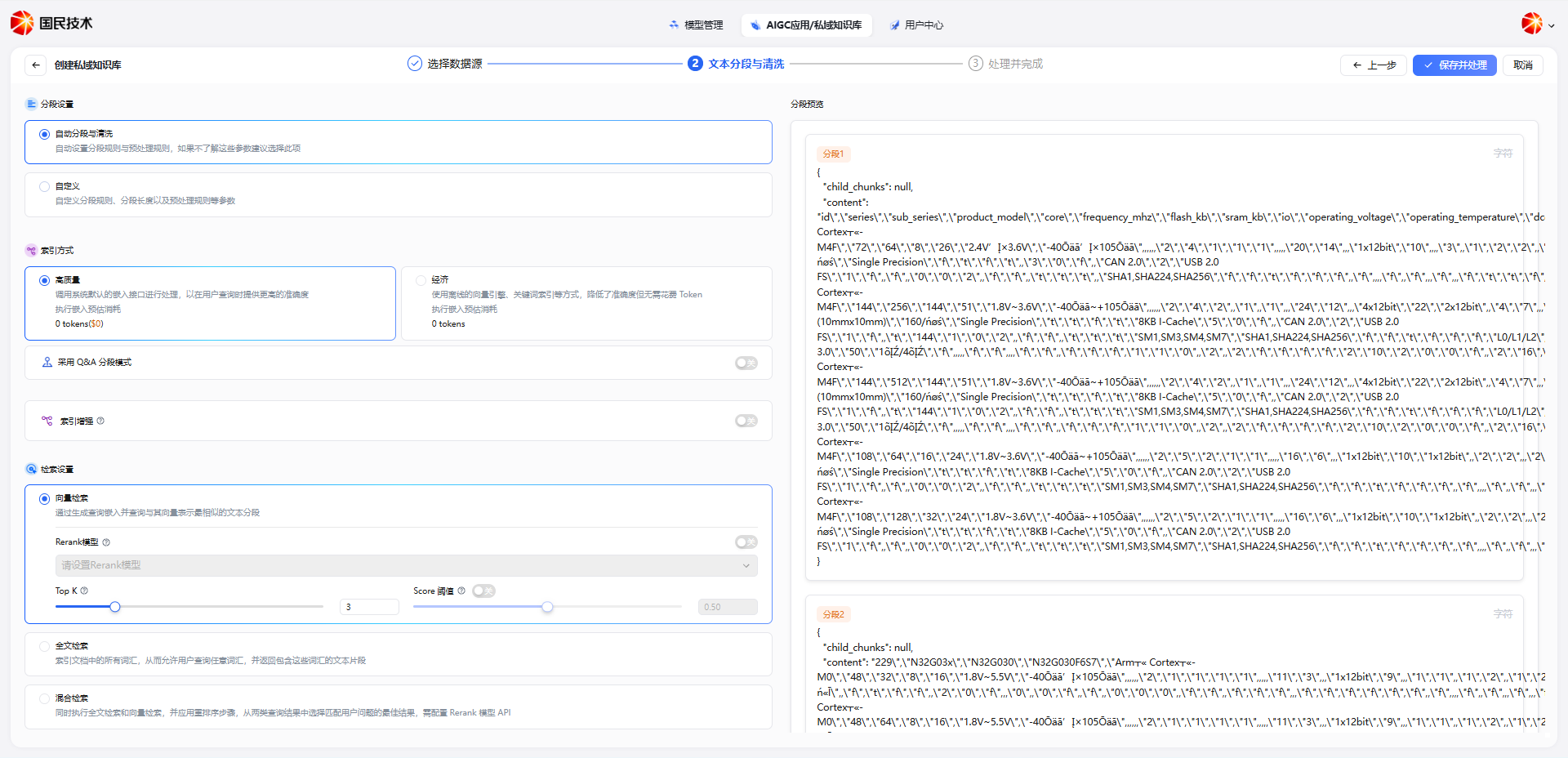
Tip: Setting appropriate segment length and overlap helps improve retrieval accuracy. If unsure, select automatic segmentation and processing.
Retrieval Settings & Index Mode
After segmentation configuration, proceed to the Retrieval Settings step to configure the index mode and retrieval strategy.
Index Mode
| Mode | Description |
|---|---|
| Vector Search | Converts text to vectors for semantic similarity matching; suitable for natural language Q&A |
| Full-text Search | Keyword-based exact matching; suitable for content with proper nouns, codes, etc. |
| Hybrid Search | Combines vector and full-text search for comprehensive semantic and keyword matching |
Index Enhancement
When Index Enhancement is enabled, the system automatically extracts custom metadata fields from documents and attaches them to each segment for retrieval, enabling precise metadata-based lookup.
Each metadata rule contains three fields:
| Field | Description |
|---|---|
| Metadata Tag | Custom field name, e.g., Series, Model, Version |
| Tag Description | Explanation of the field's meaning, e.g., Series name — helps the system understand what to extract |
| Type | Field data type, e.g., String, Number |
Tag extraction scope supports two options:
- Document Title — Extract metadata from the filename or document title; suitable when filenames carry business information
- Document Content — Extract metadata from the document body; suitable when content contains structured fields
Typical scenario: Upload a document named N32G45.pdf. Configure a metadata tag Series with description Series name and extraction scope set to Document Title. When a user queries N32G45, the system directly hits all segments of that file via metadata — no semantic matching needed, precise and efficient.
Tip: For knowledge bases where filenames or titles carry business meaning (product models, file numbers, specification codes, etc.), enabling Index Enhancement is strongly recommended to significantly improve exact query hit rates.

Save & Process
After configuration, click Save & Process. The system will chunk and vectorize the uploaded documents according to the configured rules.
After processing, the document content is officially indexed and available for AI application retrieval.
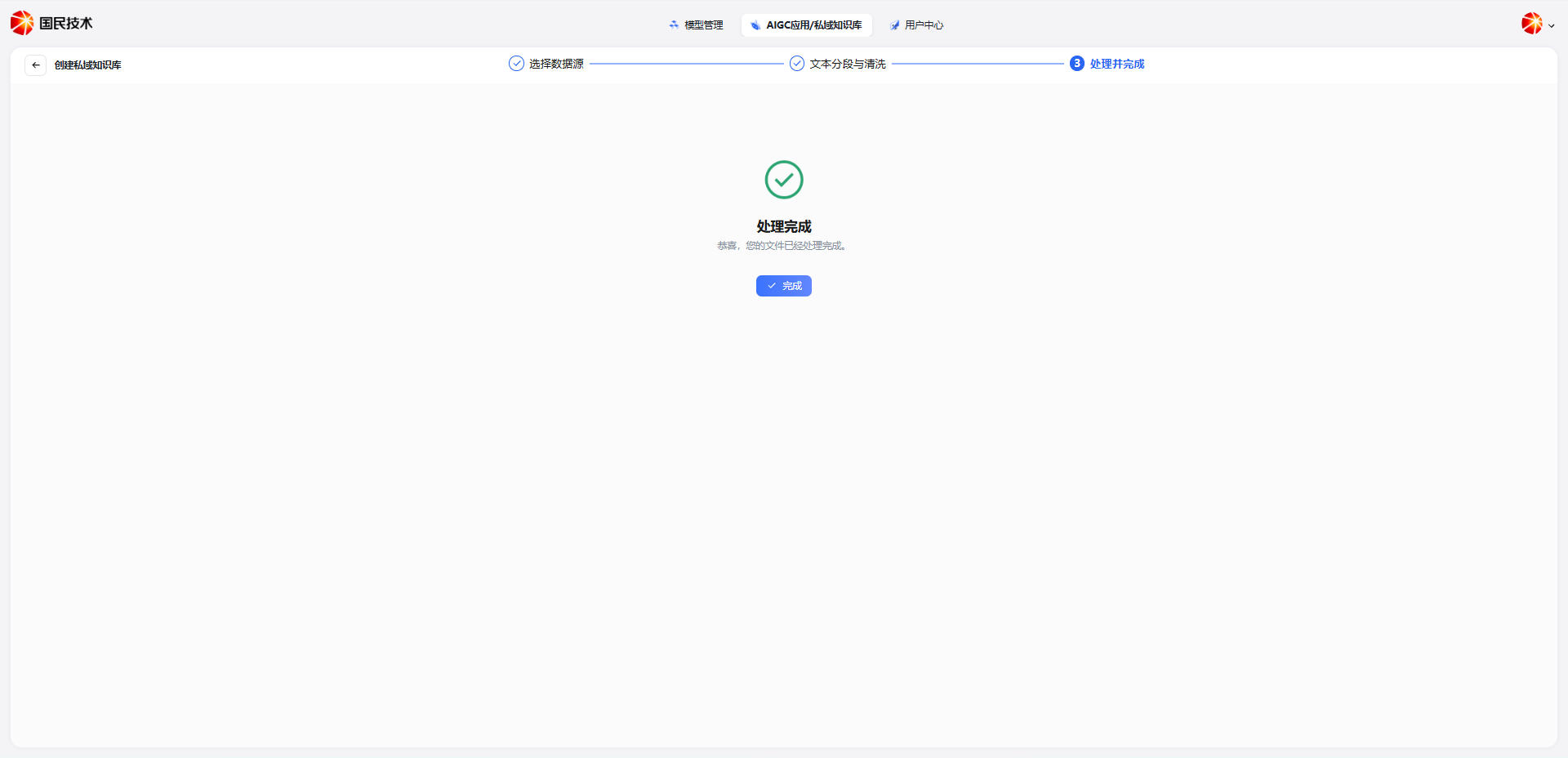
Note: Do not close the page during document processing. Processing time depends on document size and content complexity.
Advanced Parsing Mode
Advanced Parsing Mode calls a professional document parsing service, suitable for PDF, Excel, Word, and other files containing images, tables, or complex layouts — offering higher parsing quality.
Create a Knowledge Base
Click the New Knowledge Base button in the top right corner. In the dialog, select Advanced Parsing Mode, fill in the following information, and click Next:
| Field | Required | Description |
|---|---|---|
| Knowledge Base Name | Yes | Display name for the knowledge base |
| Knowledge Base Description | No | Brief description of the knowledge base's purpose |
| Visibility | Yes | Supports: only me, all team members, or custom range |
| Parsing Mode | Yes | Select Advanced Parsing Mode |
| Document Parsing Service | Yes | Select the parsing service, e.g., S-Advanced Text Parser T |
| Upload Type | Yes | Supports uploading by file or folder |
| Knowledge Base Files | Yes | Upload documents to index; supports PDF, Excel, Word; max 45 MB per file |
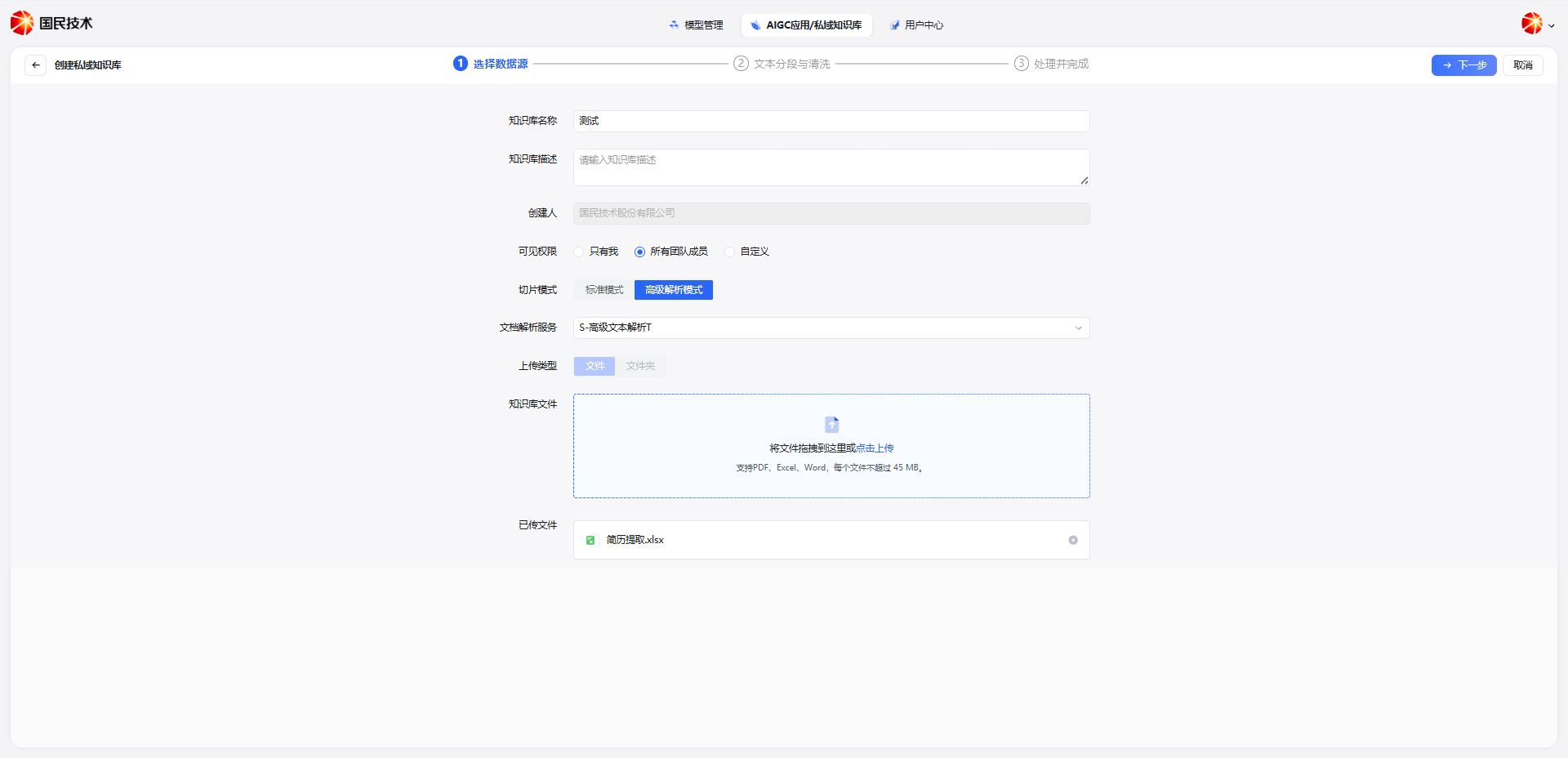
Tip: Advanced Parsing Mode consumes document parsing service quota. For plain text files, Standard Mode is recommended to save resources.
File Image Processing
After uploading files, proceed to the Text Segmentation & Cleaning step. Advanced Parsing Mode adds a File Image Processing feature on top of standard segmentation:
| Setting | Description |
|---|---|
| Image Recognition Model | Select a vision model to parse image content in documents, e.g., gpt-4o |
| Image Analysis Prompt | Custom prompt to guide the model in describing or extracting information from images |
When image processing is enabled, images, charts, and diagrams in documents arrecognized by the vision model and converted to text descriptions, which are included in segments for retrieval.
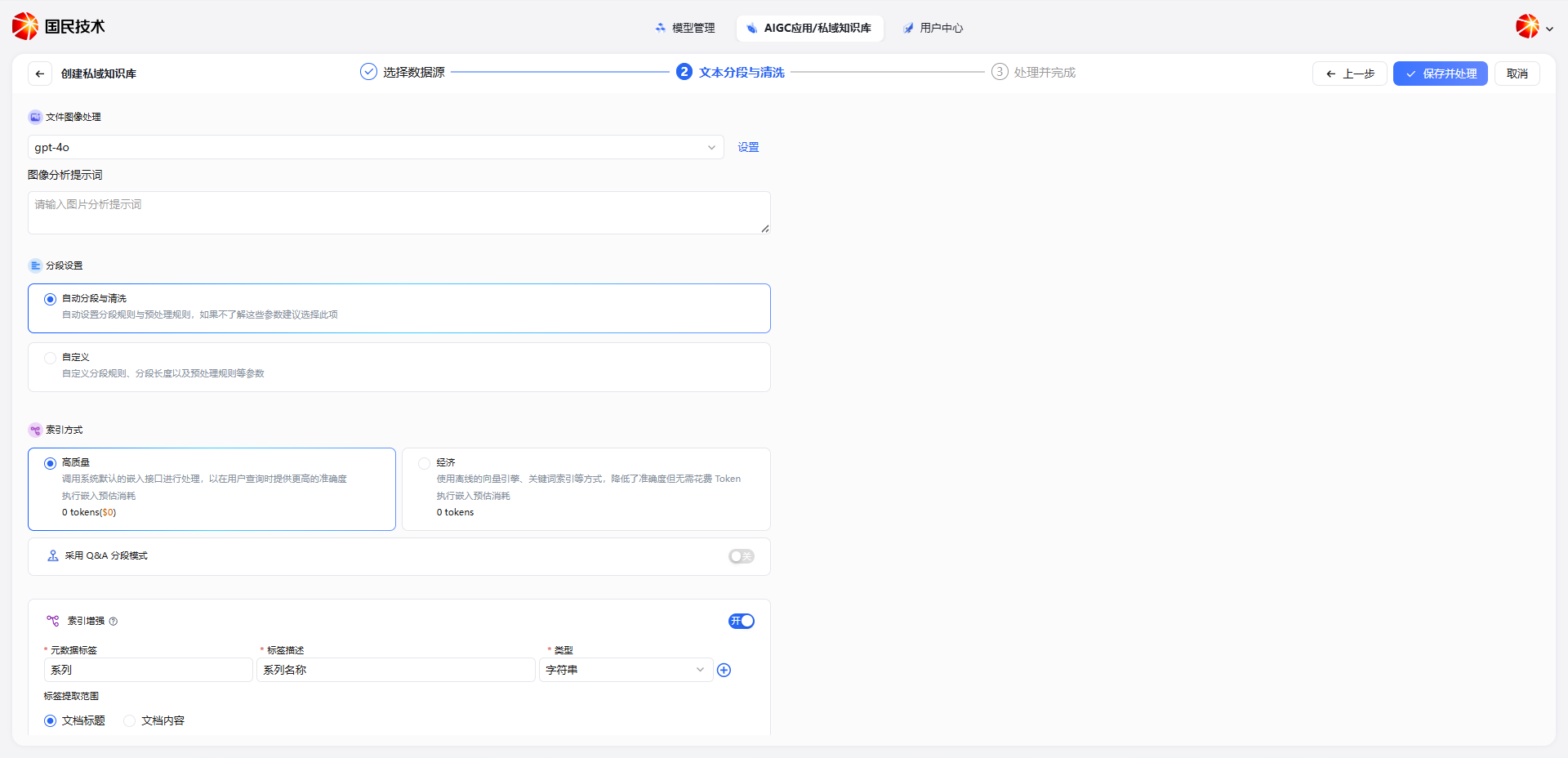
Tip: Customize the image analysis prompt based on document type. For circuit diagrams: "Please describe the structure and module functions of this circuit diagram."
Segmentation, Index Mode & Index Enhancement
The segmentation settings, index mode, index enhancement, and save & process steps in Advanced Parsing Mode are the same as in Standard Mode. Refer to the [Standard Parsing Mode](#standard-parsing-mosection above.
The Index Mode provides two options:
| Mode | Description |
|---|---|
| High Quality | Calls the system's default embedding interface; higher query accuracy; consumes Tokens |
| Economy | Uses offline vector engine and keyword indexing; lower accuracy but no Token cost |
Q&A Segmentation Mode — When enabled, the system automatically organizes document content into Q&A pairs for indexing. Suitable for FAQ-type documents; improves retrieval matching for Q&A scenarios.