Knowledge Base Configuration
After creation, you can manage and configure knowledge bases from the Private Knowledge Base list page.
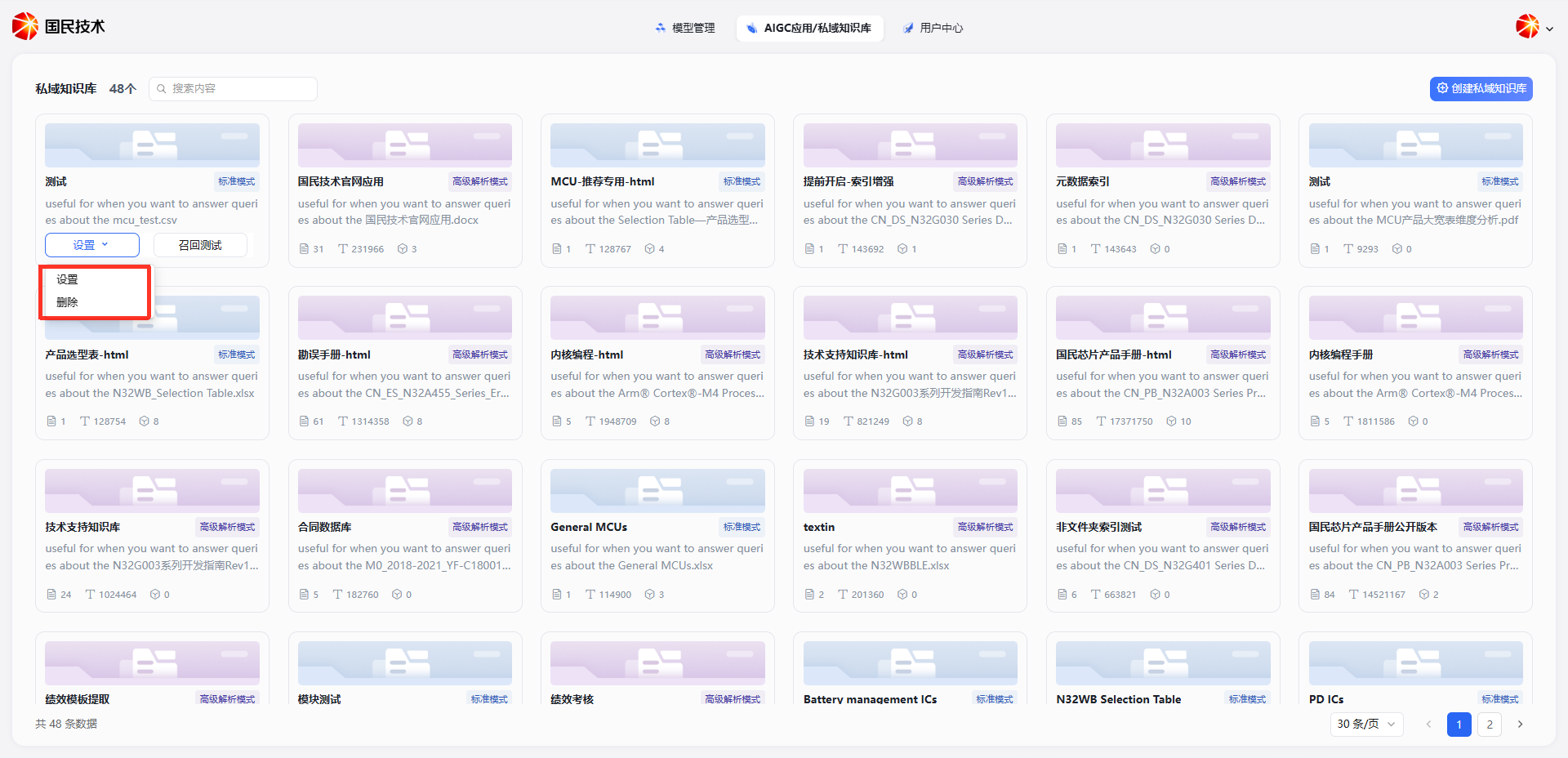
Each knowledge base card in the list displays:
| Field | Description |
|---|---|
| Knowledge Base Name | Display name and parsing mode label |
| Description | Purpose description |
| File Count | Number of uploaded documents |
| Character Count | Total indexed characters in the knowledge base |
| Associated Apps | Number of AI applications currently referencing this knowledge base |
Edit Configuration
Click any knowledge base card to enter its edit configuration page.
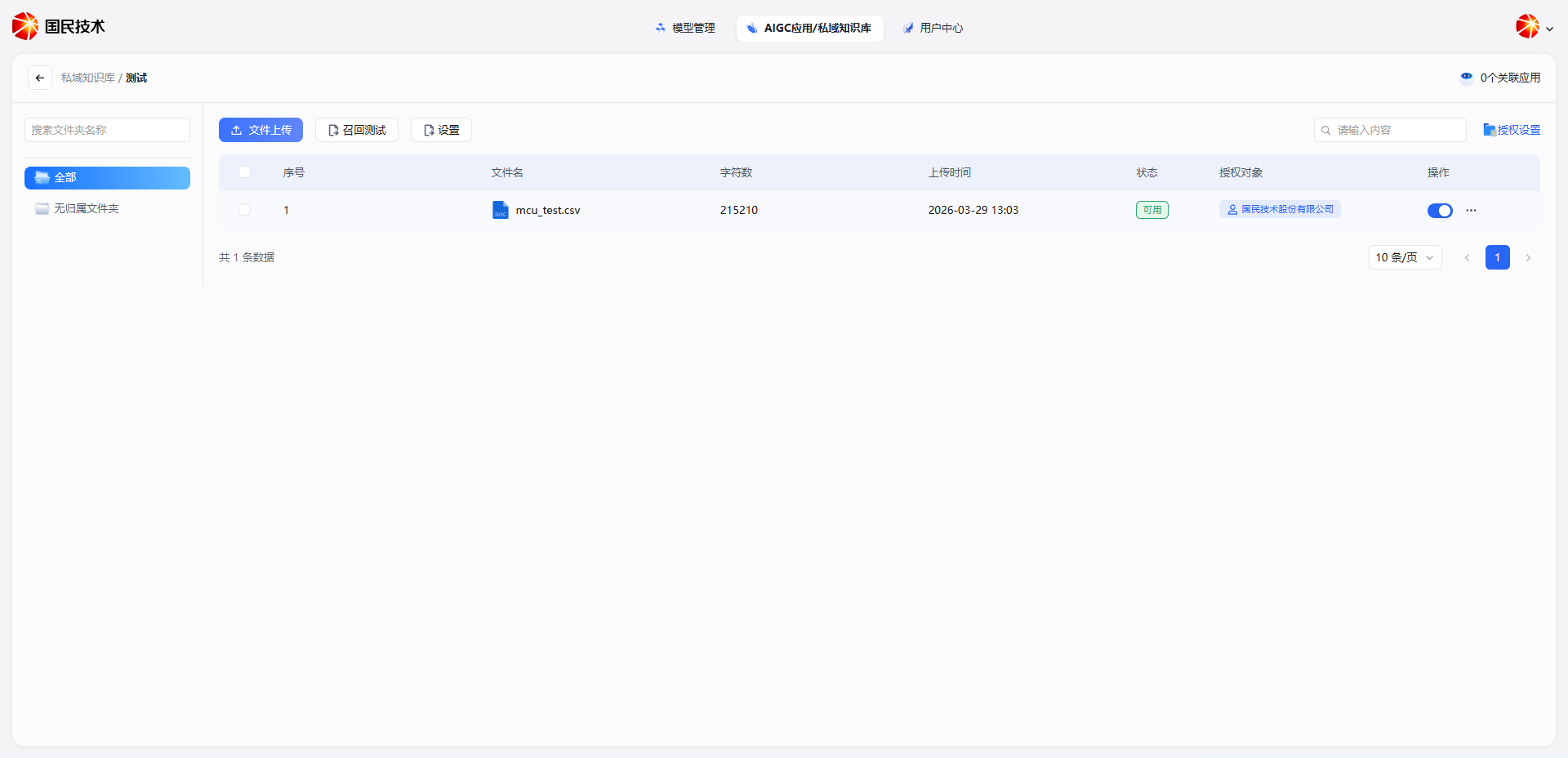
Available operations:
| Operation | Description |
|---|---|
| File Upload | Upload additional documents to the knowledge base |
| Recall Testing | Enter test queries to verify retrieval effectiveness; see Recall Testing |
| Settings | Adjust retrieval mode and visibility (see below) |
| Authorization Settings | Configure file access authorization; see File Authorization |
The file list shows all indexed documents, including filename, character count, upload time, status, and authorized users. You can enable/disable or delete individual files.
Settings
Click the Settings button on the edit configuration page to adjust the knowledge base's core configuration.
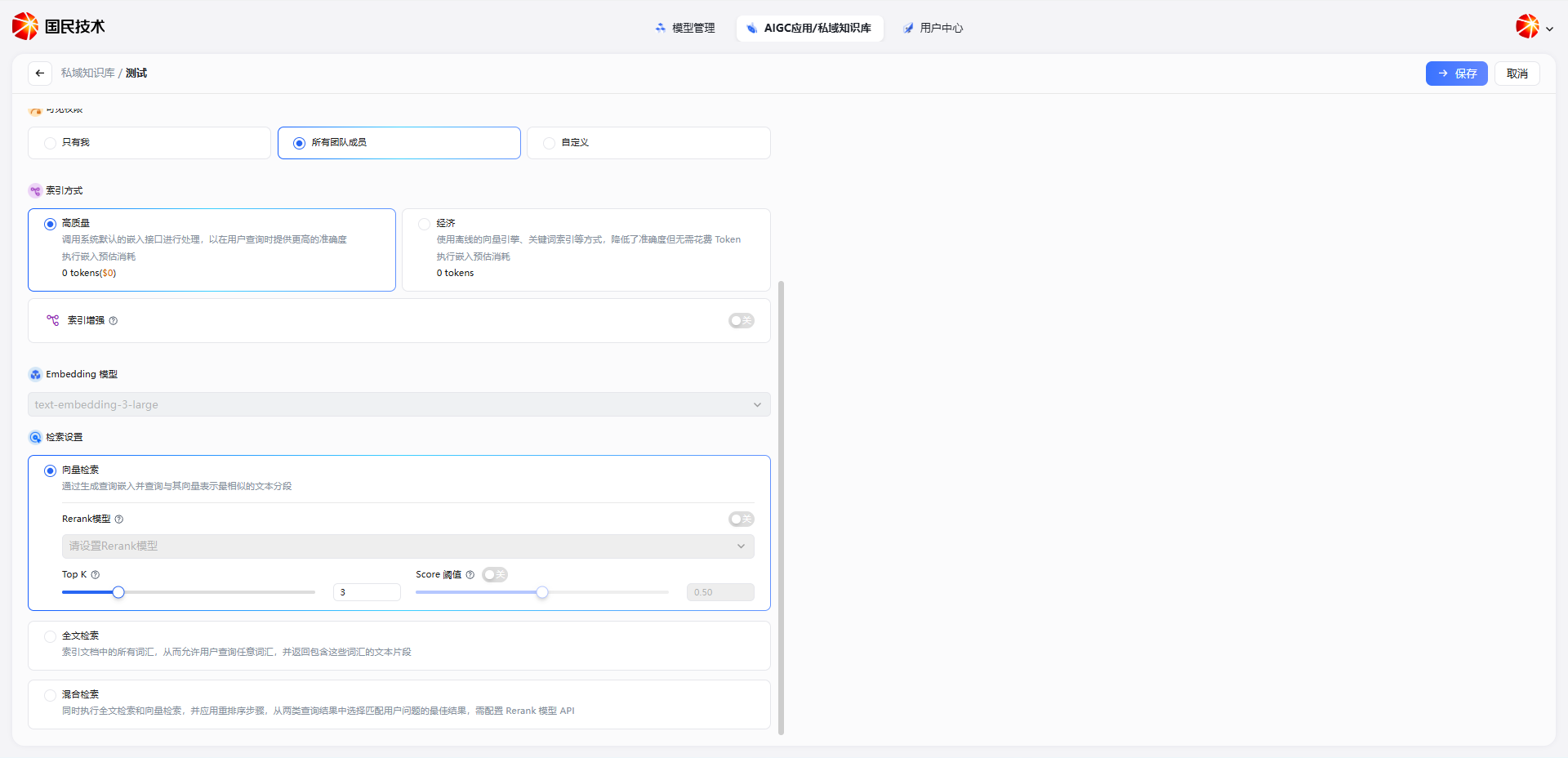
Visibility
Controls which team members can see this knowledge base:
| Option | Description |
|---|---|
| Only Me | Visible only to the creator |
| All Team Members | All team members can view and use it |
| Custom | Manually specify accessible members or departments |
Index Mode
| Option | Description |
|---|---|
| High Quality | Calls the system's default embedding interface; higher query accuracy; consumes Tokens |
| Economy | Uses offline vector engine and keyword indexing; lower accuracy but no Token cost |
Index Enhancement
Enable or disable Index Enhancement here. For details, see Create Knowledge Base - Index Enhancement.
Embedding Model
Select the embedding model used to convert text to vectors, e.g., text-embedding-3-large. This affects the semantic undersing capability of vector retrieval.
Retrieval Settings
Adjust the knowledge base's retrieval mode and parameters:
| Retrieval Mode | Description |
|---|---|
| Vector Search | Generates query embeddings and finds the most semantically similar text segments |
| Full-text Search | Indexes all words in documents; allows querying any word and returns segments containing those words |
| Hybrid Search | Runs both full-text and vector search simultaneously with a reranking step; requires a Rerank model API |
Configurable parameters for vector search mode:
| Parameter | Description |
|---|---|
| Rerank Model | Re-ranks retrieval results to improve relevance of final output |
| Top K | Maximum number of segments to return; higher values recall more content |
| Score Threshold | Minimum similarity score; segments below this value are filtered out |
After configuration, click Save in the top right to apply.