File Authorization
File Authorization controls access permissions for files within a knowledge base. You can authorize specific users or roles to access files and set their operation permissions (reference only, or reference and download) — enabling file-level permission management.
Accessing File Authorization
On the knowledge base edit configuration page, check one or more files to authorize, click the Authorization Settings button in the top right, and select File Authorization from the dropdown. An authorization configuration dialog will appear.
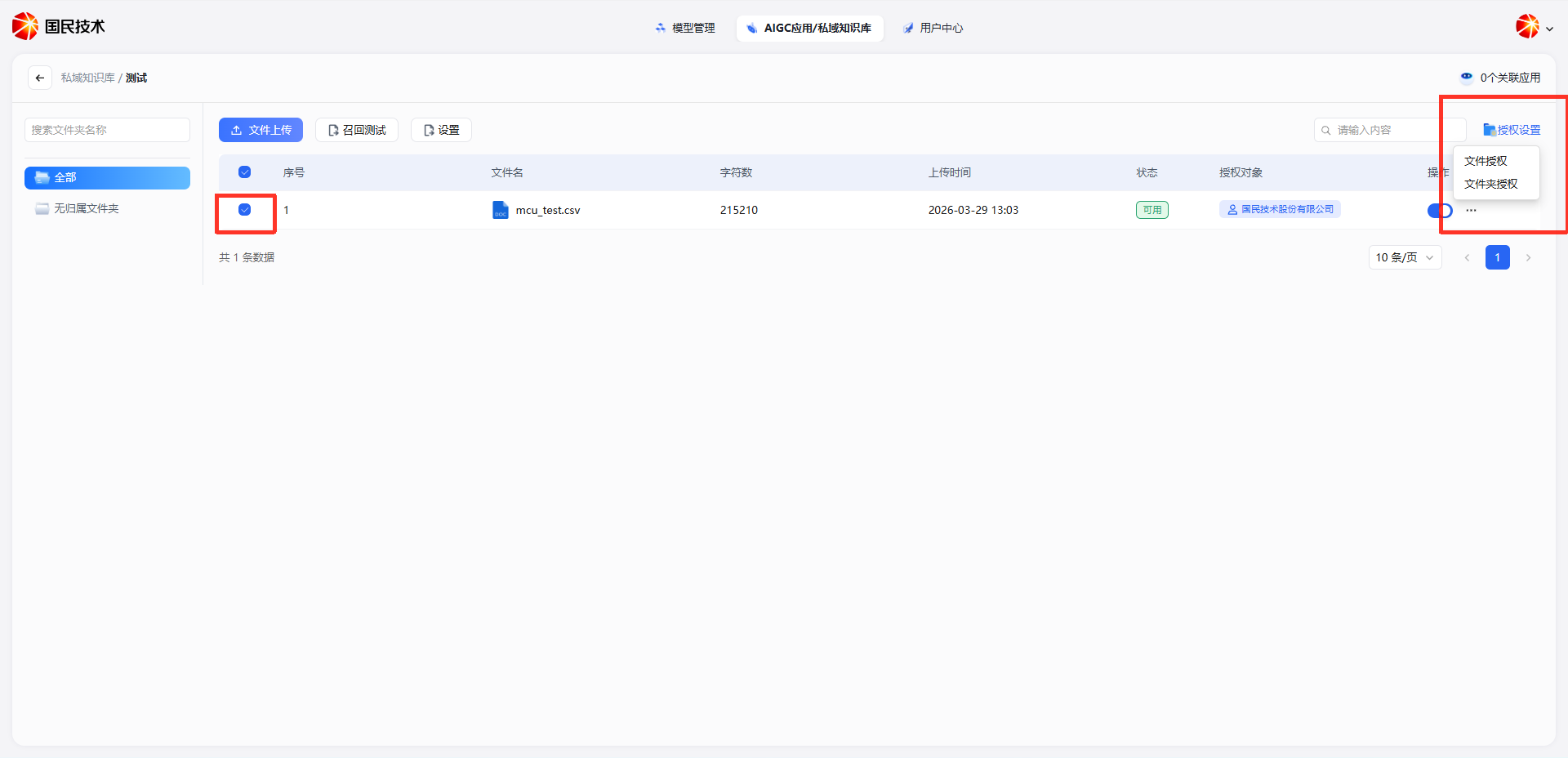
Tip: You can batch-select multiple files and authorize them together — useful when the same permissions apply to a group of files.
Authorization Configuration
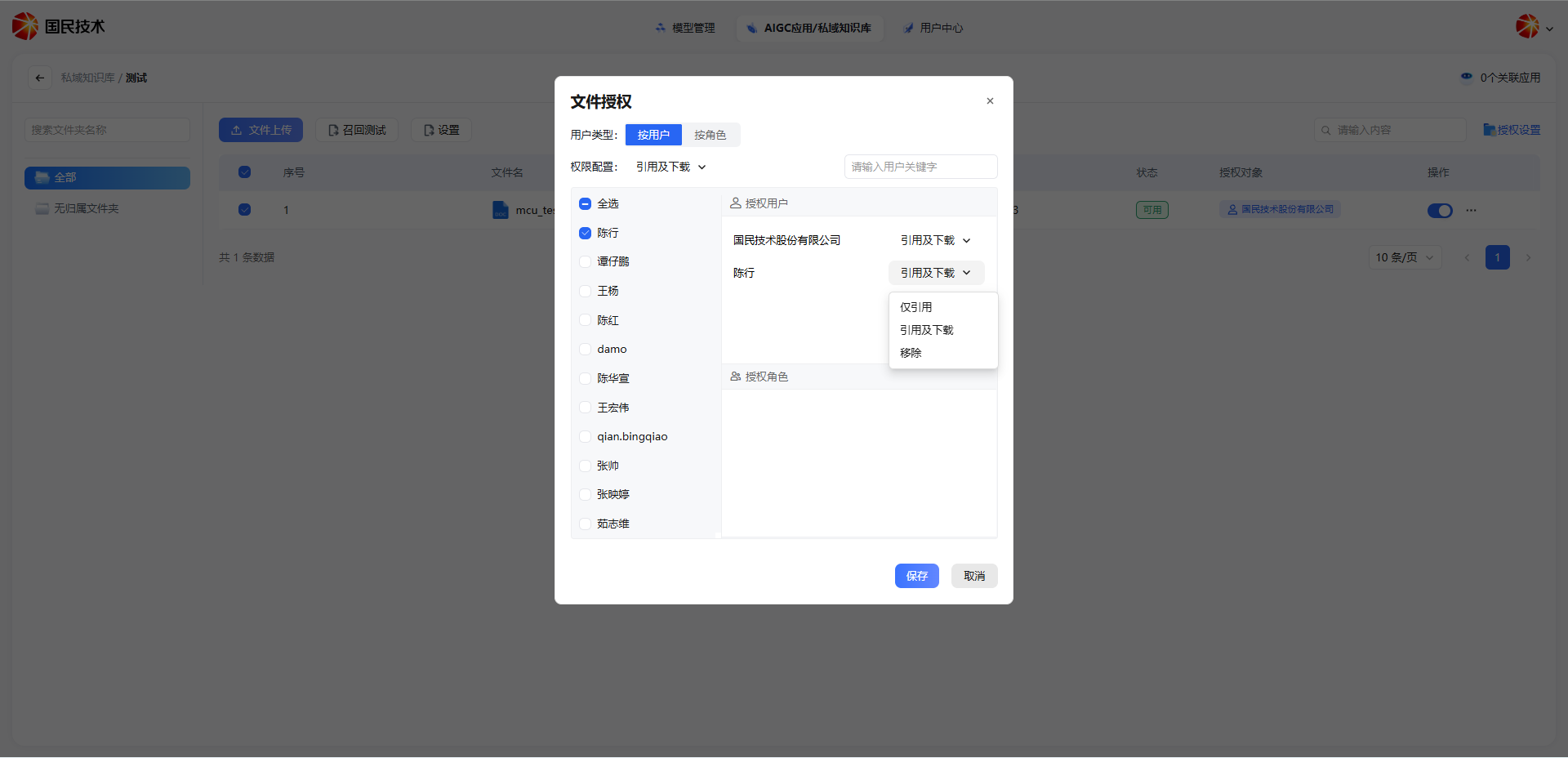
User Type
Switch the authorization target type at the top of the dialog:
| Type | Description |
|---|---|
| By User | Authorize specific individual members; suitable for fine-grained per-person authorization |
| By Role | Authorize all members under a specific role; suitable for batch authorization by job function |
Permission Configuration
Select the default permission type for this authorization in the Permission Configuration dropdown. You can also adjust permissions individually for each authorized target afterward:
| Permission Type | Description |
|---|---|
| Reference Only | Authorized members can search and reference the file's content via AI applications, but cannot download the original file |
| Reference & Download | Authorized members can both search/reference and directly download the original file |
Selecting Authorization Targets
The left panel lists all current system members (By User mode) or all roles (By Role mode), with keyword search for quick lookup.
- Check a member or role to add them to the Authorized Users / Authorized Roles area on the right
- Select All to check all members at once
- Each authorization record on the right can have its permission type adjusted individually — click the permission dropdown to select Reference Only, Reference & Download, or Remove
Save
After configuration, click Save. Authorization takes effect immediately. The Authorized Users column in the file list will update to show the authorized users or groups.
Notes
- File Authorization is an additional restriction on top of the knowledge base's visibility settings — only members who already have access to the knowledge base can be authorized
- Members who are not authorized cannot retrieve the file's content via AI applications, even if the knowledge base is visible to them
- If a member is authorized both by user and by role, the higher permission applies
- To adjust the access scope of the entire knowledge base, use the Visibility setting in Settings — see Knowledge Base Configuration - Visibility