Model Configuration
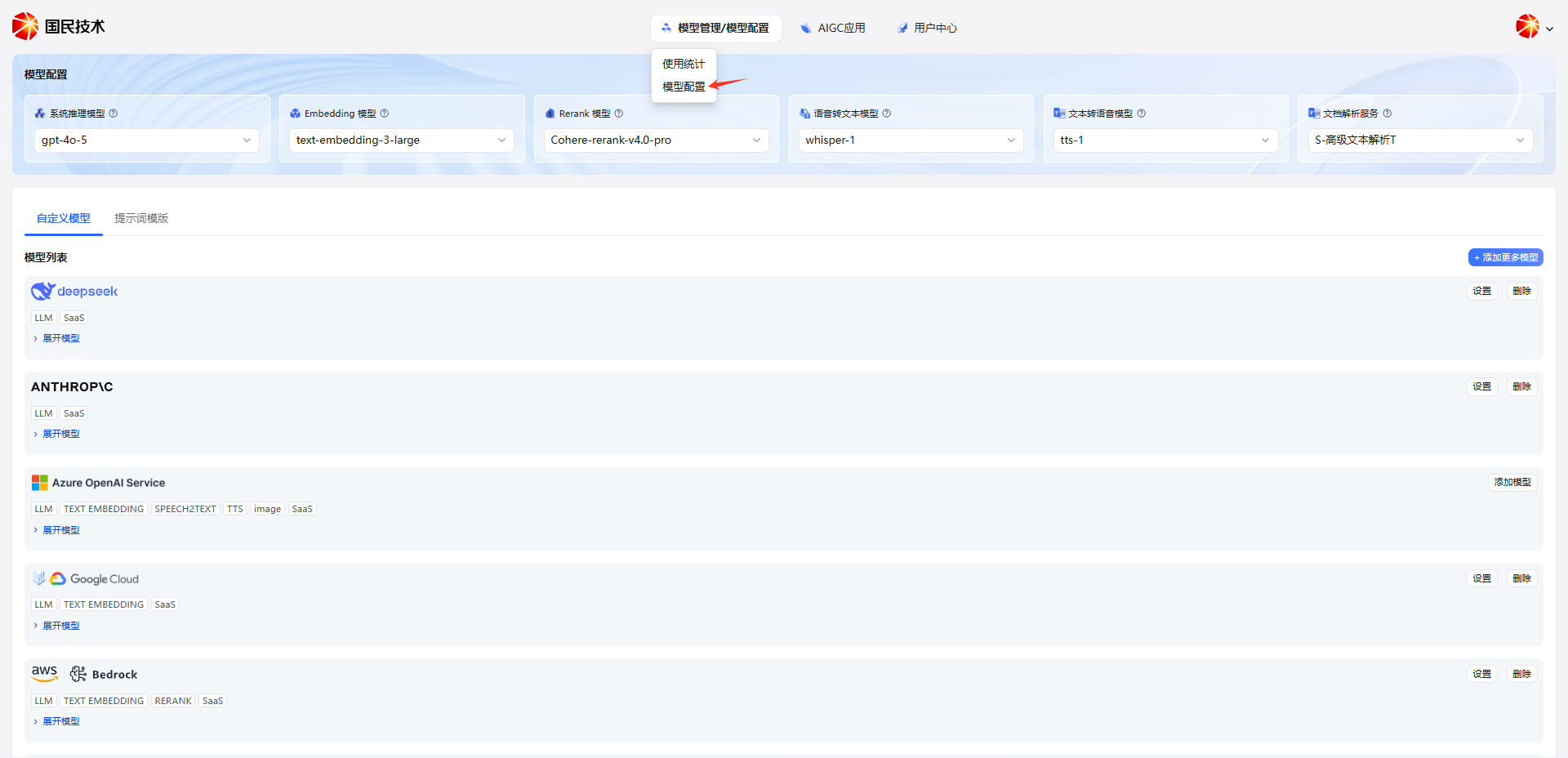
Model Configuration is used to manage the AI models integrated into the system and their default usage policies. Administrators can navigate to Model Management → Model Configuration via the top navigation bar.
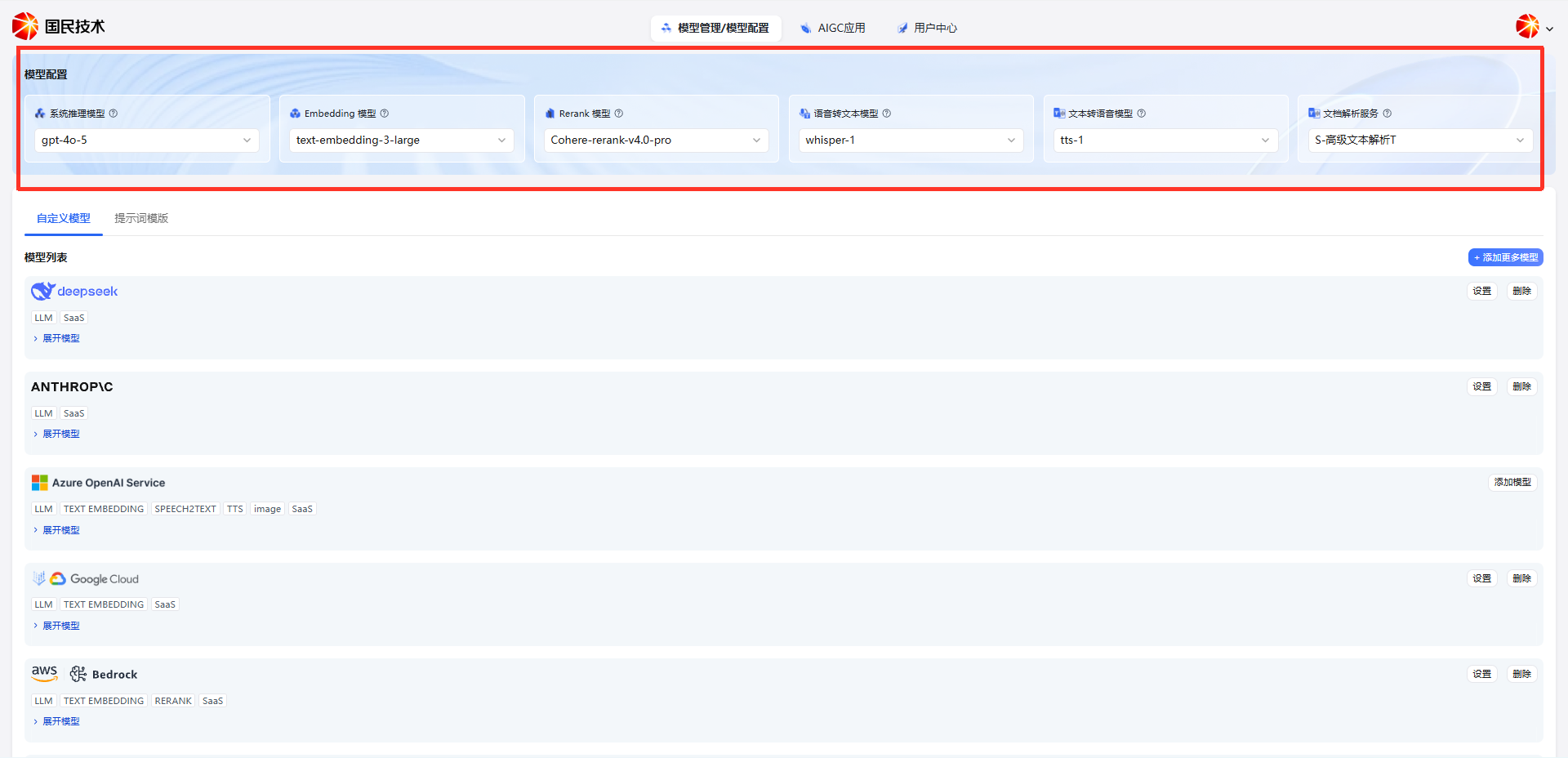
Default Model Configuration
The top of the page provides quick selection for six default model types. The system will prioritize the selected model in the corresponding scenario:
| Model Type | Description |
|---|---|
| System Inference Model | Language model for core scenarios like AI application conversations and workflow inference |
| Embedding Model | Used for text vectorization; supports knowledge base retrieval and semantic matching |
| Rerank Model | Re-ranks retrieval results to improve recall precision |
| Speech-to-Text Model | Converts voice input to text (Speech to Text) |
| Text-to-Speech Model | Converts text content to voice output (Text to Speech) |
| Document Parsing Service | Specialized service for parsing complex format documents like PDF and Word |
Click the corresponding dropdown to switch the default model. The dropdown lists currently integrated available models grouped by provider.
Model List
The Custom Models tab in the middle of the page displays all model providers currently integrated into the system. Each record includes:
| Field | Description |
|---|---|
| Provider Name | Model provider, e.g., DeepSeek, ANTHROPIC, Azure OpenAI Service |
| Model Type Tags | Types of models integrated from this provider, e.g., LLM, TEXT EMBEDDING, SPEECH2TEXT, TTS, image |
| Deployment Type | SaaS (cloud) or private deployment |
| Expand Models | Click to view the specific model list under this provider |
| Actions | Settings or Delete for configured providers; Add Model for unconfigured providers |
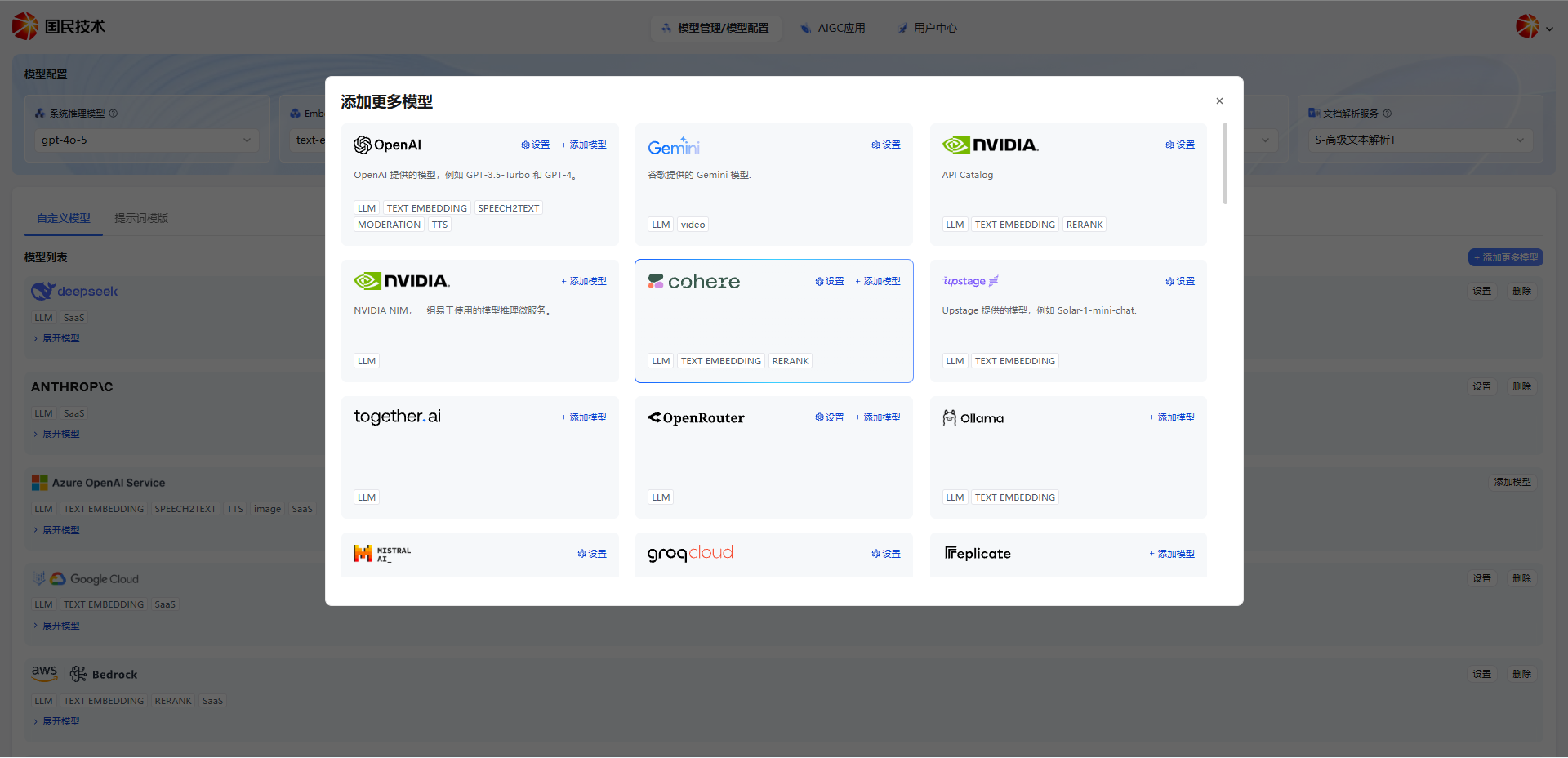
Add More Models
Click the + Add More Models button in the top right of the model list. A provider selection panel appears, showing all supported model providers including OpenAI, Gemini, NVIDIA, NVIDIA NIM, together.ai, Mistral AI, Groq Cloud, Replicate, and more.
Click the Settings button for the target provider. A configuration dialog appears. Using OpenAI as an example:
| Field | Required | Description |
|---|---|---|
| API Key | Yes | API key provided by the provider; stored encrypted with PKCS1_OAEP after saving |
| Organization ID | No | OpenAI organization ID; applicable for enterprise accounts |
| API Base | No | Custom API request URL; defaults to the official address (e.g., https://api.openai.com); useful for proxies or private deployments |
Click Save to complete integration, or Cancel to close the dialog.
Tip: Click the Get API Key from OpenAI link at the bottom of the dialog to jump to the official platform. Configuration fields vary by provider — fill in according to the actual dialog content.