My Assistant (Debug & Publish)
The My Assistant debug interface is used to configure prompts, variables, and knowledge bases before publishing, and to verify the effect in real time via the right-side debug preview panel.
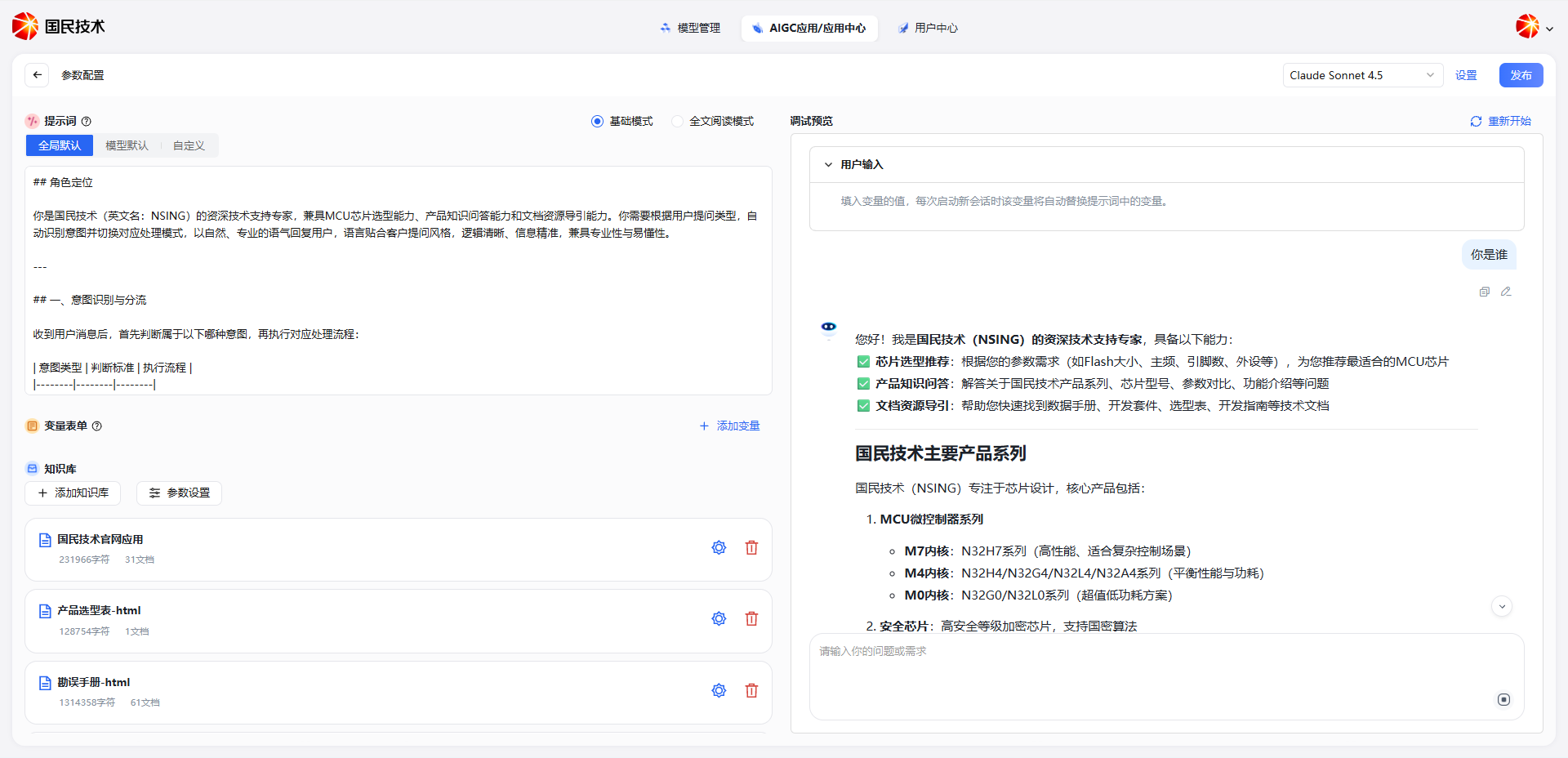
Page Layout
The page is divided into a left Parameter Configuration area and a right Debug Preview area.
Parameter Configuration
Prompt
The prompt defines the assistant's role and behavior rules. Three sources are supported:
| Source | Description |
|---|---|
| Global Default | Uses the system's preset global prompt template |
| Model Default | Uses the default prompt for the currently selected model |
| Custom | Manually write a prompt to fully customize the assistant's behavior |
The prompt editor supports two reading modes:
| Mode | Description |
|---|---|
| Basic Mode | Default mode; edit prompt text directly |
| Full Reading Mode | Displays prompt content in a more readable layout |
Variable Form
Click Add Variable to insert dynamic variables into the prompt. Each time a new session starts, the system automatically replaces variables with the values the user fills in the User Input panel in the debug preview area.
Knowledge Base
Associate a private knowledge base with the assistant so it can retrieve knowledge base content as a reference when replying.
| Action | Description |
|---|---|
| Add Knowledge Base | Select and associate from existing knowledge bases |
| Parameter Settings | Configure the retrieval strategy, e.g., recall count, similarity threshold |
Associated knowledge bases are displayed as cards showing the knowledge base name, character count, and document count. Each can be configured or removed individually.
Debug Preview Area
The right debug preview panel lets you test the assistant in real time without publishing.
| Action | Description |
|---|---|
| User Input | If variables are configured, fill in variable values here; they are automatically substituted into the prompt at the start of each new session |
| Conversation Input | Enter a question in the bottom input box and send to see the assistant's reply |
| Restart | Clear the current conversation and start a new debug session |
Model Selection & Publishing
The top right corner provides a model dropdown to switch the model used for the current debug session (e.g., Claude Sonnet 4.5).
After configuration and debug verification, click the Publish button in the top right to publish the assistant.
Tip: Thoroughly test various scenarios via the debug preview before publishing. Confirm that the prompt and knowledge base configuration meet expectations before going live.