Translation Assistant (Debug & Publish)
The Translation Assistant debug interface is used to configure translation languages, prompts, and custom glossaries before publishing, and to verify translation results in real time via the right-side debug preview panel.
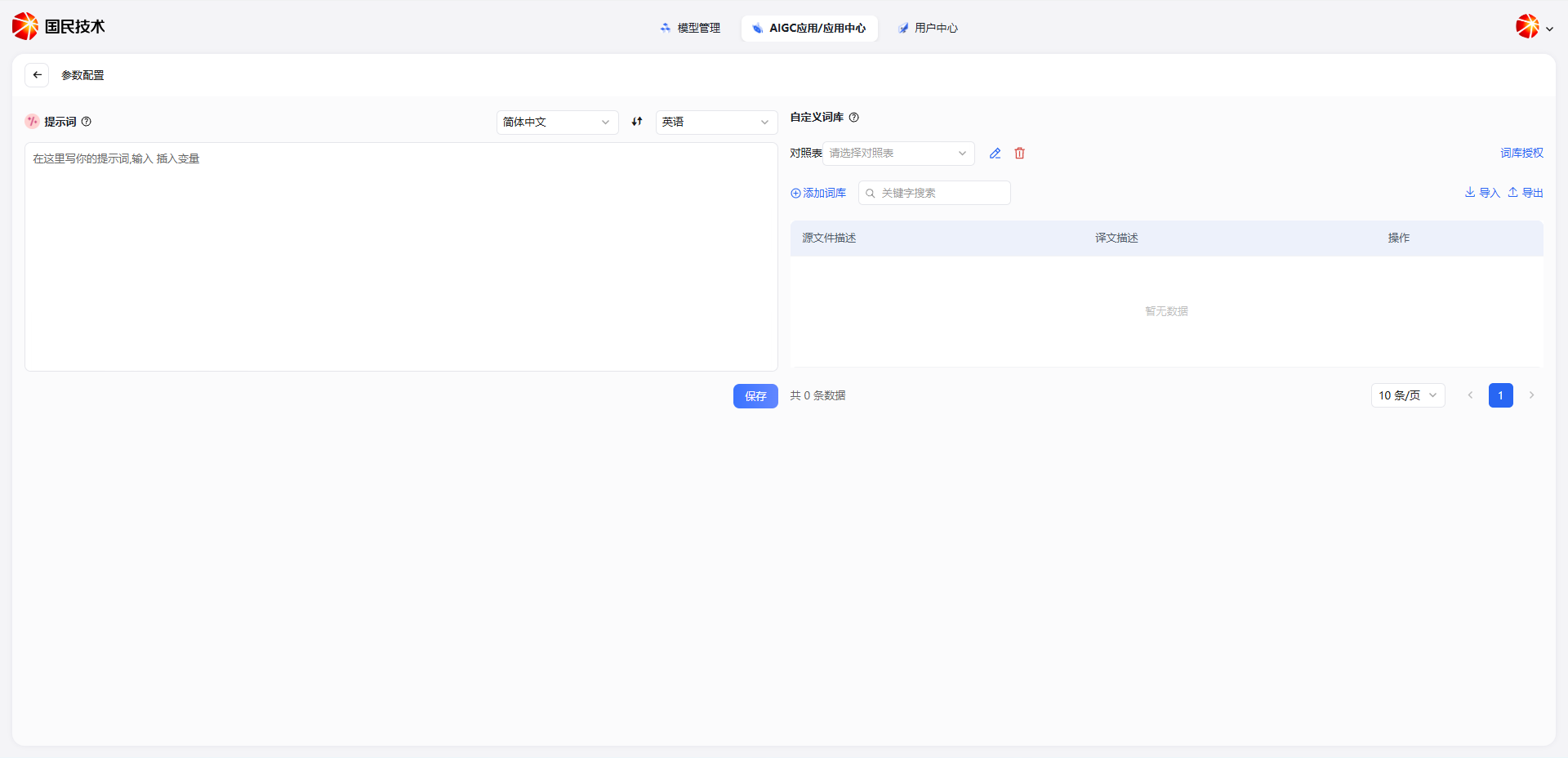
Page Layout
The page is divided into a left Parameter Configuration area and a right Debug Preview area.
Parameter Configuration
Prompt & Translation Language
The top of the prompt area provides source and target language dropdowns to specify the translation direction.
| Field | Description |
|---|---|
| Source Language | The original language of the content to translate, e.g., Simplified Chinese |
| Target Language | The output language, e.g., English |
| Prompt | Custom translation instructions to constrain translation style, domain, or special requirements |
Click Save after configuration to apply the prompt.
Custom Glossary
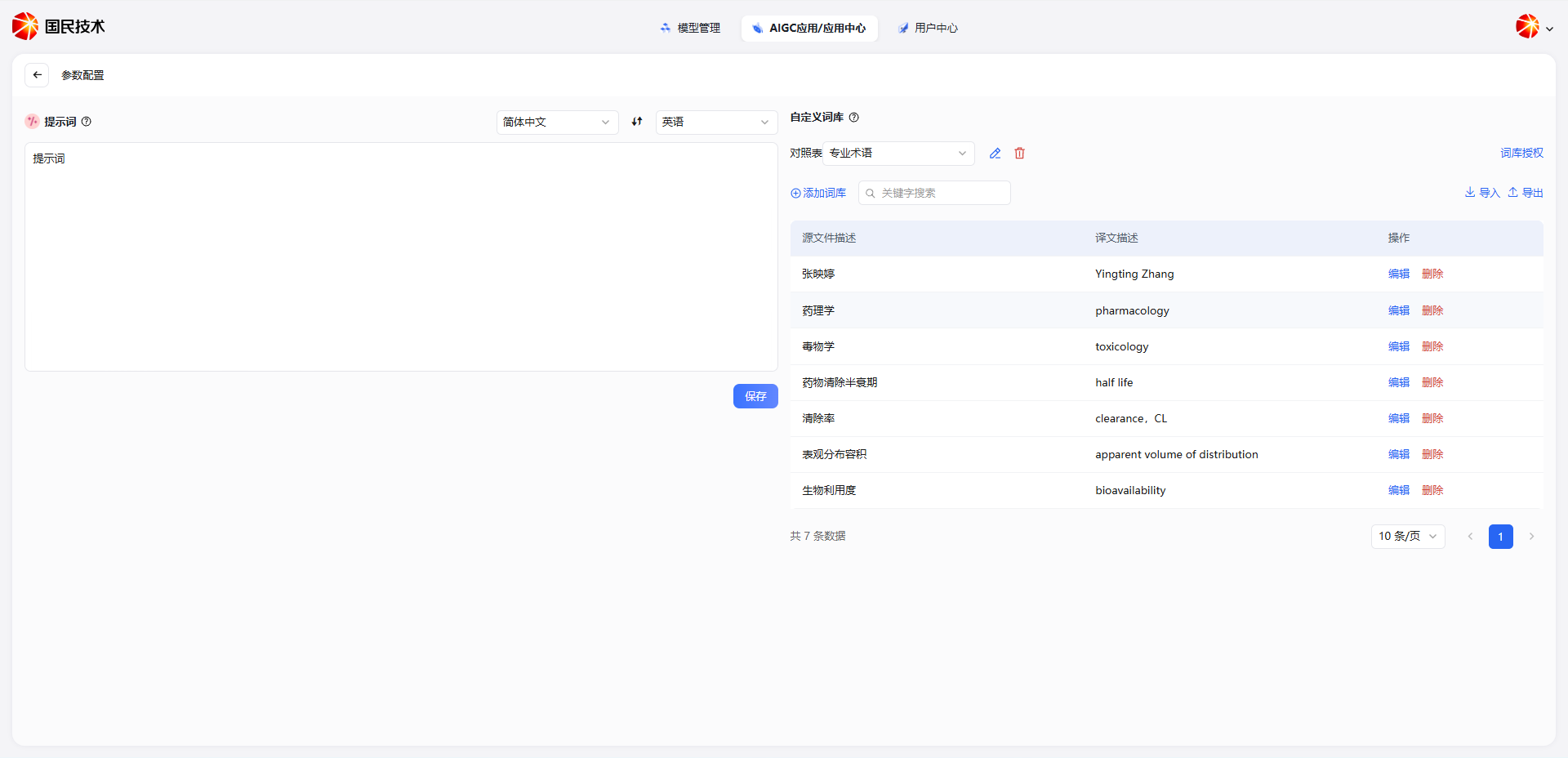
The custom glossary manages fixed translations for professional terms, ensuring specific vocabulary is translated consistently.
Glossary Selection
The top right provides a glossary dropdown to switch between different glossary types (e.g., Professional Terms). You can edit or delete the current glossary, click Add Glossary to create a new one, and use Glossary Authorization to manage access permissions.
Term Management
The glossary is displayed as a table with the following fields:
| Field | Description |
|---|---|
| Source Description | Original term, e.g., pharmacology, toxicology, half-life |
| Translation Description | Corresponding fixed translation |
| Actions | Edit or Delete individual terms |
Term Operations
| Action | Description |
|---|---|
| Add Glossary | Create a new glossary category |
| Keyword Search | Quickly find terms in the current glossary |
| Import | Batch import term data |
| Export | Export current glossary terms as a file |
Debug Preview Area
The right debug preview panel lets you test translation results in real time without publishing. Enter content to translate in the bottom input box and send to verify whether the result matches the expected language direction and terminology standards.
Publish
After configuration and debug verification, click the Publish button in the top right to publish the Translation Assistant.
Tip: Terms in the custom glossary are matched with priority during translation. Add common professional terms to the glossary before publishing to improve translation accuracy and consistency.