Workflow (Debug & Publish)
The Workflow editor is used to orchestrate automated task pipelines. After orchestration, use the top-right toolbar to run, debug, and publish.
Page Layout
| Area | Description |
|---|---|
| Left Node Panel | Draggable node types; two tabs: Nodes and Components |
| Central Canvas | Orchestration area; connect nodes with lines to form a complete workflow |
| Top-right Toolbar | Three entry points: Checklist, Run, and Publish |
Available Node Types
The left panel lists all available nodes grouped by function:
| Group | Nodes |
|---|---|
| (Basic) | Model, Knowledge Base, Temporary Knowledge Base, End |
| Question Understanding | Intent Recognition |
| Logic | Condition, Task Loop |
| Transform | Code Execution, Merge Output, Text Extraction, Document Split, Parameter Extraction, Variable Assignment, Execute SQL |
| Tools | HTTP Request |
Run & Debug
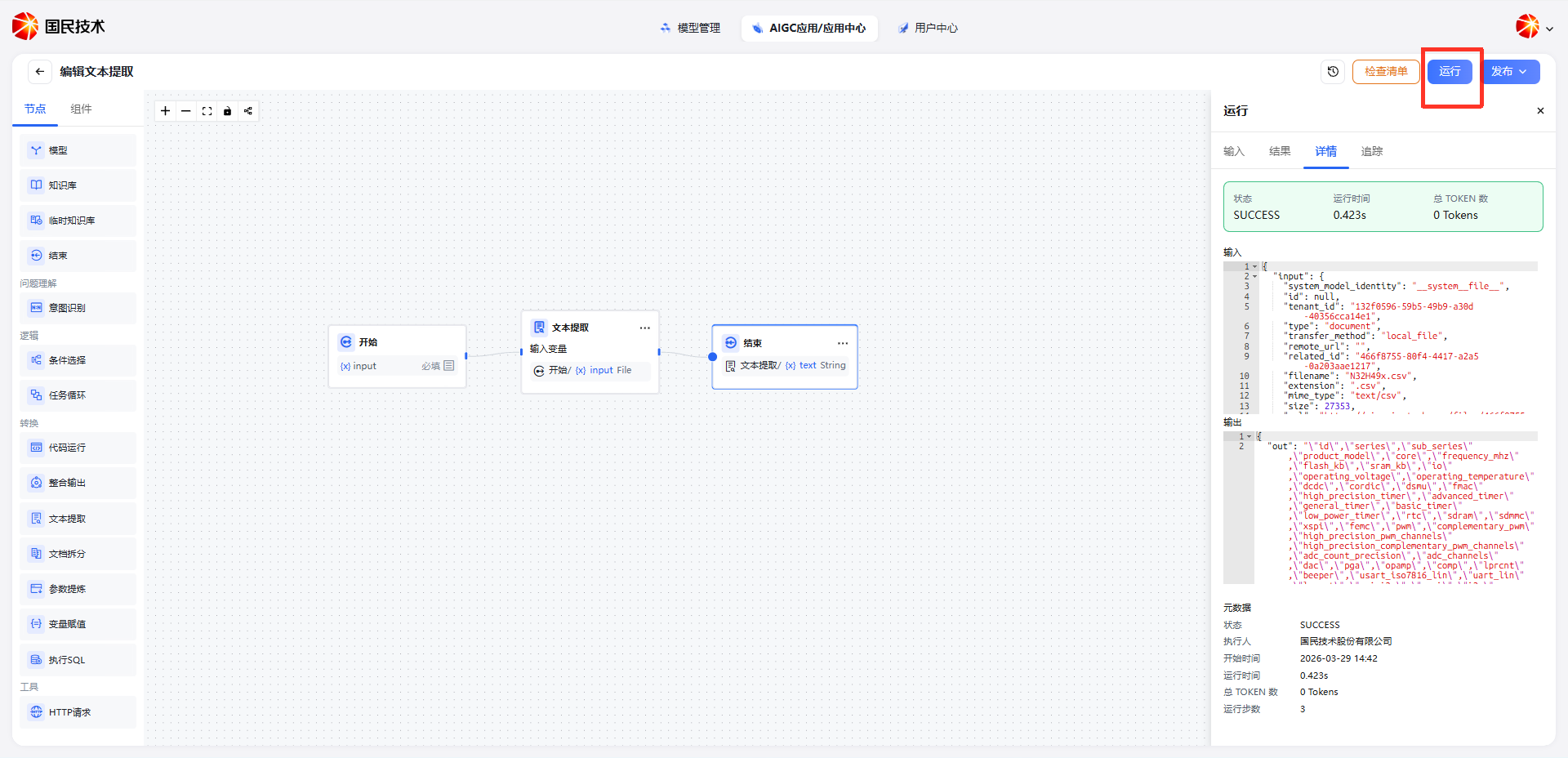
Click the Run button in the top right. A run panel appears on the right side for debugging the current workflow without publishing.
Run Panel Tabs
| Tab | Description |
|---|---|
| Input | Fill in the required input parameters; supports local file upload or pasting a file link |
| Result | Displays the final output after the workflow completes |
| Details | Shows overall run status, execution time, total Token count, and per-node execution time |
| Trace | Shows node-level input/output data in JSON format for troubleshooting data flow issues |
Details Panel
| Field | Description |
|---|---|
| Status | Run result, e.g., SUCCESS or FAILED |
| Execution Time | Total time for the entire workflow (e.g., 0.423s) |
| Total Tokens | Token count consumed in this run |
| Input | Raw input data passed to the workflow (JSON format) |
| Output | Final output data from the workflow (JSON format) |
| Metadata | Includes status, executor, start time, execution time, total tokens, run steps, and more |
The node list shows the execution status and time for each node, with icons distinguishing success from failure.
Run Interface
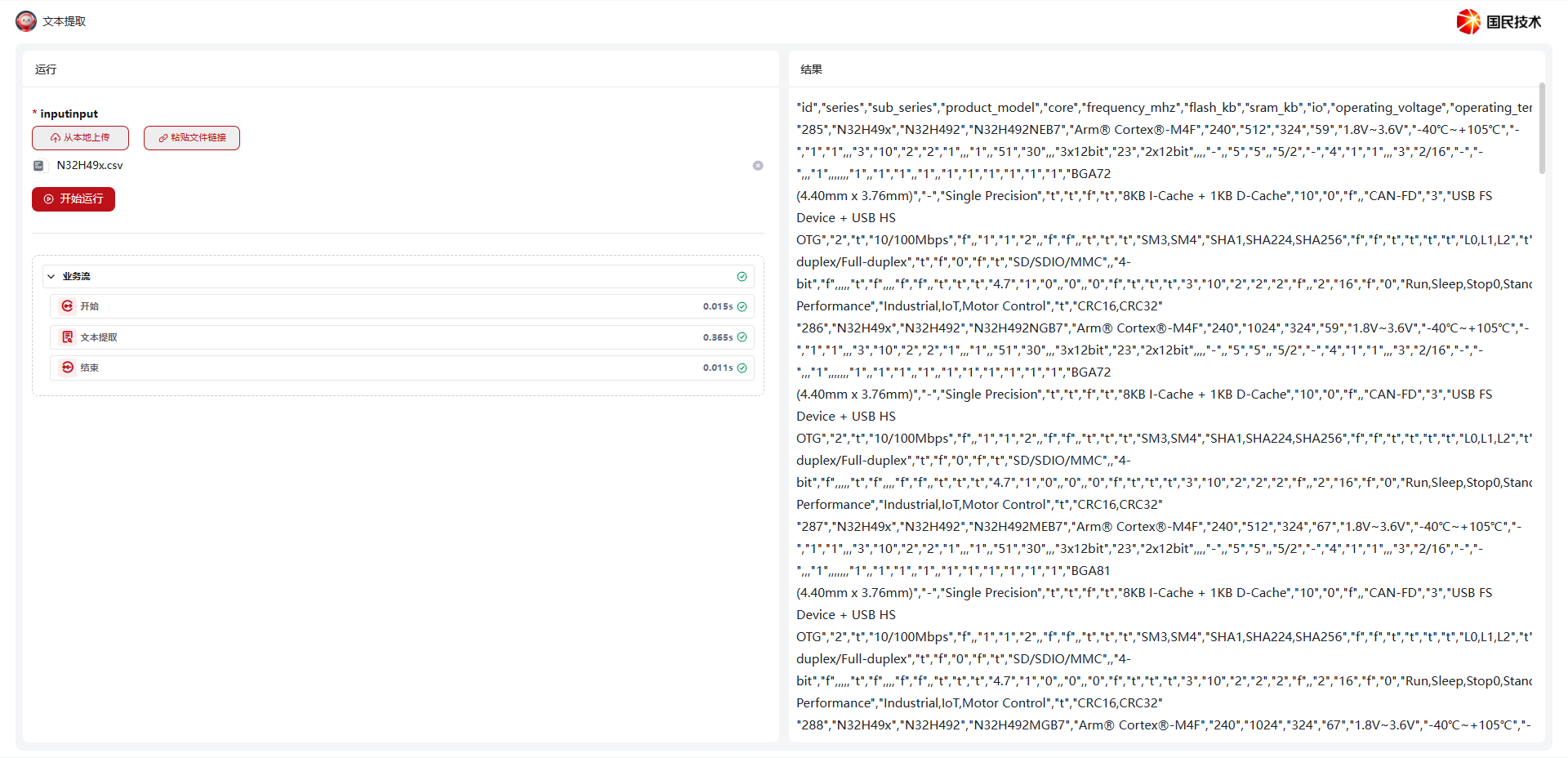
Click Start Run in the run panel, or access the full run interface via the standalone run entry.
| Area | Description |
|---|---|
| Left Input Area | Fill in required input parameters; supports local file upload or pasting a file link; click Start Run to submit; shows node execution status and time below |
| Right Result Area | Displays workflow output results in real time |
Publish
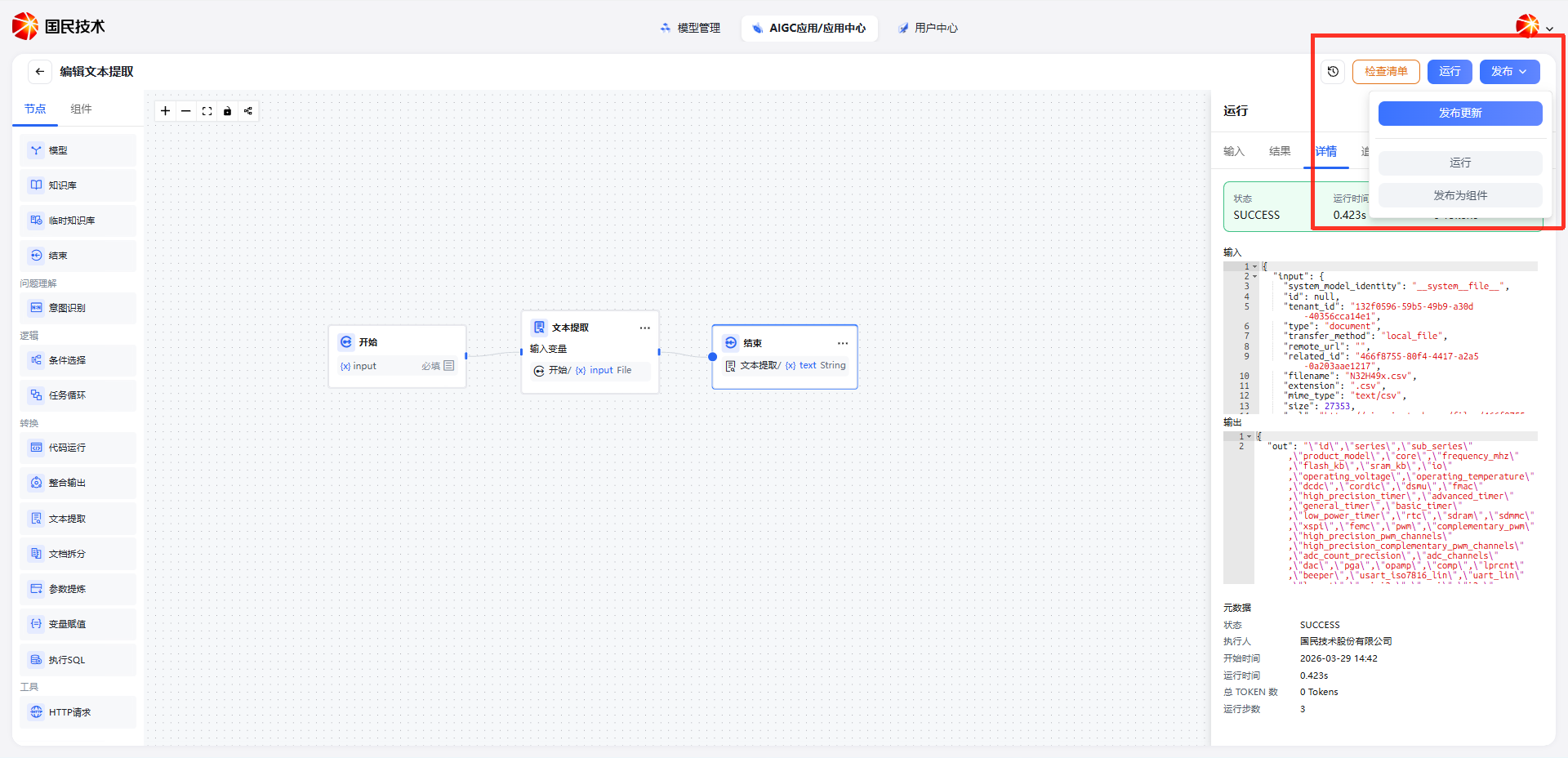
After debug verification, click the Publish button in the top right:
| Action | Description |
|---|---|
| Publish Update | Publish the current workflow's latest configuration as the live version; takes effect immediately |
| Run | Launch the currently published version; redirects to the run interface |
| Publish as Component | Package the current workflow as a reusable component for other workflows or applications to call |
Tip: After publishing as a component, the workflow will appear in the Components tab of the left node panel and can be referenced directly in other flows.