Department Management
Department Management is used to maintain organizational structure information in the system. Administrators can navigate to User Center → Departments via the top navigation bar to view, add, edit, and delete departments. Sub-departments can be added under existing departments to build a multi-level organizational structure.
Department List
The department list displays all departments currently in the system. Each record includes:
| Field | Description |
|---|---|
| Department Name | Display name of the department |
| Member Count | Number of members in the department |
| Manager | Person in charge of the department |
| Description | Brief description of the department |
| Status | Current status; toggle to enable/disable |
| Updated At | Last update time for department information |
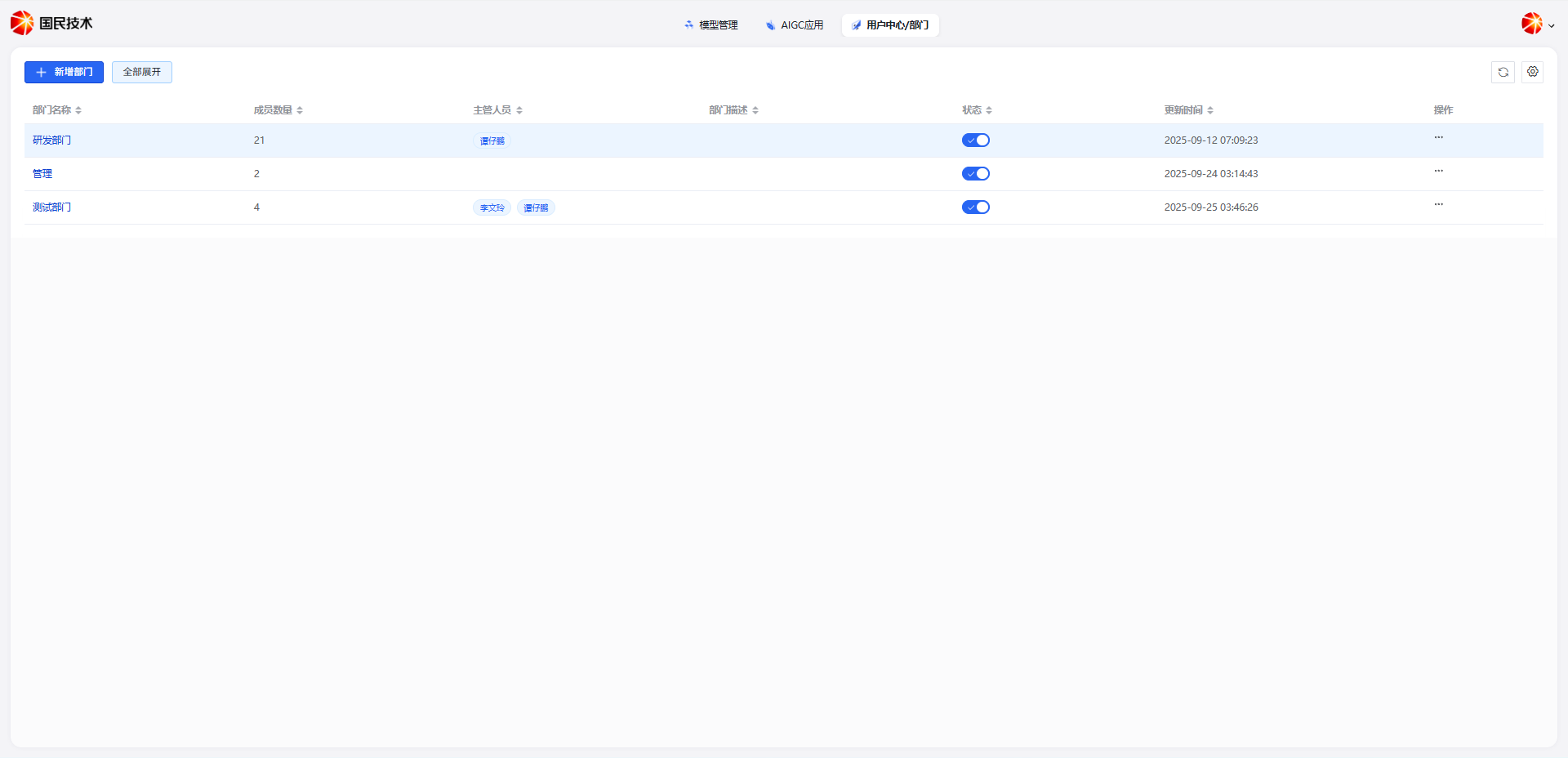
Add Department
Click the Add Department button in the top right corner. Fill in the following information and click Confirm:
| Field | Required | Description |
|---|---|---|
| Department Name | Yes | Display name of the department |
| Parent Department | No | Select the parent department; defaults to top-level if not selected |
| Manager | No | Select the person in charge |
| Description | No | Brief description; max 100 characters |
| Status | Yes | Initial status; defaults to Enabled; select Disabled to deactivate |
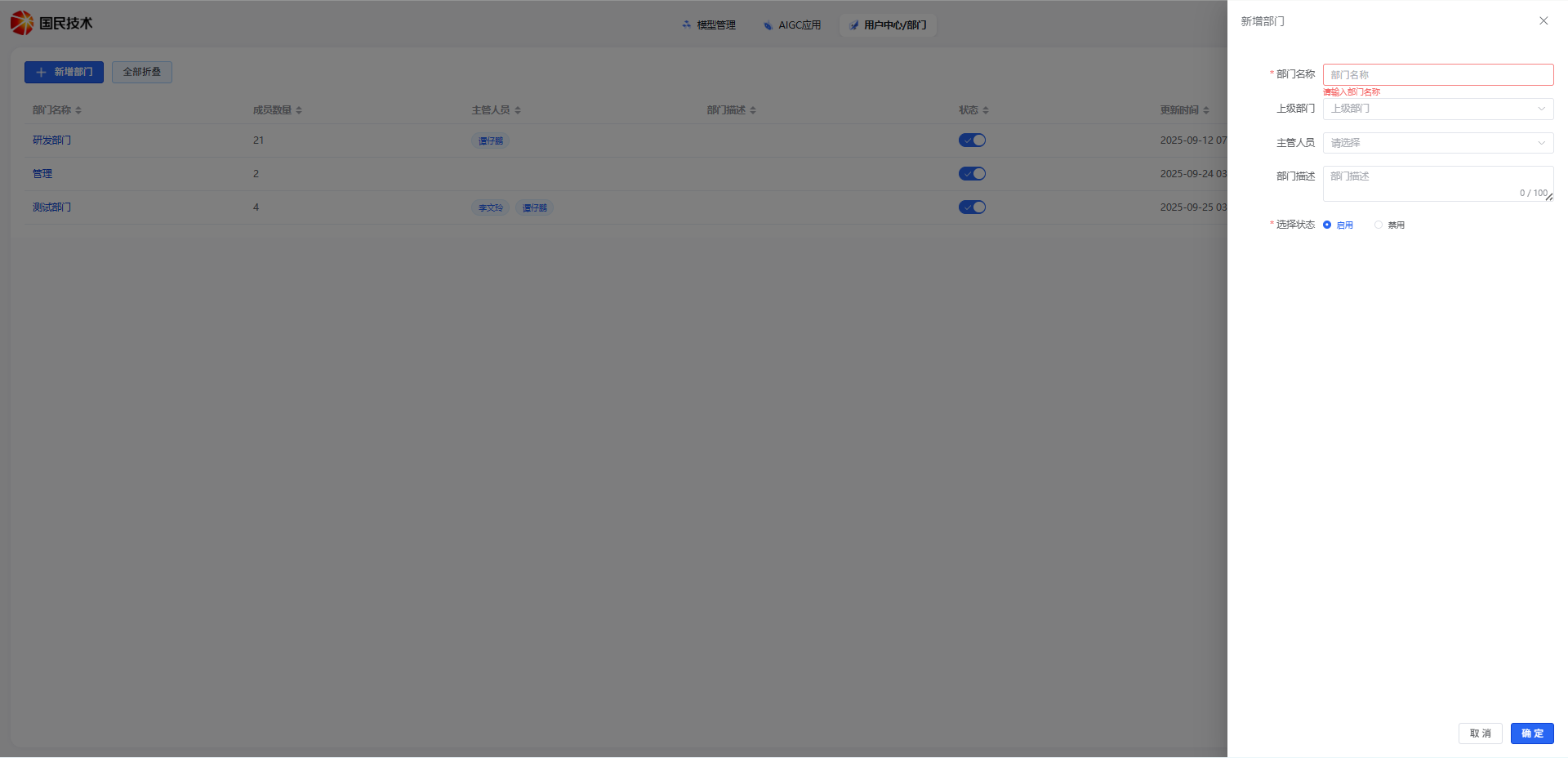
Tip: After creation, you can modify the name, parent department, and status at any time on the edit page.
Add Sub-department
In the department list, click the Add Sub-department button in the actions column of a department record to quickly create a child department under it.
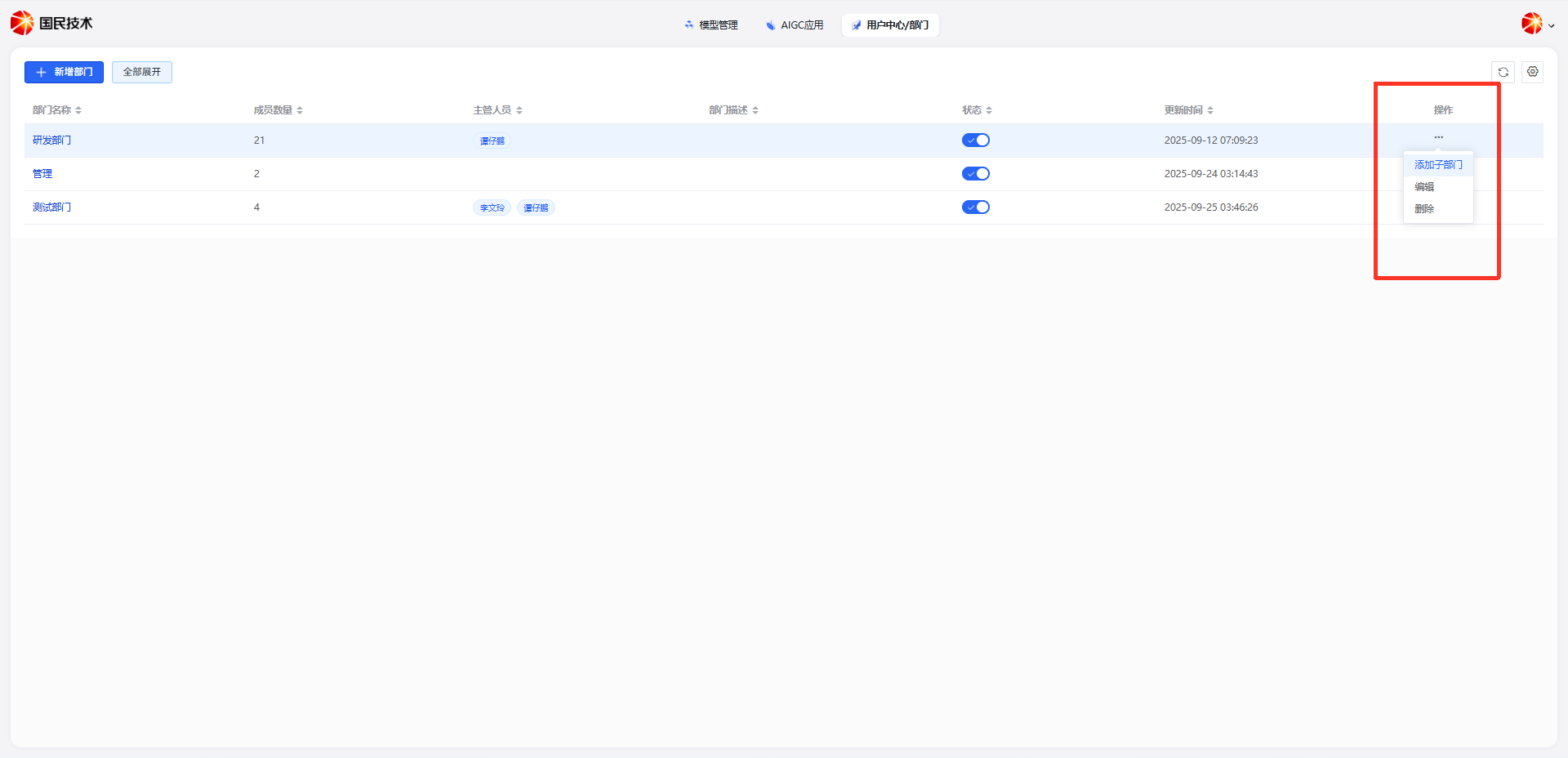
The Parent Department field in the dialog will be pre-filled with the selected department. Enter the sub-department name, set the status, and click Confirm.
Tip: The system supports multi-level department structures — configure flexibly based on your actual organizational hierarchy.
Edit Department
Click the Edit button to the right of a department record. The following information can be modified:
| Field | Description |
|---|---|
| Department Name | Change the department's display name |
| Parent Department | Adjust the parent department |
| Manager | Change the person in charge |
| Description | Update the department description |
| Status | Enable or disable the department |
Click Confirm to save changes.
Delete Department
Click the Delete button to the right of a department record. A confirmation prompt will appear.
Note: Deletion is irreversible. Departments with existing members cannot be deleted directly — move members to another department first. To temporarily deactivate a department, use the Disable function instead.