Knowledge Base Quick Start
The knowledge base is a knowledge management module built on RAG (Retrieval-Augmented Generation) technology. By vectorizing and storing private documents, it automatically retrieves relevant content when users ask questions and injects it into the context, enabling large models to provide accurate answers based on real documents and effectively reducing model hallucinations.
Core Capabilities:
- Support for multi-format document uploads (PDF, Word, TXT, Markdown, etc.)
- Automatic document chunking and vectorization
- Semantic similarity retrieval + Rerank precision ranking
- Multi-knowledge base multi-path recall fusion
- Citation tracing and original document download
Step 1: Associate a Knowledge Base
Before using the knowledge base, you need to associate it with an assistant application.
- Go to the Parameter Configuration page of the target assistant application
- Find the "Knowledge Base" configuration area and click the Add Knowledge Base button
- In the knowledge base list that appears, check one or more private knowledge bases to associate, then confirm
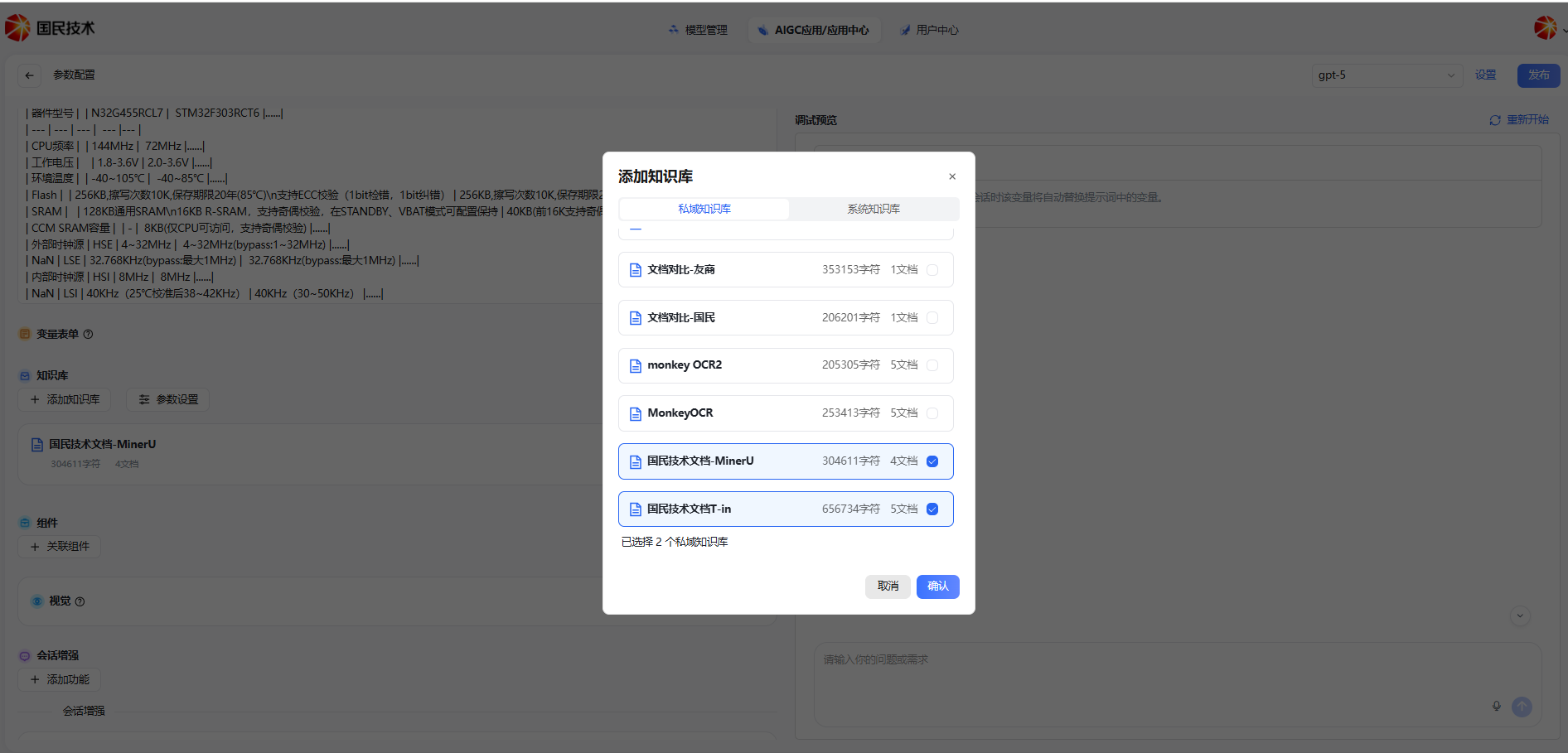
Multi-Knowledge Base Recall Configuration
When multiple knowledge bases are associated, it is recommended to enable multi-path recall and configure a Rerank model to improve retrieval quality:
| Config | Description | Recommended |
|---|---|---|
| Recall Mode | Select "Multi-path Recall" to retrieve from multiple knowledge bases in parallel | Multi-path Recall |
| Rerank Model | Re-rank multi-path recall results to filter low-relevance content | As needed |
| Top K | Number of document segments finally injected into context | 3 ~ 6 |
| Score Threshold | Segments with similarity scores below this value will be filtered, range 0 ~ 1 | 0.5 ~ 0.7 |
Tip: A larger Top K value brings richer recall content but also increases Token consumption; a higher Score Threshold gives more precise results but may reduce recall rate. Adjust based on your actual business scenario.
Step 2: Enable Citations and Attribution
To make answers traceable, enable the citation display feature in session configuration.
- Go to the Session Enhancement configuration area of the assistant application
- Enable the Citations switch — answers will display the referenced knowledge base document segments
- Enable the Attribution switch — answers will mark the source document name
After configuration, enter a question related to the knowledge base documents in the conversation input box, and the assistant will automatically retrieve and cite relevant content to answer.
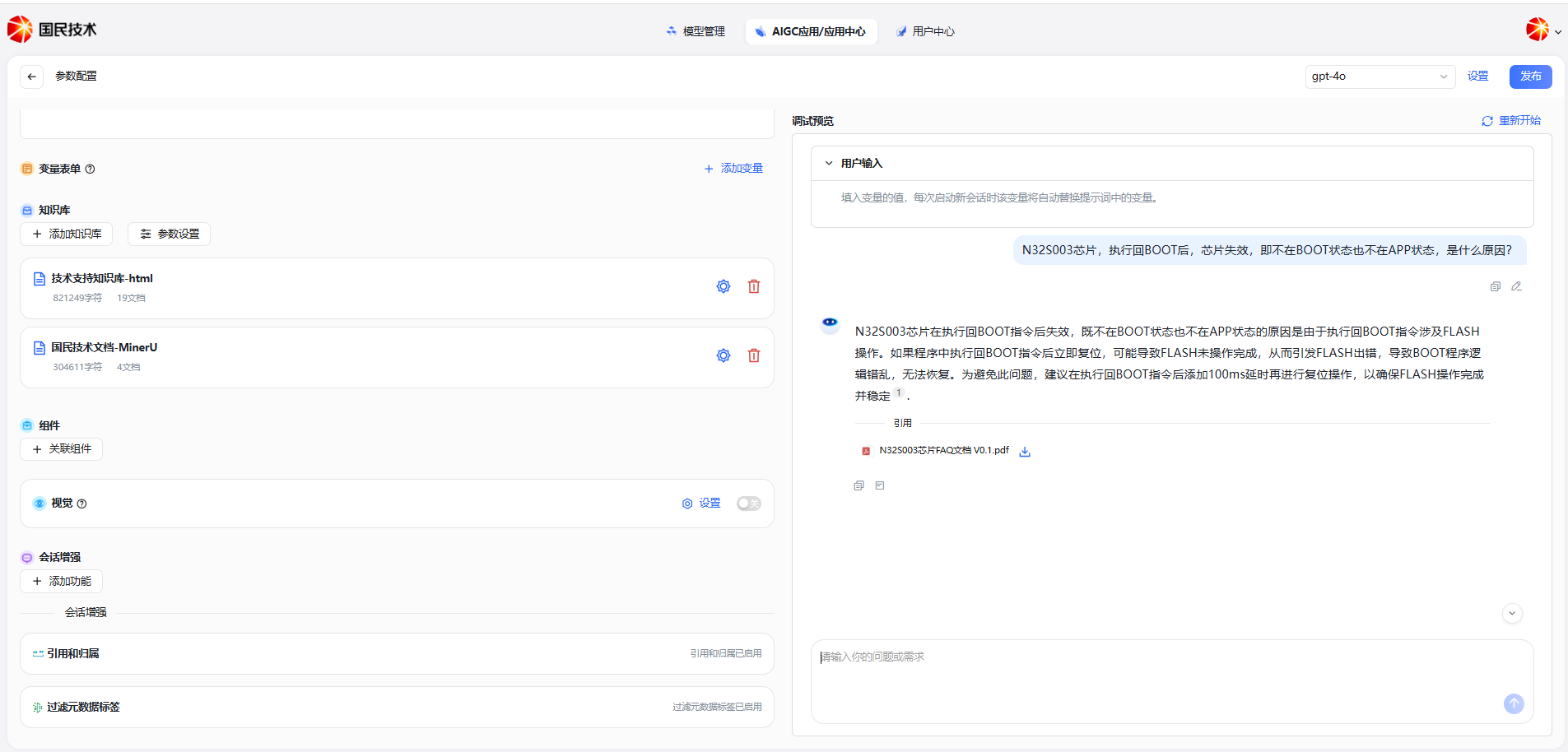
Step 3: View and Download Referenced Documents
When the assistant's answer references document content from the knowledge base, a citation source list will be displayed below the reply.
Download Conditions (both must be met):
- The current answer actually referenced knowledge base document content
- The current user account has document download permission
Steps:
- Find the citation source area below the reply
- Click the download icon to the right of the corresponding document
- The system will download the original file of the referenced document
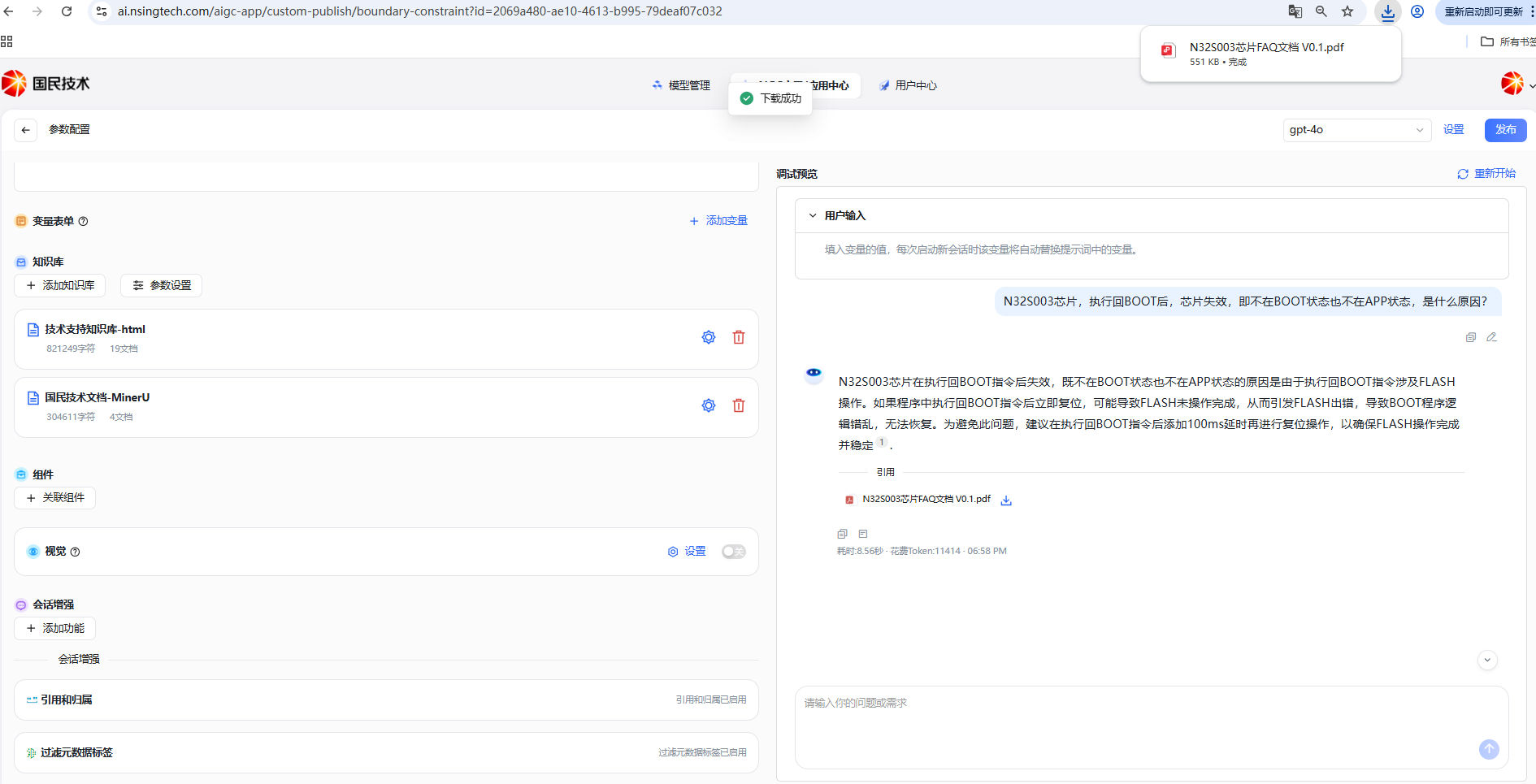
Note: If the download icon is not clickable, contact your administrator to confirm whether your account has document download permission.
FAQ
Q: Why didn't the assistant cite knowledge base content?
Possible reasons:
- The question has low relevance to the knowledge base documents and didn't reach the Score Threshold
- Knowledge base documents haven't completed vectorization (check index status on the knowledge base management page)
- The knowledge base is not correctly associated with the current assistant application
Q: How to improve retrieval accuracy?
- Appropriately lower the Score Threshold to expand the recall range
- Increase the Top K value to introduce more candidate segments
- Optimize the document chunking strategy to avoid chunks that are too long or too short
- Enable the Rerank model for secondary ranking of recall results
For more knowledge base content, see Knowledge Base