Translation Assistant
Translation Assistant is an application type focused on text translation, supporting multi-language translation, terminology glossary management, and multi-round translation optimization, suitable for personal and enterprise translation scenarios.
Use Cases
| Scenario | Description |
|---|---|
| Enterprise Document Translation | Batch translate contracts, reports, product manuals, and other formal documents while maintaining terminology consistency |
| Professional Domain Translation | Medical, legal, technical fields — lock in professional terminology translations via glossary |
| Content Localization | Translate product descriptions and marketing copy into target market languages |
| Sensitive Word Control | Ensure specific terms are output according to specified translations via glossary replacement |
Create Application
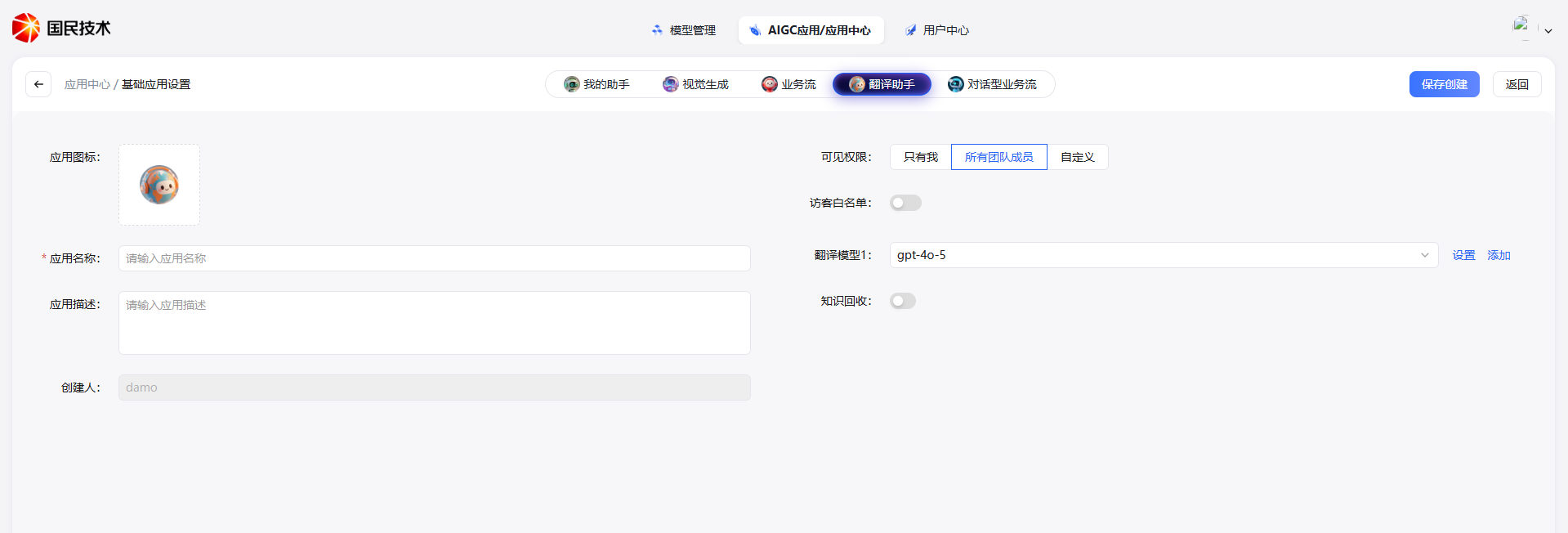
Go to AIGC Applications / Application Center, click "Create Application", select Translation Assistant as the application type, fill in the application name, select translation models (supports adding multiple), and click "Save & Create".
Configure Parameters
After creation, the system automatically redirects to the parameter configuration page. Complete configuration by module.
Translation Prompt
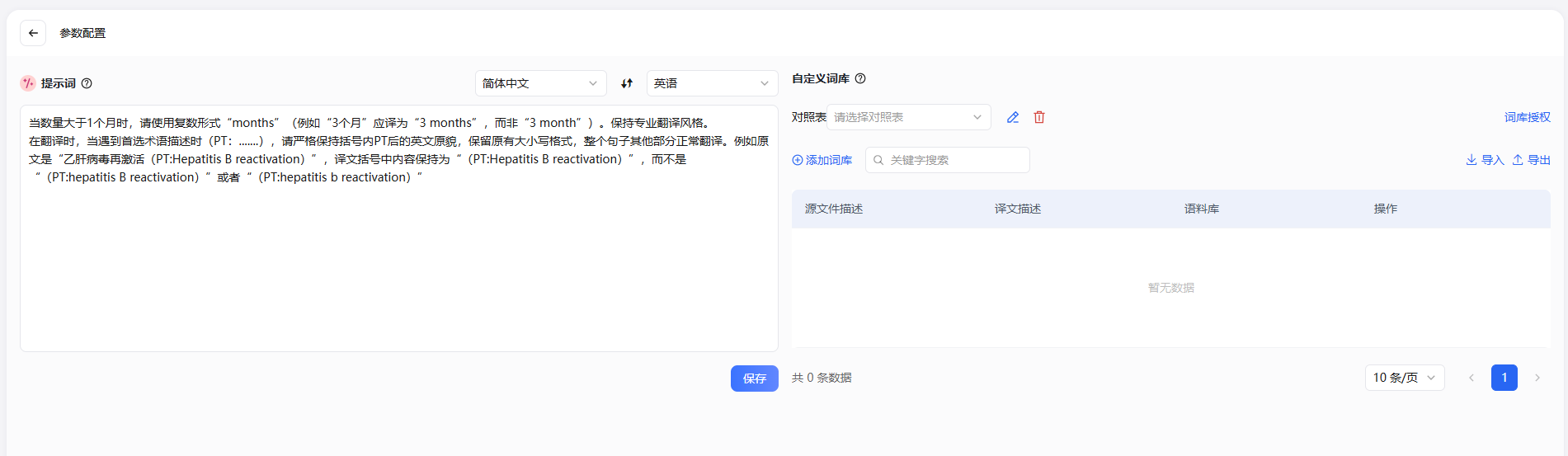
The left side of the configuration page is the translation prompt settings area. Select the language direction based on source language and target language, and fill in the translation prompt in the input box.
- The prompt applies to all translation tasks in that language direction
- You can specify translation style, tone, format requirements, etc. in the prompt
- Different language directions can have different prompts, independent of each other
Translation Glossary
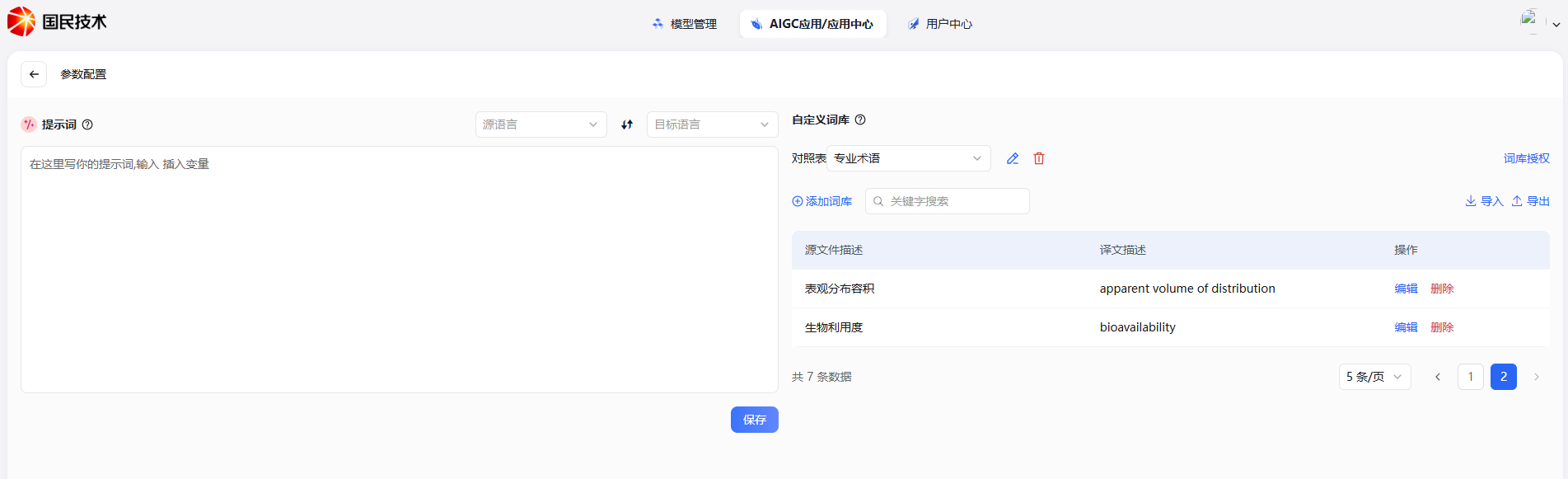
The right side of the configuration page is the glossary management area. The glossary locks the translation of specific terms — when the original text in the glossary appears in a document during translation, it will be output directly according to the glossary translation, unaffected by the model's free interpretation.
Use Cases:
- Brand names and product names need fixed translations
- Professional terms need unified translation standards
- Sensitive terms need to be replaced with specified expressions
Operations:
| Operation | Description |
|---|---|
| Add Glossary | Click "Add Glossary" button, fill in the original text and corresponding translation |
| Import Glossary | Supports batch import for quickly building large glossaries |
| Export Glossary | Export the current glossary for backup or reuse in other applications |
Translate Documents
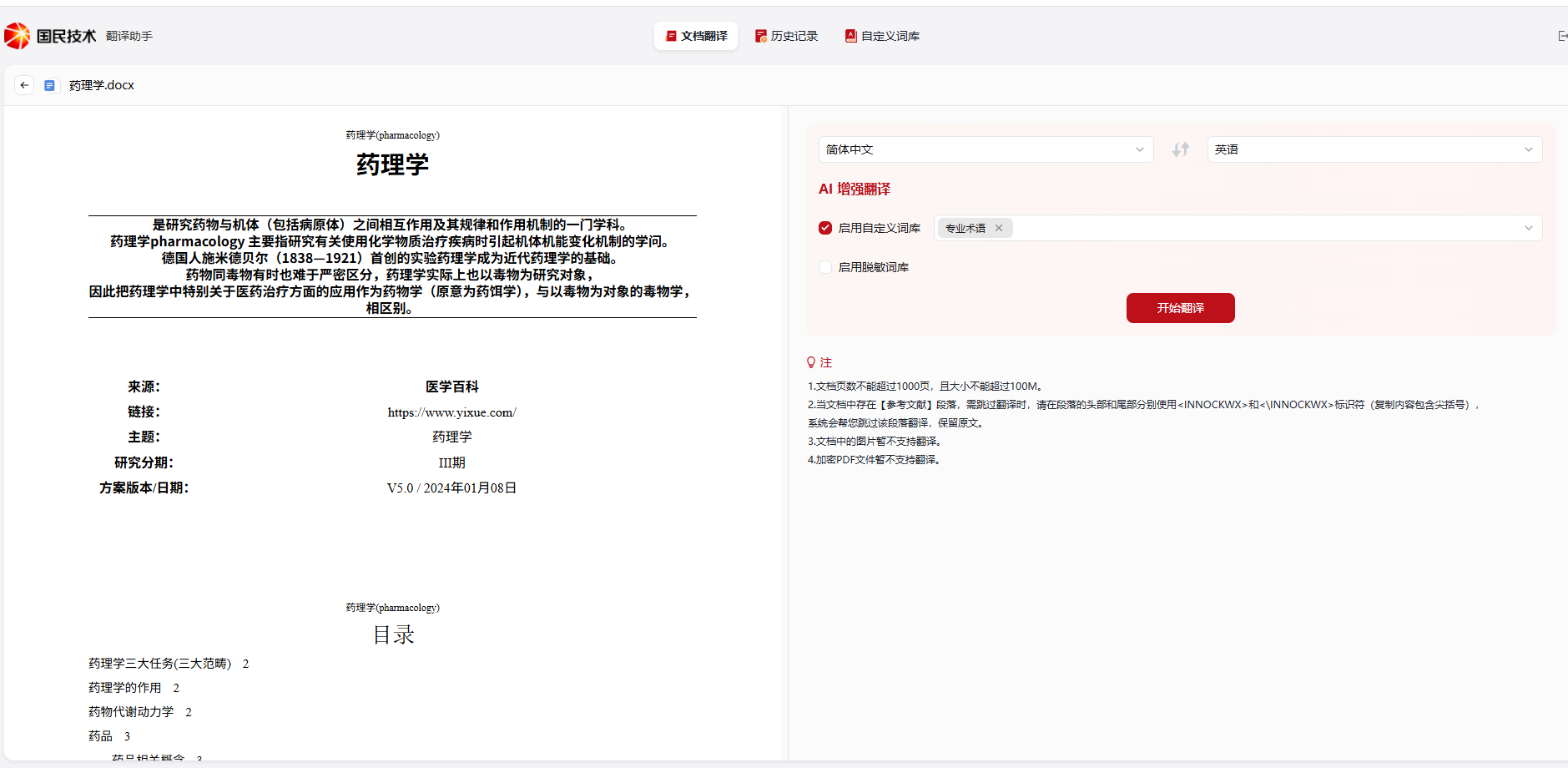
After configuration, click the "Try Now" button on the application card to enter the document translation page.
Steps
- Upload Document: Upload the text or file to be translated on the translation page
- Select Glossary: Check the glossaries to apply on the right (multiple selection supported)
- Translate Document: Click "Start Translation" and wait for the progress to reach 100%
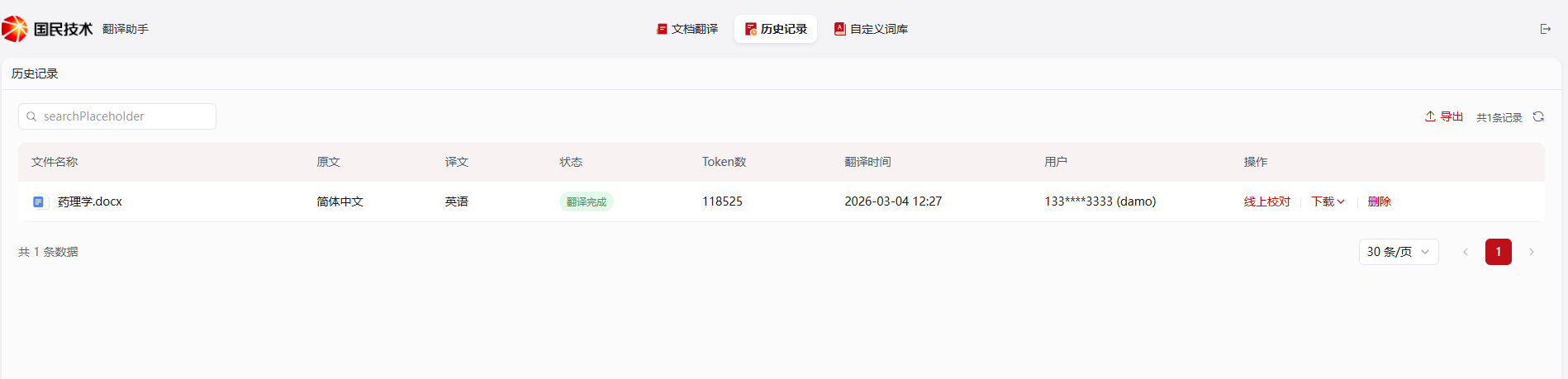
- View History: After translation, automatically redirects to the history page where you can compare original and translated text
Do not close the page during translation. Large document translation takes longer — consider uploading in batches.
History
All completed translation tasks are saved in history, supporting the following operations:
| Feature | Description |
|---|---|
| Original/Translation Comparison | Side-by-side display of original and translated text for review |
| Download Translation | Export translation results as a file |
| Re-translate | Re-initiate translation for a historical task (can change glossary or model) |