Recall Testing
Recall Testing lets you test the knowledge base's retrieval effectiveness using a given query. By entering actual business queries, you can see which document segments are matched, their similarity scores, and whether the current segmentation strategy, retrieval mode, and parameter configuration are appropriate — then adjust accordingly.
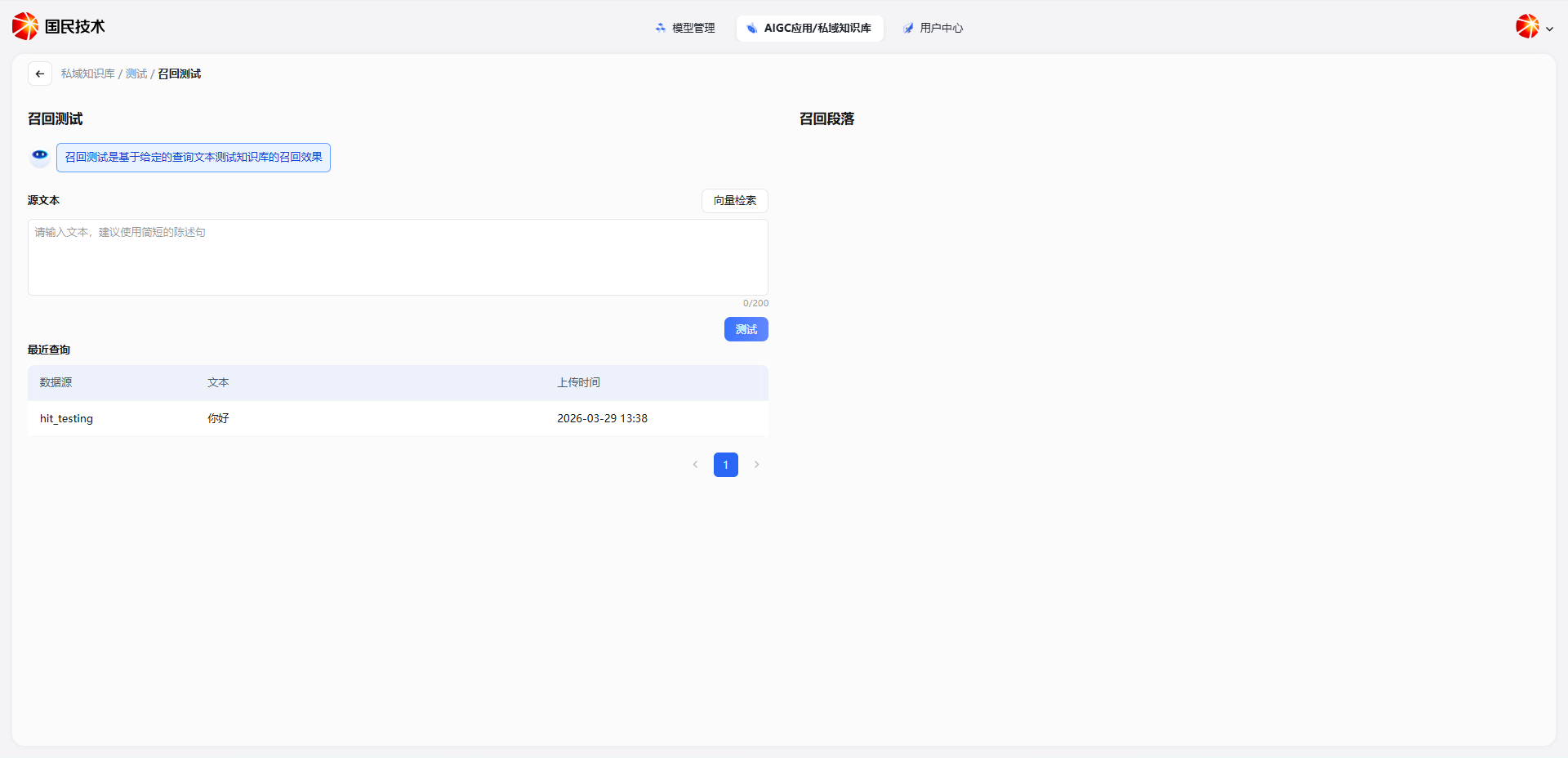
On the knowledge base edit configuration page, click Recall Testing to enter the testing page.
Running a Test
Enter a query in the Source Text input box on the left (use short declarative sentences; max 200 characters), then click Test. The system executes a retrieval using the current settings, and the Recalled Segments area on the right displays the matched document segments.
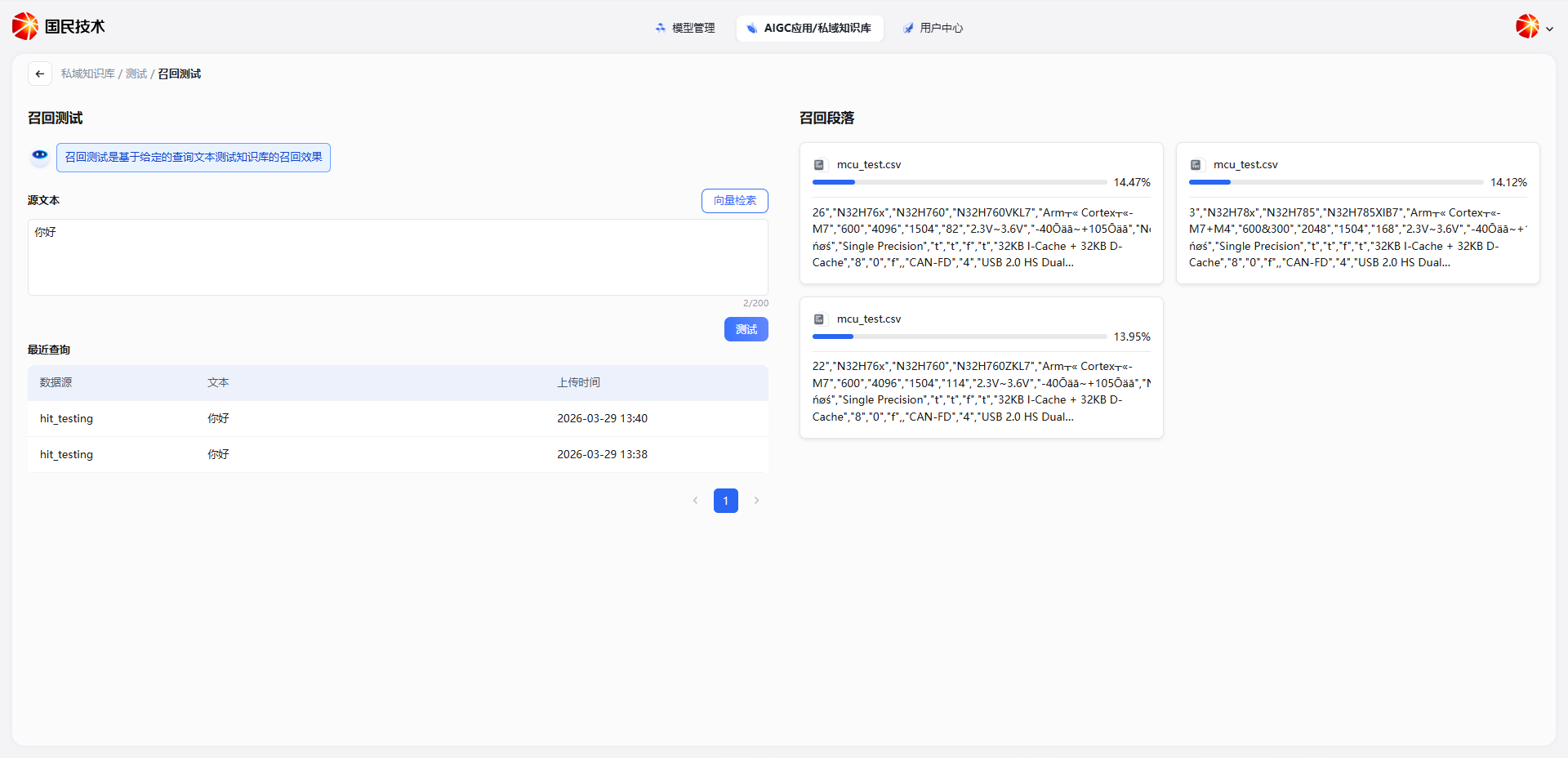
Each recall result includes:
| Field | Description |
|---|---|
| Source File | The original document name that the segment belongs to |
| Similarity Score | How well the segment matches the query, displayed as a percentage — higher is more relevant |
| Segment Content | Preview of the matched document fragment |
The Recent Queries section at the bottom records historical test data sources, query text, and timestamps — useful for comparing results before and after parameter adjustments.
Using Recall Testing to Tune Parameters
The core value of Recall Testing is identifying retrieval issues and guiding parameter optimization:
Recalled content is irrelevant / scores are generally low
- The current segment granularity is too coarse; segments contain too much irrelevant content. Reduce the Max Segment Length and reprocess the document.
- Or switch retrieval mode from vector search to Hybrid Search to improve precision with keyword matching.
Expected content is not appearing
- Check if the Score Threshold is set too high, filtering out relevant segments. Lower it slightly.
- Check if Top K is too small. Increase the return count and test again.
- For queries with exact terms like product codes or file numbers, enable Index Enhancement to locate segments directly via metadata.
Too many segments returned with inconsistent quality
- Raise the Score Threshold to filter low-relevance segments.
- Reduce Top K to keep only the most relevant results.
Poor semantic understanding (synonyms and paraphrases not matched)
- Switch to Vector Search or Hybrid Search — vector search has stronger semantic similarity understanding.
- Check if the current Embedding Model is suitable for your language corpus. If needed, switch models in the knowledge base settings.
Setting the Retrieval Mode
Click the Vector Search button in the top right of the source text input box to temporarily switch the retrieval mode for testing — without modifying the knowledge base settings — so you can compare different modes side by side.
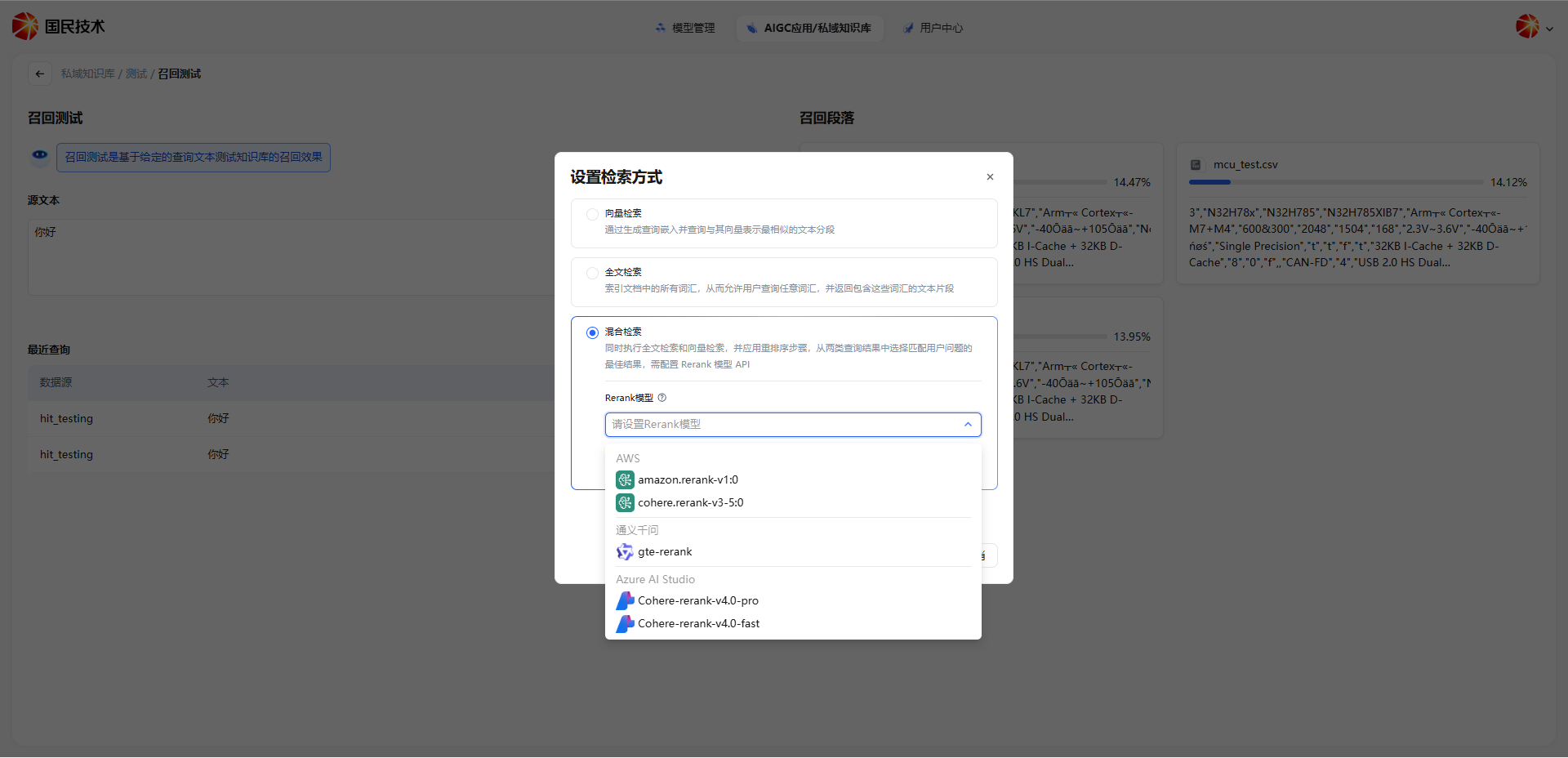
Three retrieval modes are supported:
| Mode | Description |
|---|---|
| Vector Search | Generates query embeddings and finds the most semantically similar text segments; suitable for natural language Q&A |
| Full-text Search | Indexes all words in documents; returns segments containing queried words; suitable for exact keyword matching |
| Hybrid Search | Runs both full-text and vector search simultaneously with a reranking step; requires a Rerank model |
When selecting Hybrid Search, choose a Rerank model below (e.g., gte-rerank, Cohere-rerank-v4.0-pro). The Rerank model re-ranks the initial recall results, placing the most relevant segments first — significantly improving the quality of final returned content.
Tip: Switching retrieval modes in Recall Testing only affects the current test and does not modify the knowledge base's actual retrieval configuration. To make changes permanent, go to Knowledge Base Configuration - Retrieval Settings.