Conversational SQL Node
Definition
The Conversational SQL node is used in conversational workflows to perform CRUD operations on a database. It accepts a specified database table and user input, supports intelligent SQL generation from natural language, and passes results to downstream nodes.
Configuration
Add a Database
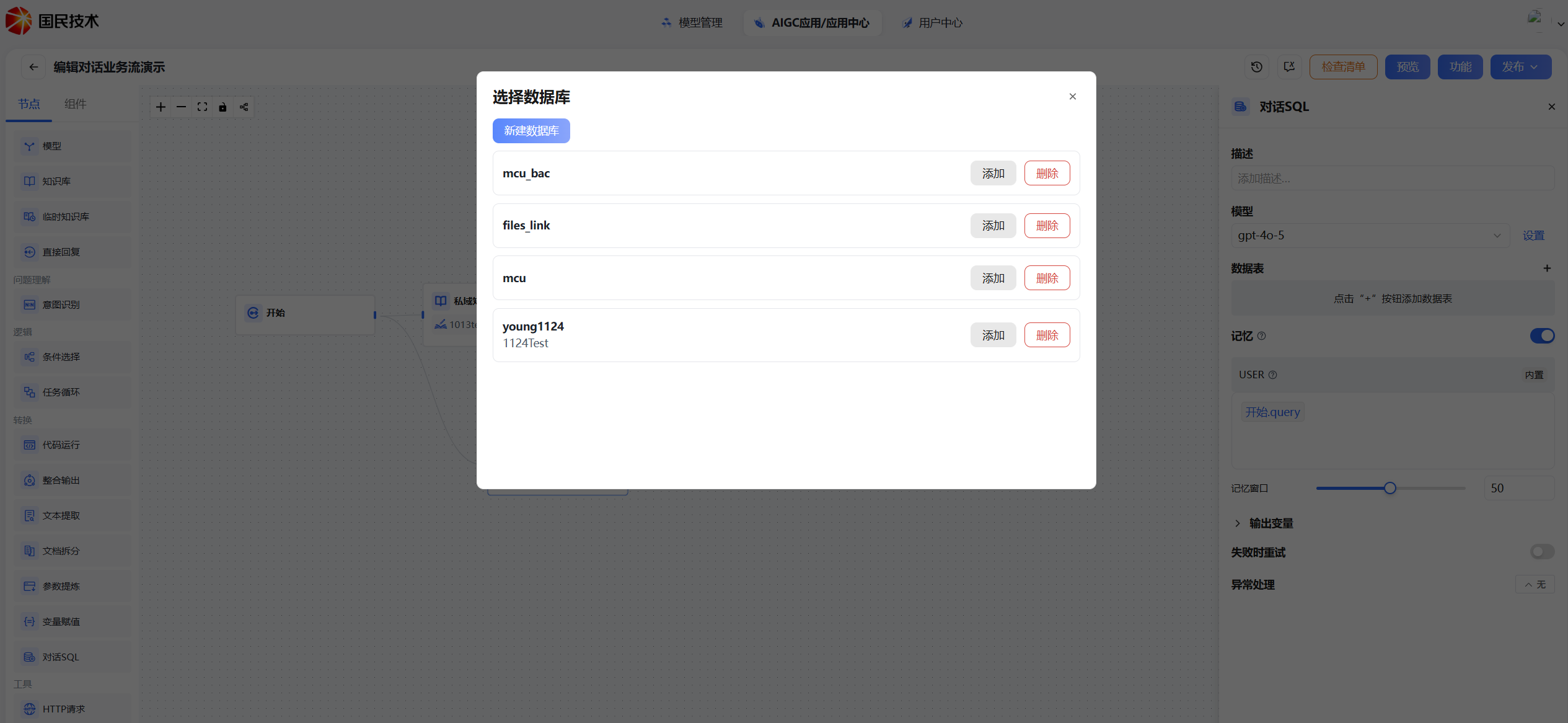
Click the + icon next to the database field, then click New Database. Enter a valid database name and description, then click confirm to enter the database table structure design page.
1. Add table structure — Fill in field names and descriptions, select data types, and mark required fields.
2. Import data — After creating the table structure, switch to the data import tab. Upload an Excel or CSV file, map the table fields, and complete the import.
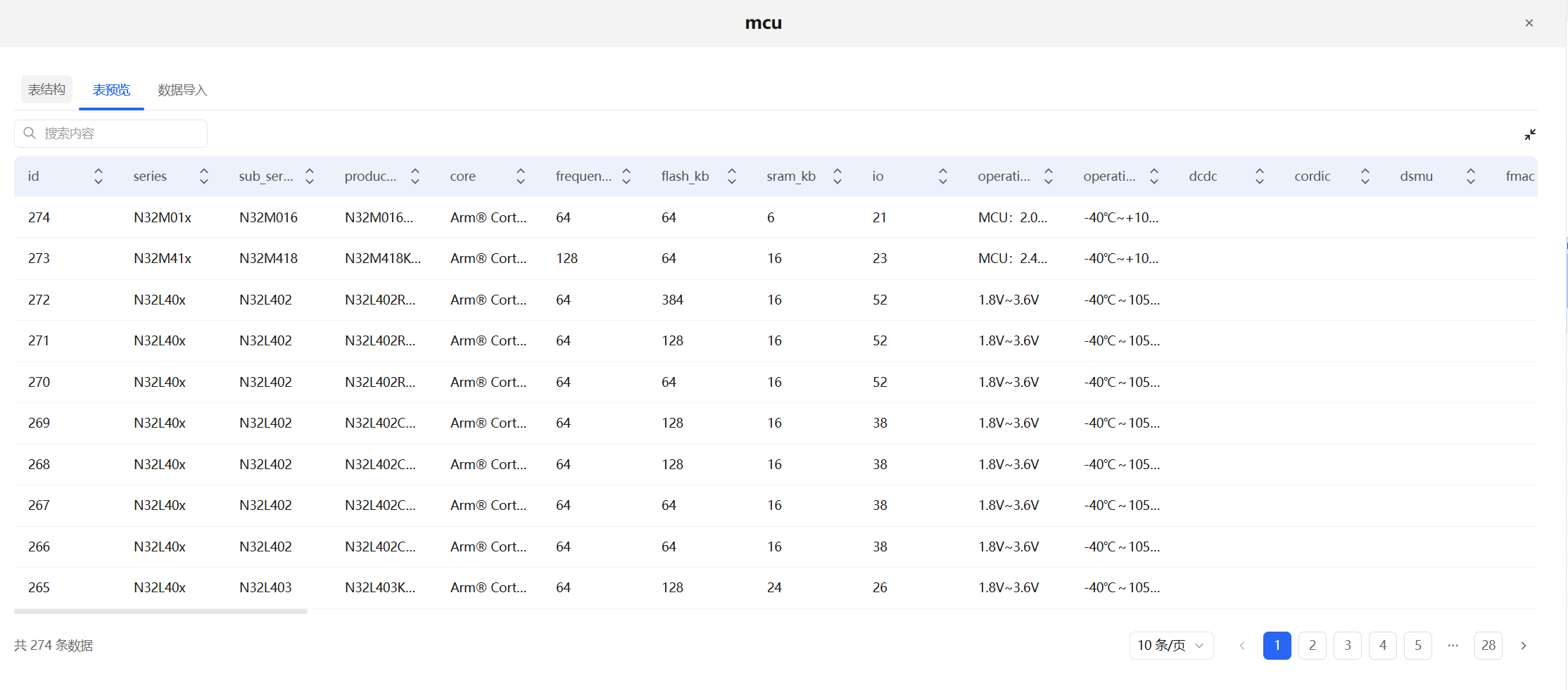
3. Preview data — After import, switch to the table preview tab. A global search box is available at the top left, and imported data is displayed in a paginated list below.
Add a Database to the Node
In the database dialog, click Add to add the database table to the node's data table list. You can add or remove tables as needed.
Remove a Database
In the database dialog, click Delete to remove an added database.
Query Database Data
After adding a database, the node uses the user's input question, combined with the added table structure and the built-in prompt in the User input box, to automatically generate and execute a SQL statement. The result is output to downstream nodes.
Parameters
| Parameter | Description |
|---|---|
| Chat Memory | Enabled by default. When enabled, the User input box is bound to the Start node's query variable by default; when disabled, the User input box is hidden |
| Memory Window | Retains the last 50 turns of conversation context by default |
| Output Variable | Supports Array[String] type |
| Failure Retry | Supports automatic retry on execution failure |
| Exception Handling | Supports configuring exception branches to handle query failures and other errors |
Typical Use Cases
Natural Language Database Query
Requirement: The user inputs "Query the product with the highest last month" and the system automatically generates SQL and returns the result.
Setup:
- Create a database and import the business data table (e.g., sales records)
- Add the database to the Conversational SQL node; enable chat memory
- Bind the User input box to the Start node's
queryvariable - The node automatically converts natural language to SQL and executes it; output is passed to a Direct Reply node
Start → Conversational SQL (natural language → SQL query) → Direct ReplyMulti-turn Follow-up Data Exploration
Requirement: The user first queries overall data, then progressively asks for details. The node needs to understand contextual references.
Setup:
- Enable chat memory; increase the memory window size based on business complexity
- The node passes conversation history to the AI, enabling it to understand references like "this one", "that one", "break it down further"
Start → Conversational SQL (with conversation history) → Direct ReplyFAQ
Q: What happens when chat memory is disabled?
The node no longer carries conversation history. Each query is an independent request — suitable for single-query scenarios that don't require context.
Q: How do I use the output in downstream nodes?
The output variable type is Array[String]. Reference it in a Direct Reply node or Model node using variable reference syntax.