Model Node
Definition
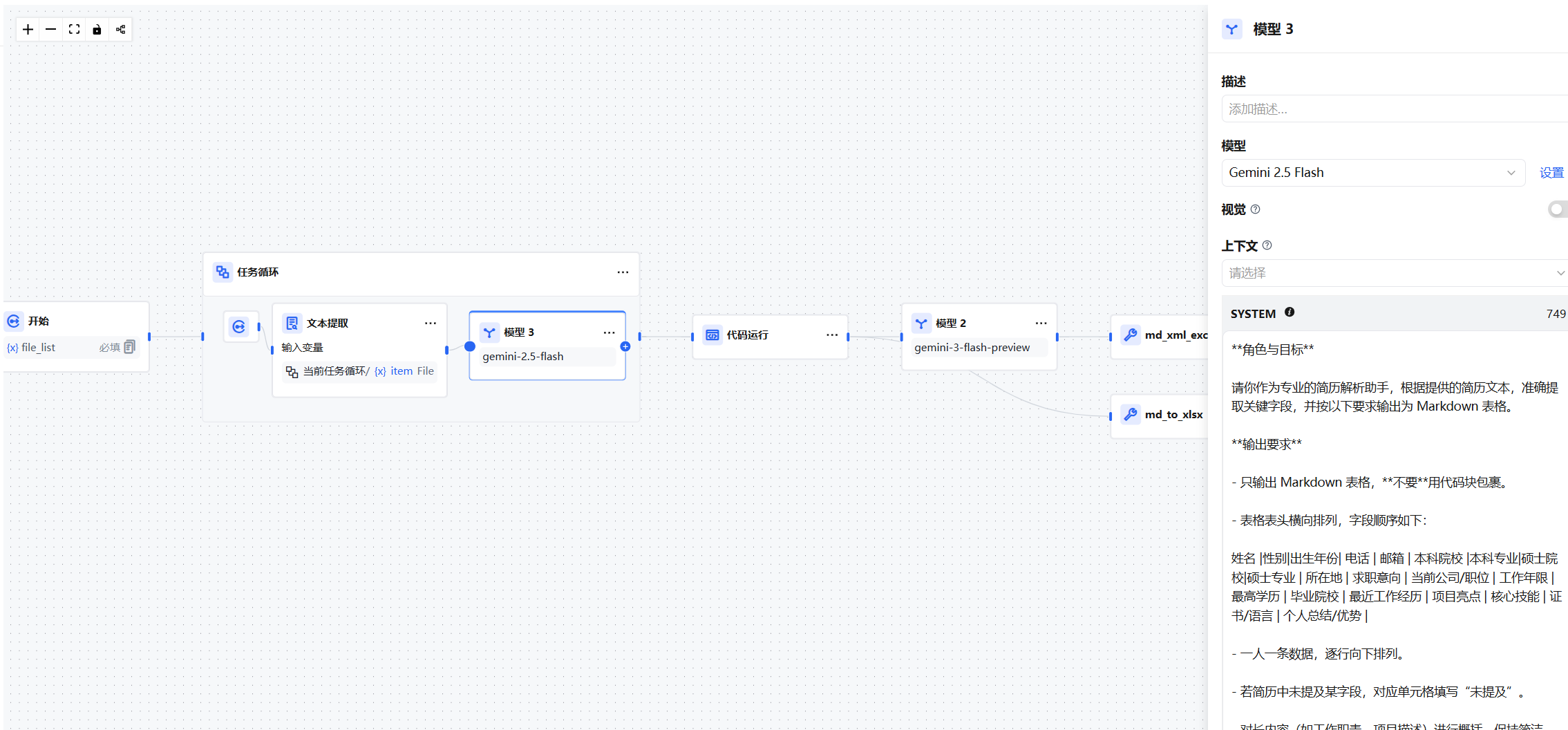
The Model node invokes a large language model (LLM) to process user input — natural language, uploaded files, or images — and produce a response.
Use Cases
The Model node is the core node of a Workflow. It leverages the LLM's conversation, generation, classification, and processing capabilities to handle a wide range of tasks at different stages of a workflow:
- Intent Recognition — In customer service scenarios, classify and route user questions to different downstream flows.
- Text Generation — In content creation scenarios, generate text based on topics or keywords.
- Content Classification — In email batch processing, automatically classify emails as inquiries, complaints, or spam.
- Text Transformation — Translate user-provided text into a specified language.
- Code Generation — Generate business code or write test cases based on user requirements.
- RAG — In knowledge base Q&A, combine retrieved knowledge with the user's question to generate an accurate reply.
- Image Understanding — Use a vision-capable LLM to understand and answer questions about image content.
- File Analysis — Use an LLM to identify and analyze the contents of uploaded files.
Configuration
On the canvas, right-click or click the + at the end of the previous node to add a Model node.
- Select a Model — Choose from GPT series (Azure OpenAI), Claude series (Anthropic), Gemini series (Vertex AI), and more. Consider reasoning capability, cost, response speed, and context window size when choosing.
- Configure Model Parameters — Control generation behavior with parameters like temperature, Top P, max tokens, and response format. Three presets are available: Creative, Balanced, and Precise. If you're unfamiliar with these settings, use the defaults. To enable image analysis, select a vision-capable model.
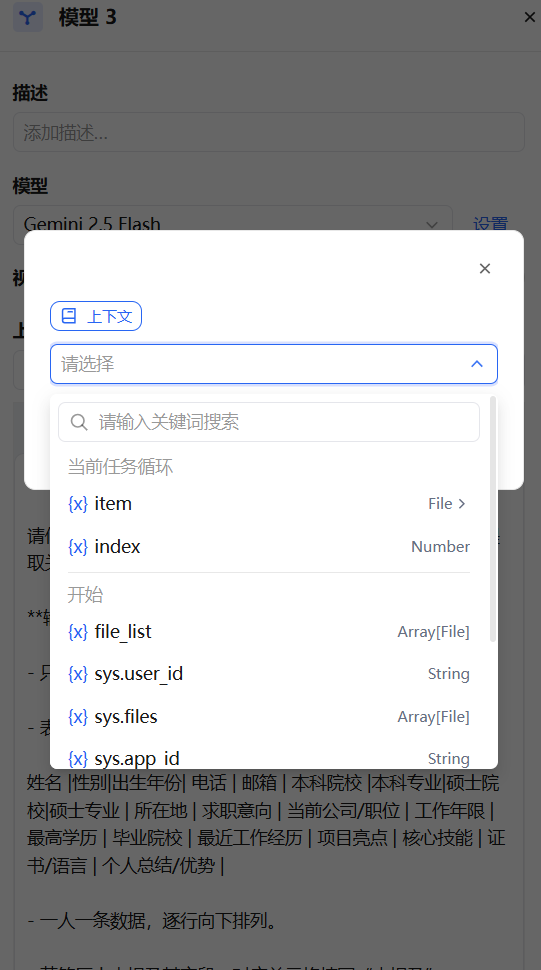
- Fill in Context (Optional) — Context provides background information to the LLM, commonly used to pass in the output variable from a Knowledge Base node.
- Write a Prompt — The Model node pro a prompt editor. For chat models, you can customize both the System prompt and the User message.
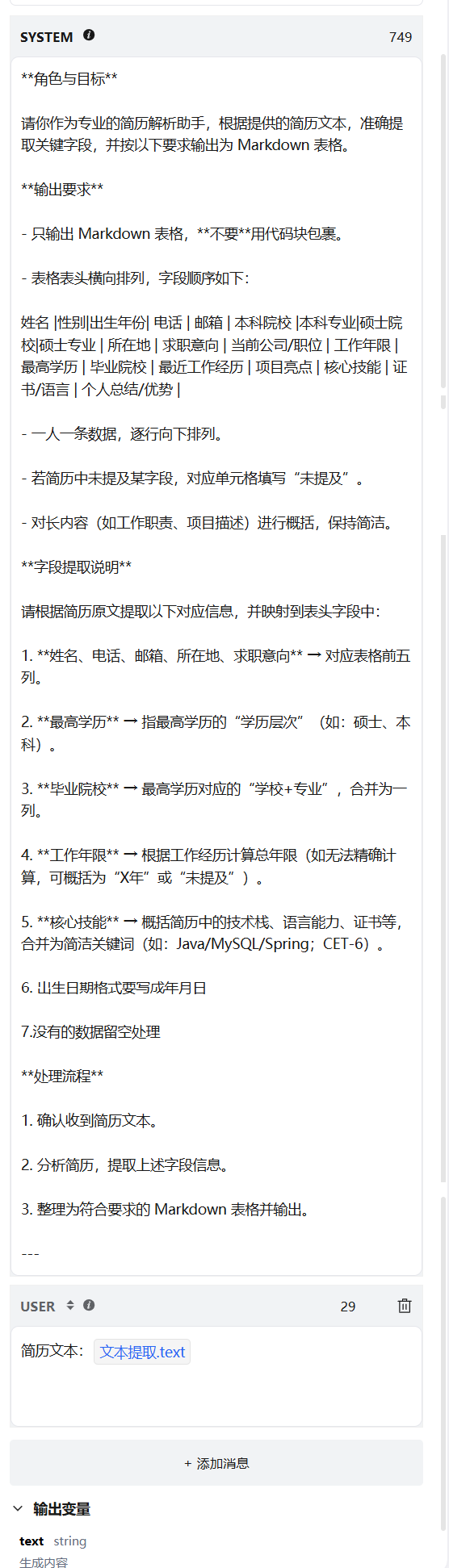
In the prompt editor, type / to open the variable insertion menu and insert upstream node variables as context.
Special Variable Types
Context Variable
The context variable is a special variable type designed for knowledge base retrieval. It can only be referenced inside a Model node. When the prompt references the output of a Knowledge Base node, that output is passed in as a context variable.
- Its value is a structured list of text segments retrieved from the knowledge base.
- Referenced in the prompt via
Context. - The LLM uses these retrieved results as background knowledge to answer the user's question, implementing RAG (Retrieval-Augmented Generation).
Image Variable
Image variables pass image content to vision-capable LLMs (e.g., GPT-4V, Claude 3).
- Supports image URLs or Base64-encoded image data.
- Typically sourced from a file upload node or an image-type input variable.
- Once referenced in the prompt, the LLM can understand, describe, or analyze the image.
- Only effective when the selected model has vision capability.
File Variable
File variables pass file content (PDF, Word, TXT, etc.) to the Model node for processing.
- Typically sourced from a file upload node or a file-type workflow input variable.
- Supports multiple file formats (within the range supported by the Start node).
- Suitable for document Q&A, document summarization, and content extraction scenarios.
Advanced Settings
Error Retry — When a node encounters certain errors, retrying usually resolves the issue. When enabled, the node will automatically retry according to a preset strategy. You can configure the maximum retry count and interval.
- Maximum retries: 10
- Maximum retry interval: 5000 ms
Exception Handling — Provides flexible error handling strategies. When an error occurs, you can throw an error without interrupting the main flow, or continue via a fallback path.