Execute SQL Node
Definition
The Execute SQL node is used in workflows to perform fixed SQL operations on a database. It executes a single SQL statement per run and has no memory of previous executions.
Configuration
Add a Database
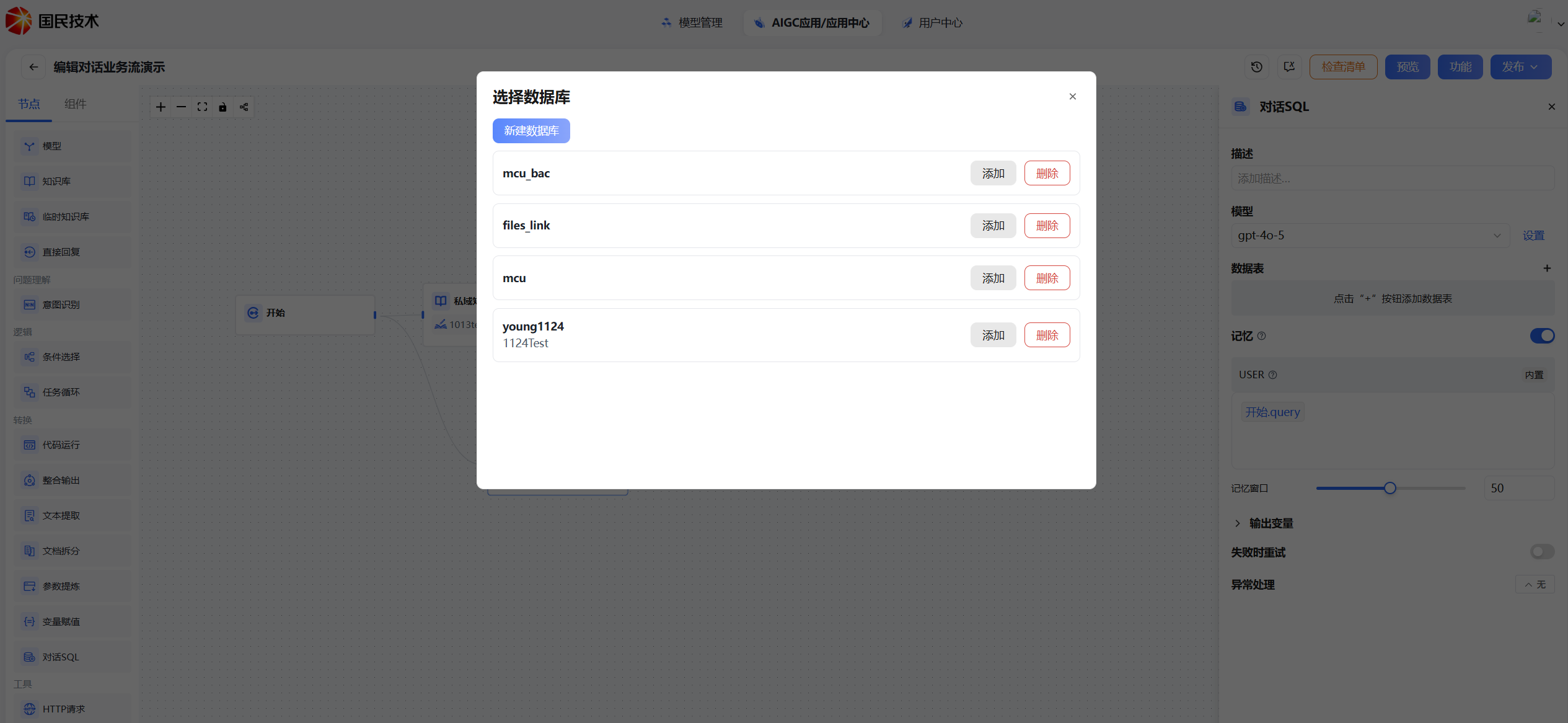
Click the + icon next to the database field, then click New Database. Enter a valid database name and description, then click confirm to enter the database table structure design page.
1. Add table structure — Fill in field names and descriptions, select data types, and mark required fields.
2. Import data — After creating the table structure, switch to the data import tab. Upload an Excel or CSV file, map the table fields, and complete the import.
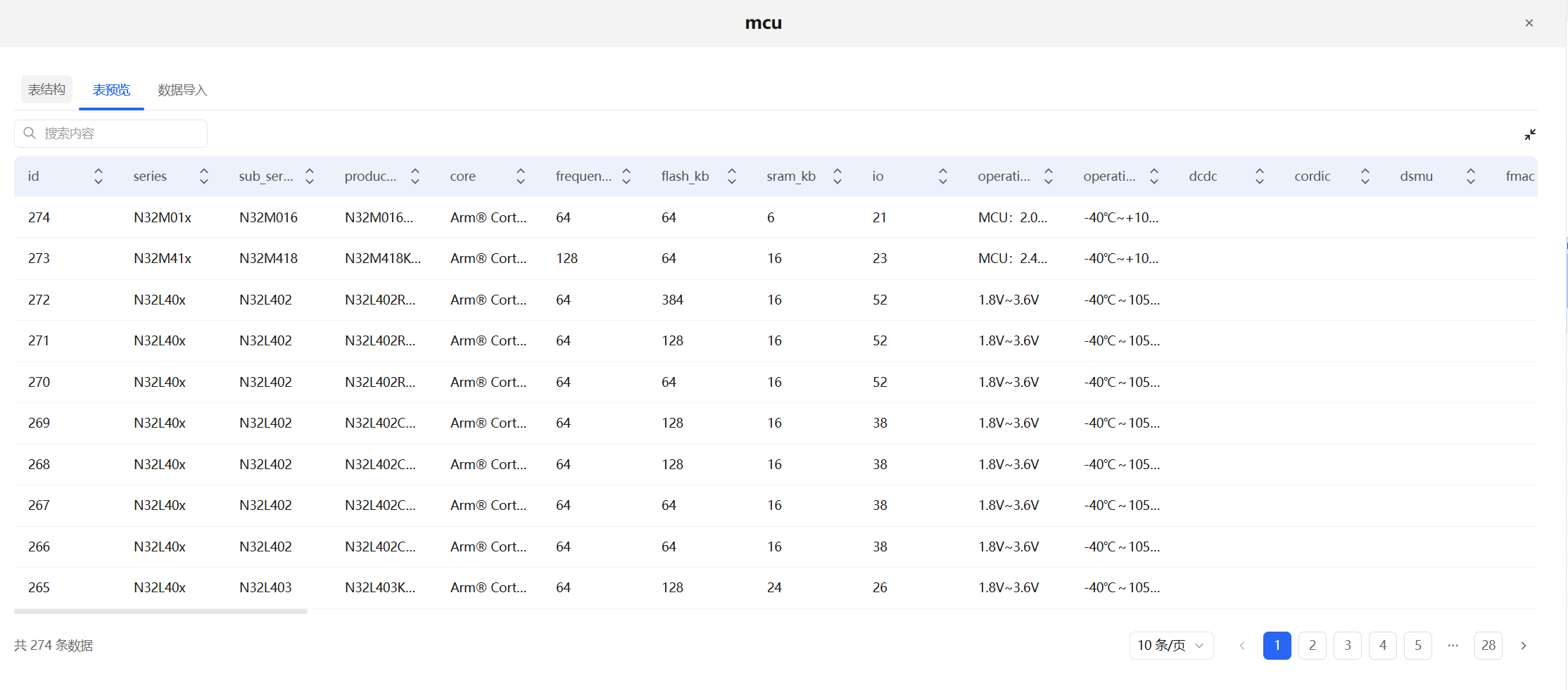
3. Preview data — After import, switch to the table preview tab. A global search box is available at the top left, and imported data is displayed in a paginated list below.
Add a Database to the Node
In the database dialog, click Add to add the database table to the node's data table list. You can add or remove tables as needed.
Remove a Database
In the database dialog, click Delete to remove an added database.
Query Database Data
After adding a database, the node automatically executes the configured SQL statement when the user clicks Run, and outputs the result to downstream nodes.
SQL Generation
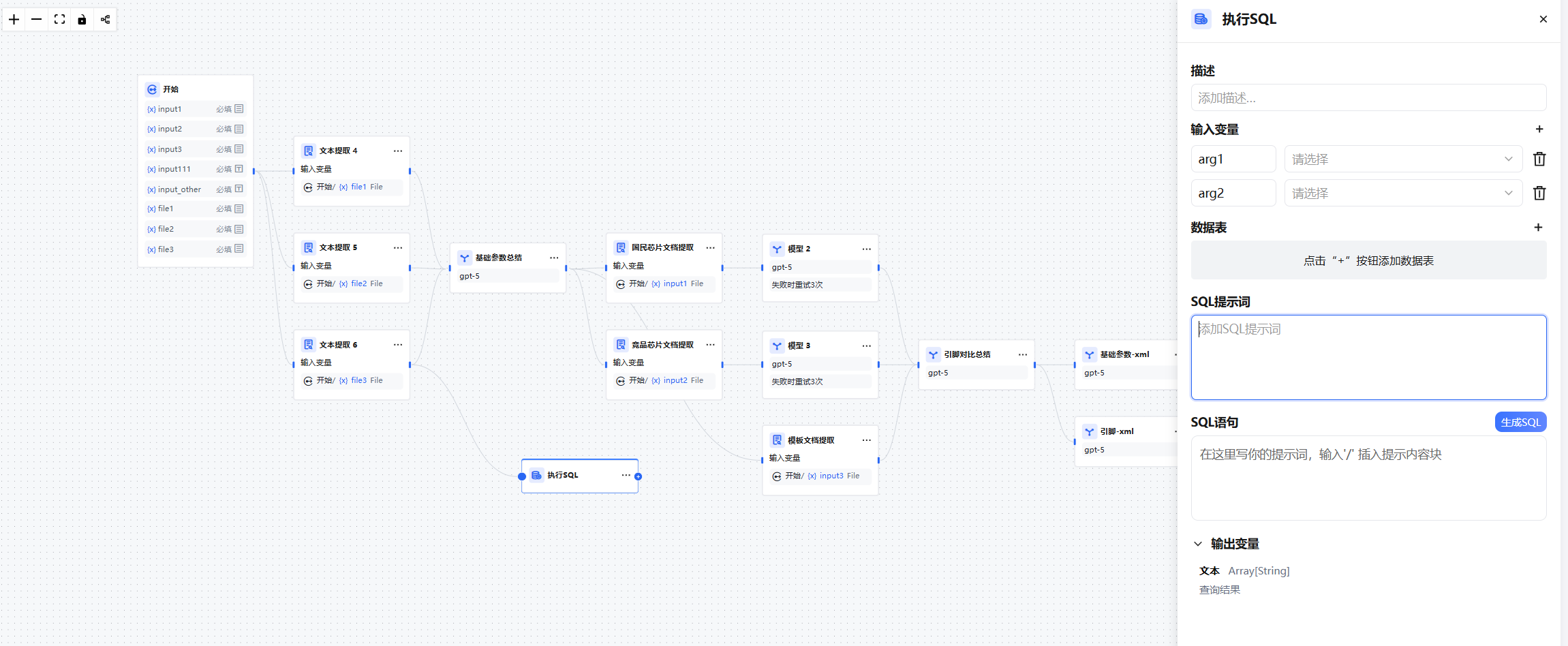
SQL Prompt — Based on the input variables and added database tables, enter a natural language description of the SQL operation you need in the SQL prompt field, then click Generate SQL. The SQL statement will be automatically generated in the SQL statement box below.
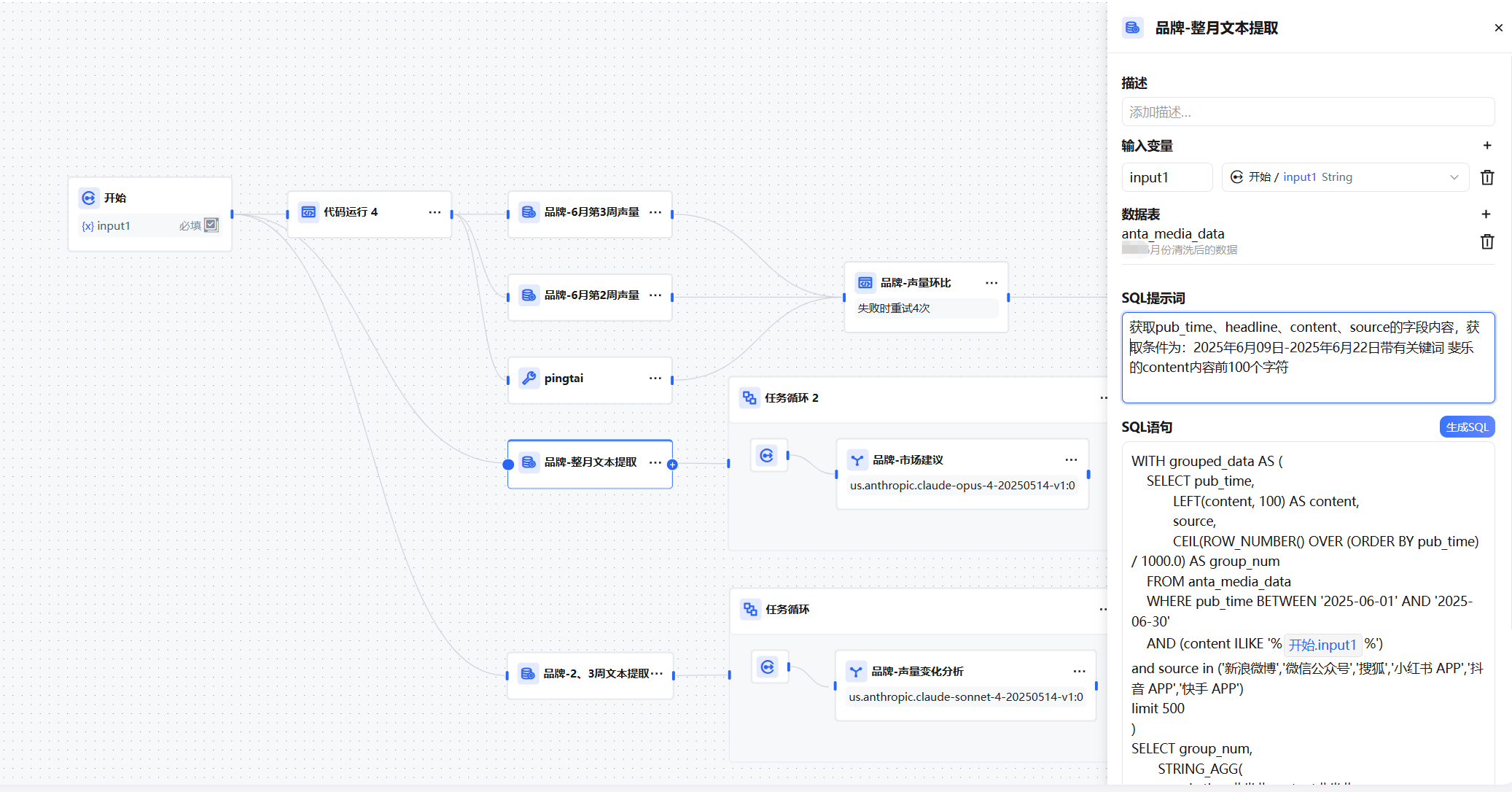
Parameters
| Parameter | Description |
|---|---|
| Database | Select the database table(s) to operate on; multiple tables supported |
| SQL Prompt | Enter a natural language description; click "Generate SQL" to auto-generate the SQL statement |
| SQL Statement | The final SQL to execute; can be manually edited after generation |
| Output Variable | Type Array[String]; passes query results to downstream nodes |
Typical Use Case
Fixed Report Data Query
Requirement: Each time the workflow is triggered, automatically query order summary data for a specified time range and pass it to a downstream node to generate a report.
Steps:
- Create a database and import the orders table
- Add the database to the Execute SQL node
- Enter "Query total amount and order count for all orders this month" in the SQL prompt, then click Generate SQL
- Confirm the generated SQL is correct, then pass the output to a downstream Model node or Direct Reply node
Start Node → Execute SQL Node (fixed SQL query) → Model Node (format output) → Direct Reply NodeFAQ
Q: What's the difference between Execute SQL and Conversational SQL?
Execute SQL runs a fixed, pre-configured SQL statement each time it's triggered — suitable for reports, data writes, and deterministic operations. Conversational SQL (in conversational workflows) dynamically generates and executes SQL based on the user's natural language input each turn — suitable for interactive data query scenarios.
Q: Can I manually edit the generated SQL?
Yes. After clicking "Generate SQL", the SQL statement box is editable. You can adjust and optimize the auto-generated SQL as needed.